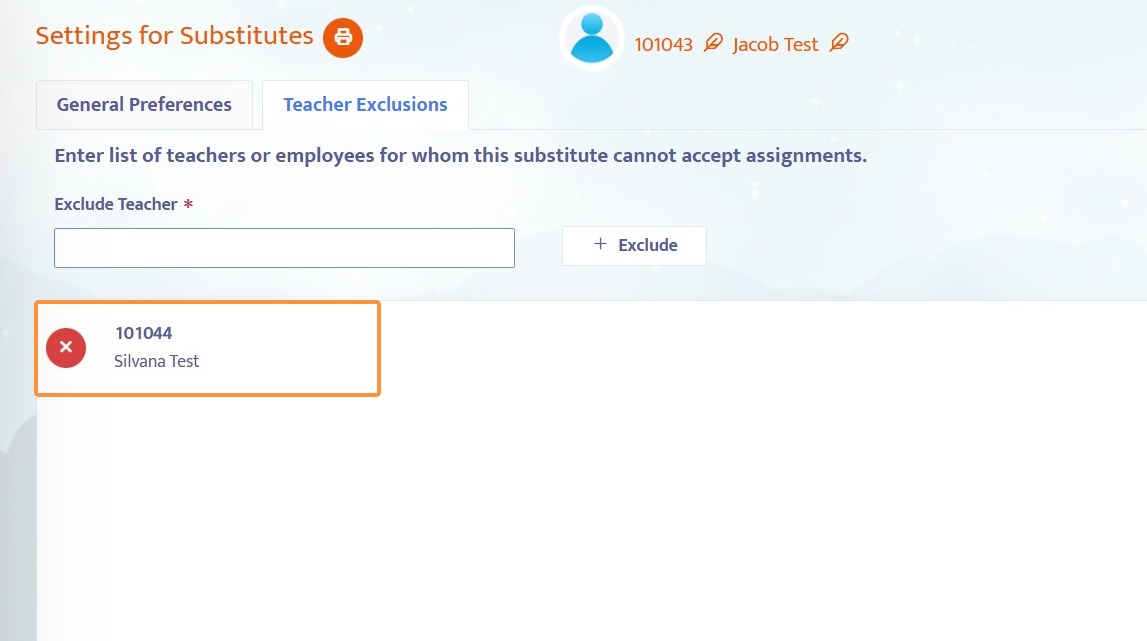
This guide shows how to prevent a specific substitute from accepting assignments from specific teachers by adding those teachers to the substitute’s exclusion list.
Note: There may be situations where a substitute needs to be restricted from accepting assignments for specific teachers. This guide will instruct you on how to apply this restriction on a substitute.
Note: We will be adjusting a substitute's settings to prevent them from accepting assignments from a specific teacher. This change is applied to the substitute's sub pool preferences, not the teacher's sub pool preferences.
Navigate to Teacher Exclusions Settings
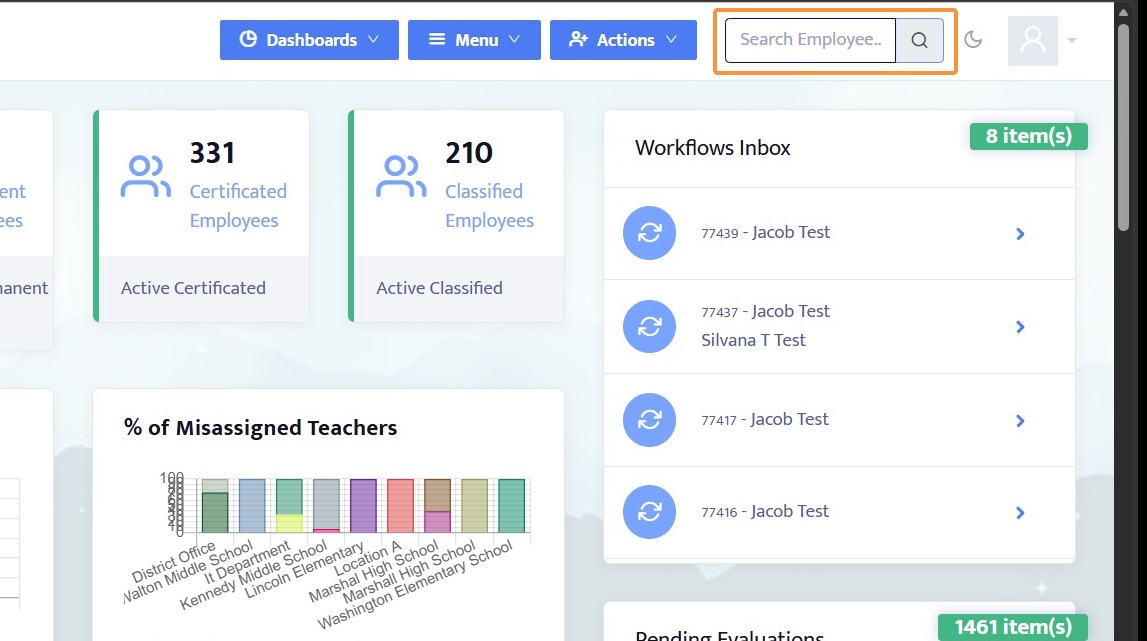
1. Search for a substitute by using the Search Employee box.
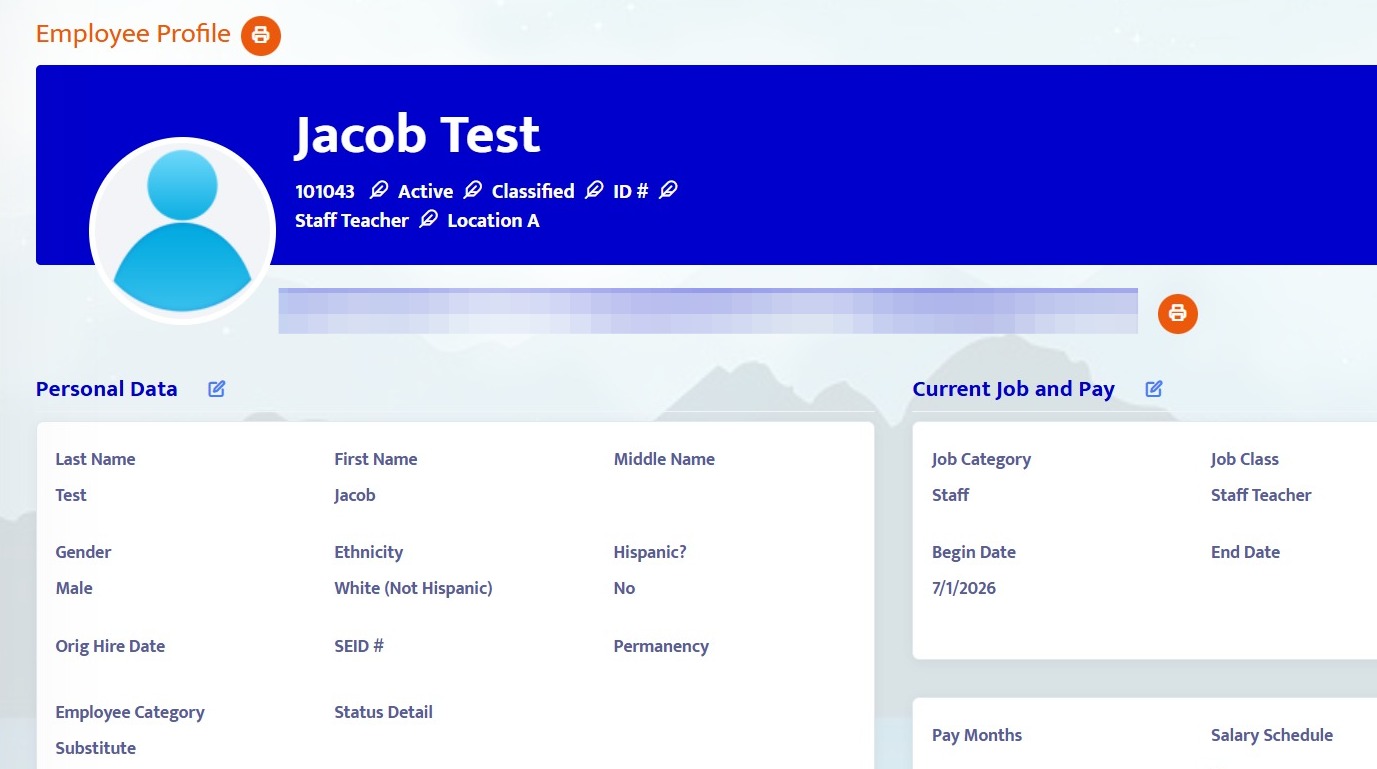
2. This will pull up the substitute's employee profile page.
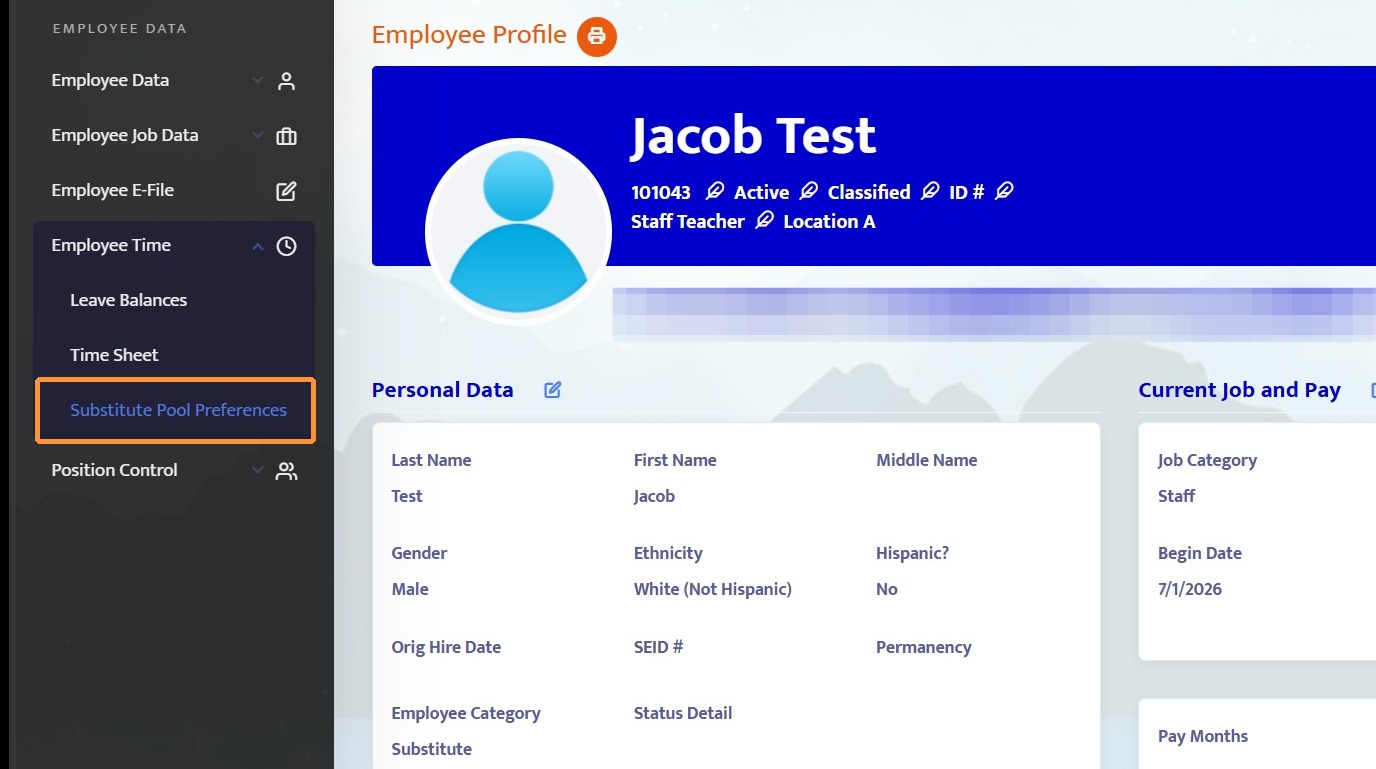
3. On the left-hand menu, click Substitute Pool Preferences under Employee Time.
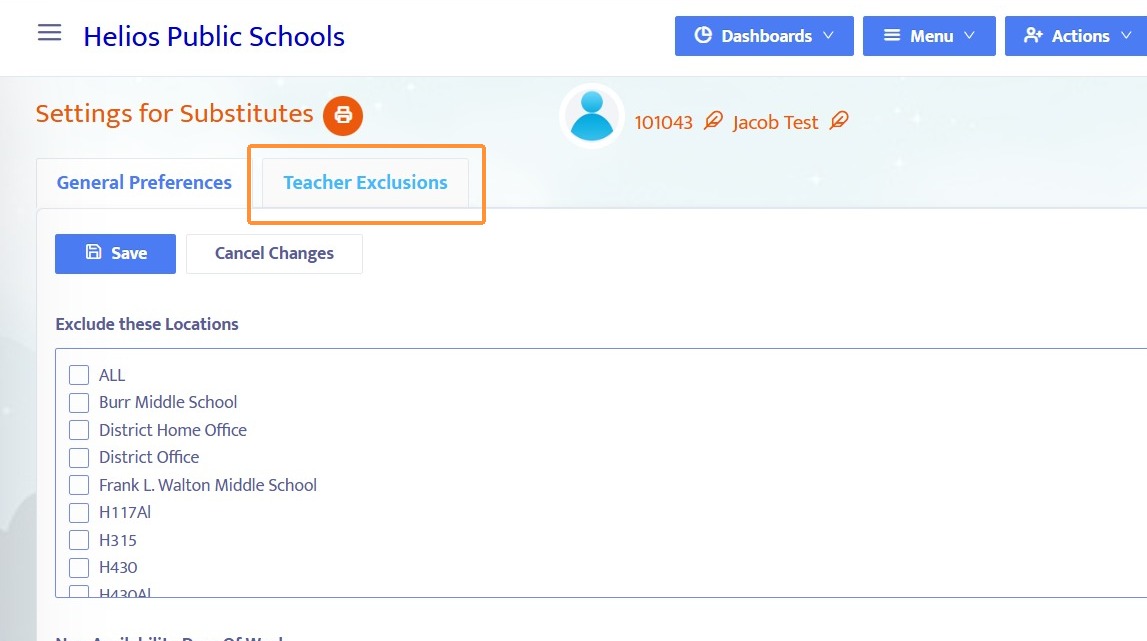
4. On the Settings for Substitutes page, click the Teacher Exclusions tab to navigate to Teacher Exclusions.
Configure Teacher Exclusions
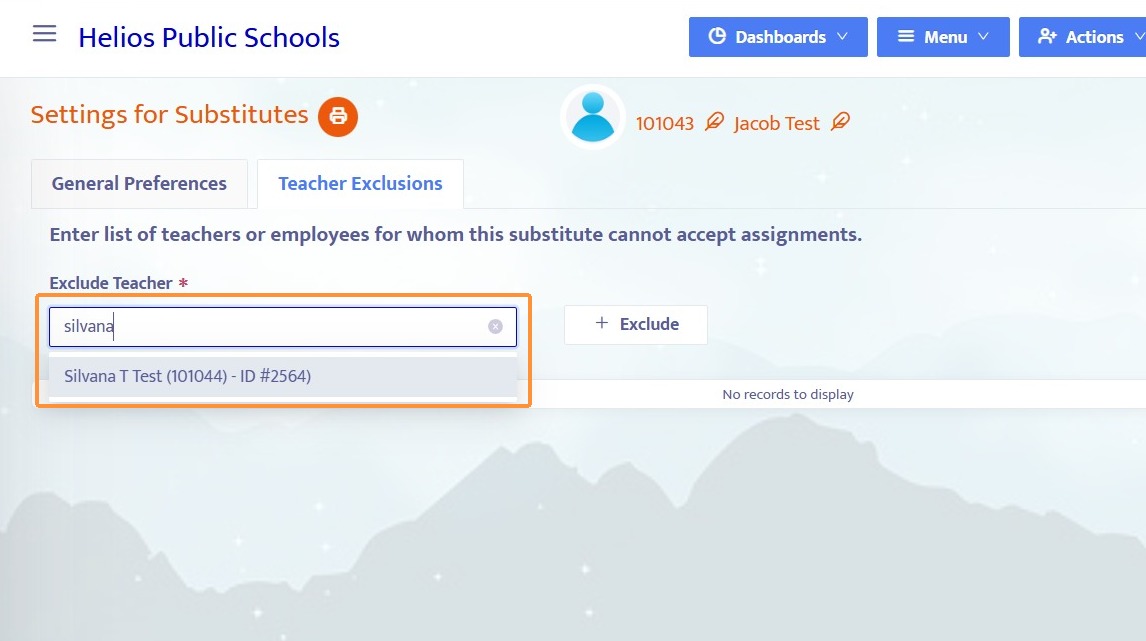
5. Enter the name of a teacher in the search box.
6. Click + Exclude to add the teacher to the list of excluded teacher for this substitute.
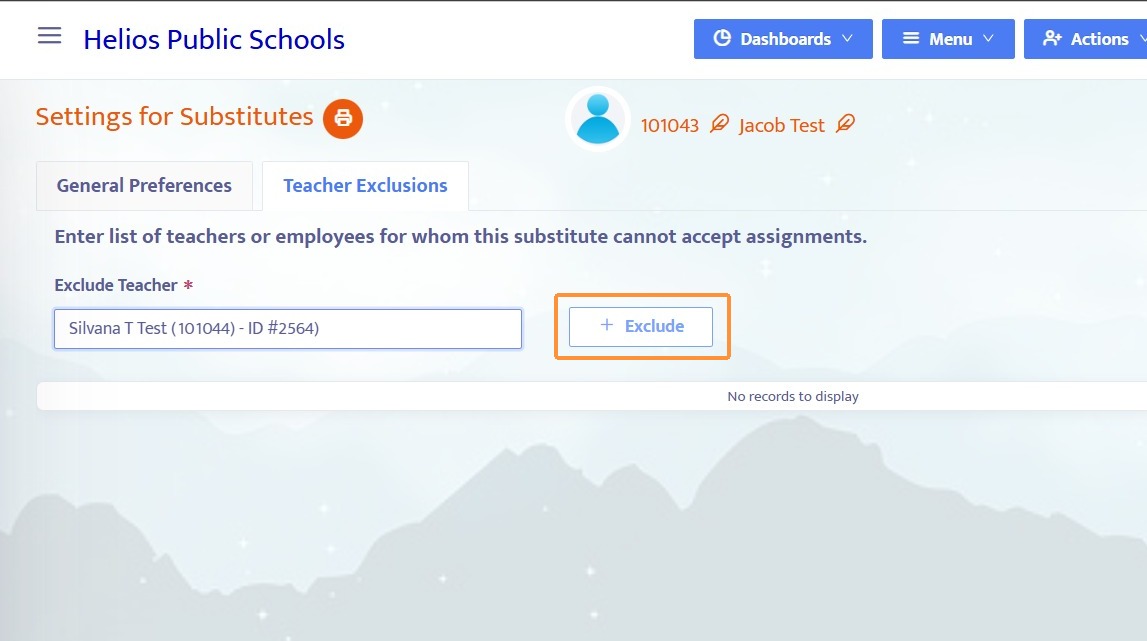
7. The teacher is now excluded from this substitute's available assignments. This substitute will not have the ability to accept assignments from this teacher. To remove a teacher from the exclusion list, click the X button.