Setting Up Specific Skill Groups to Exclude Subs from Picking Up Assignments
This guide will show you how to use Skills in Helios to control which substitutes can see and pick up certain assignments.
For example, let's say you have an elementary school and you want to make sure that only approved substitutes can pick up elementary school assignments. You can do this by creating a skill, such as Elementary School K-5, and assigning it to both the employees who work at that school and the substitutes who are approved to work there.
Here's how it works:
-Every employee who should have their absences restricted is given the Elementary School K-5 skill.
-Every substitute who should be able to pick up those assignments is also given the Elementary School K-5 skill.
-Any substitute who is not given that skill will not see those assignments when searching for available jobs.
This allows you to create groups of employees and matching groups of substitutes, ensuring that only the appropriate substitutes can view and accept specific assignments.
In this guide, we'll use Elementary School K-5 as our example, but you can create skills for any group of employees or assignments that you would like to restrict.
Create the Skill
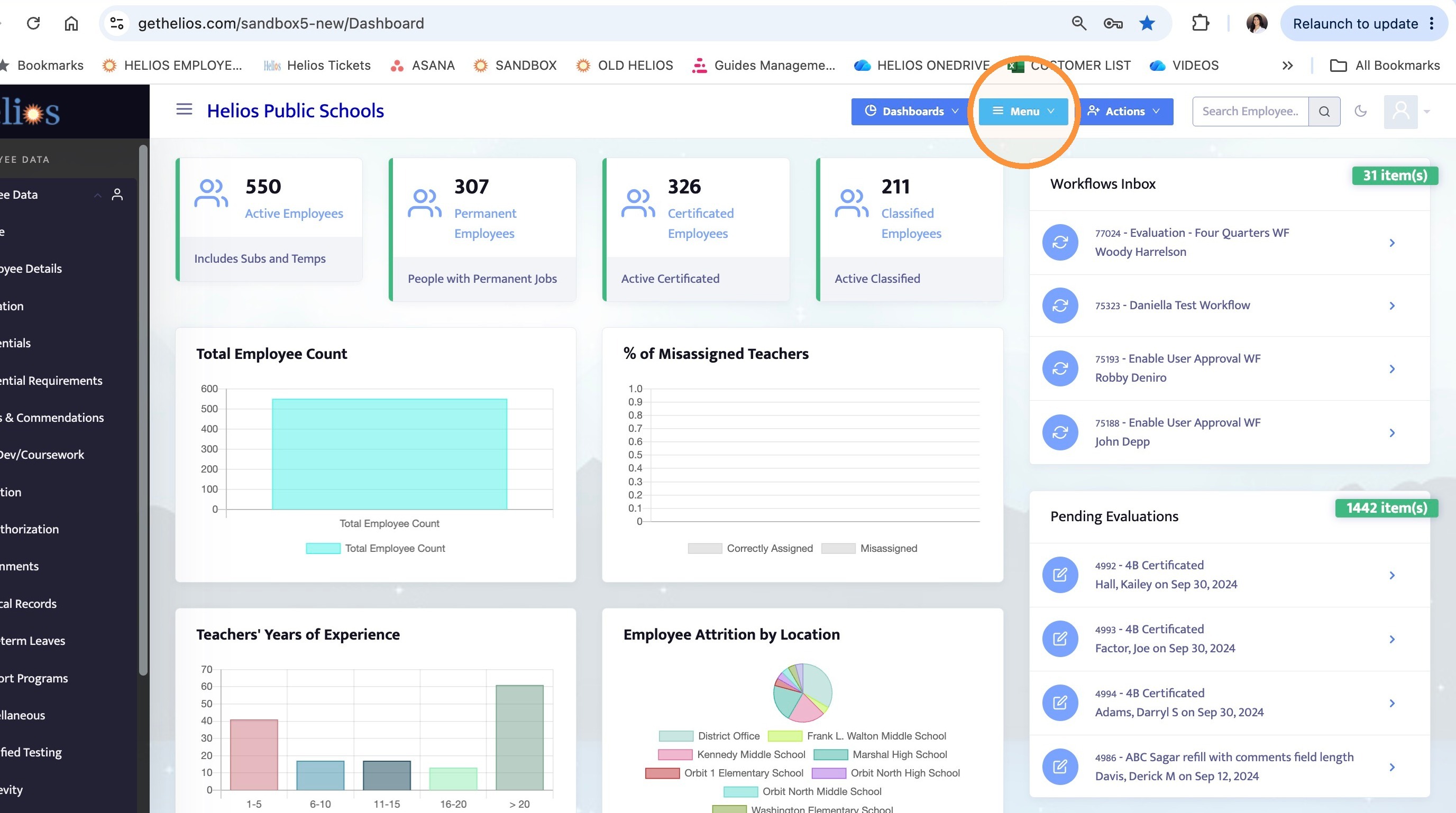
1. Click the Actions menu
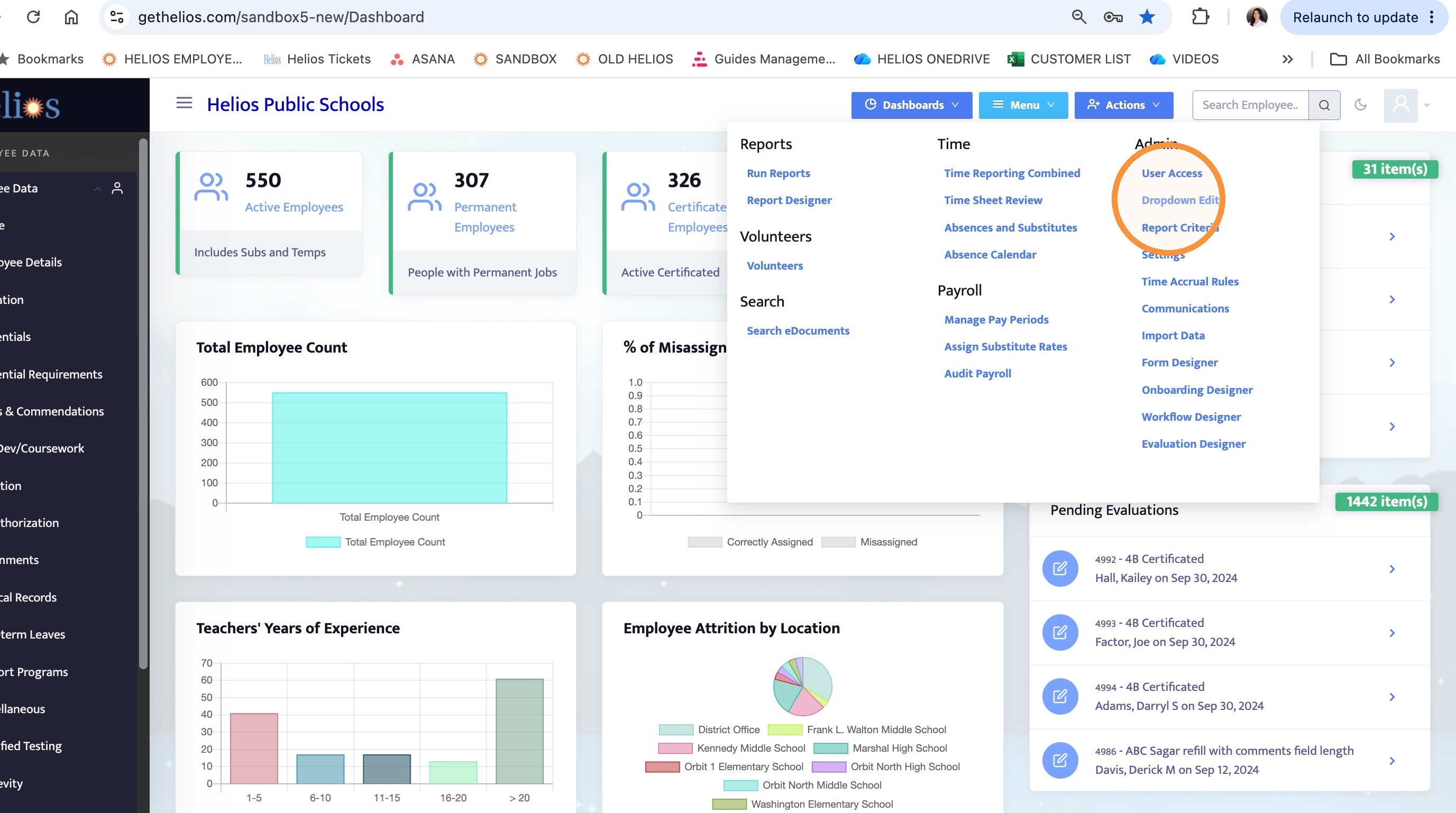
2. Click Dropdown Edits:
Dropdown Edits is the screen that contains all of the configurable dropdown lists in Helios. Any time you need to add, edit, or remove an option from a dropdown, this is where you will make those changes.
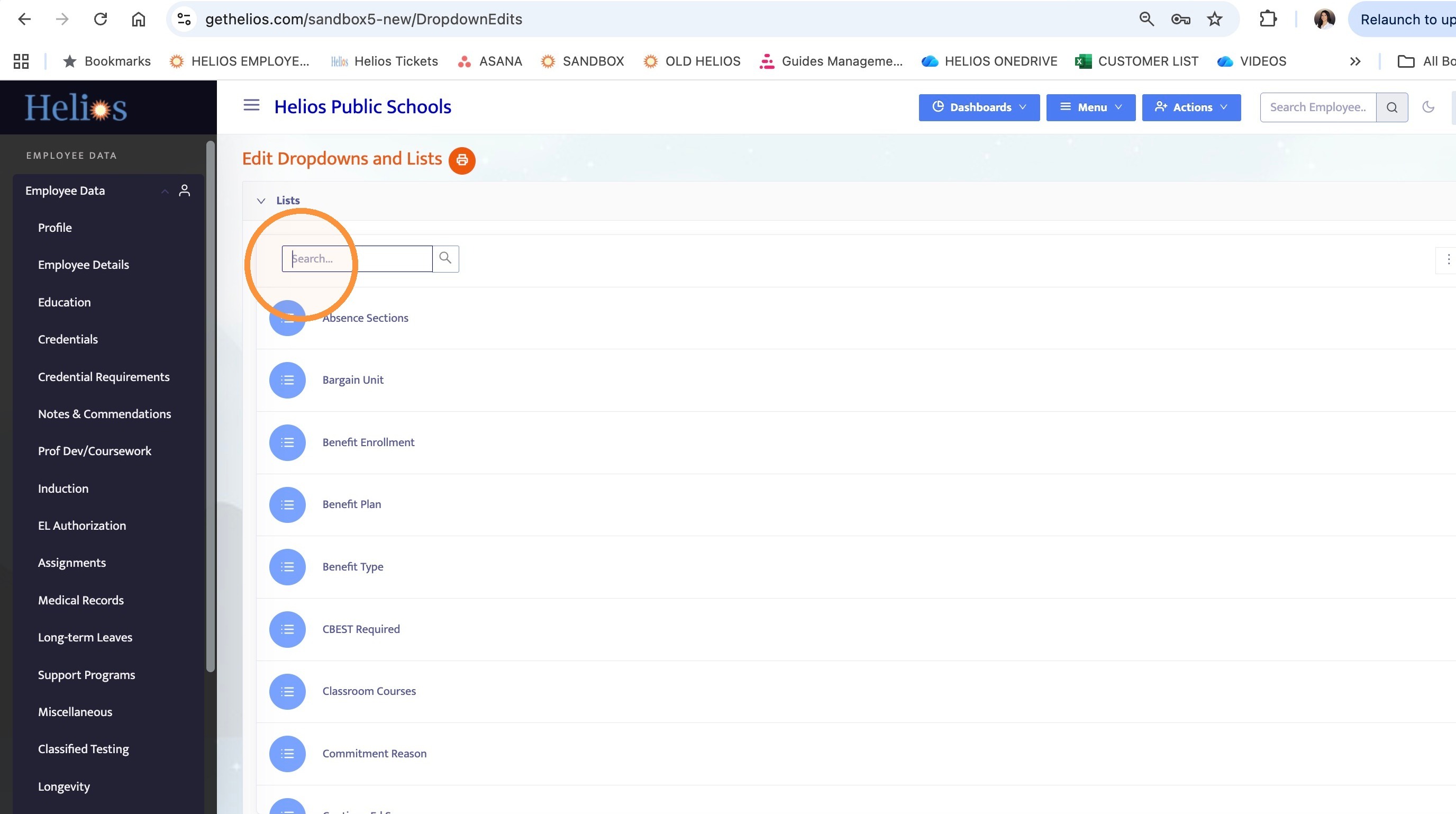
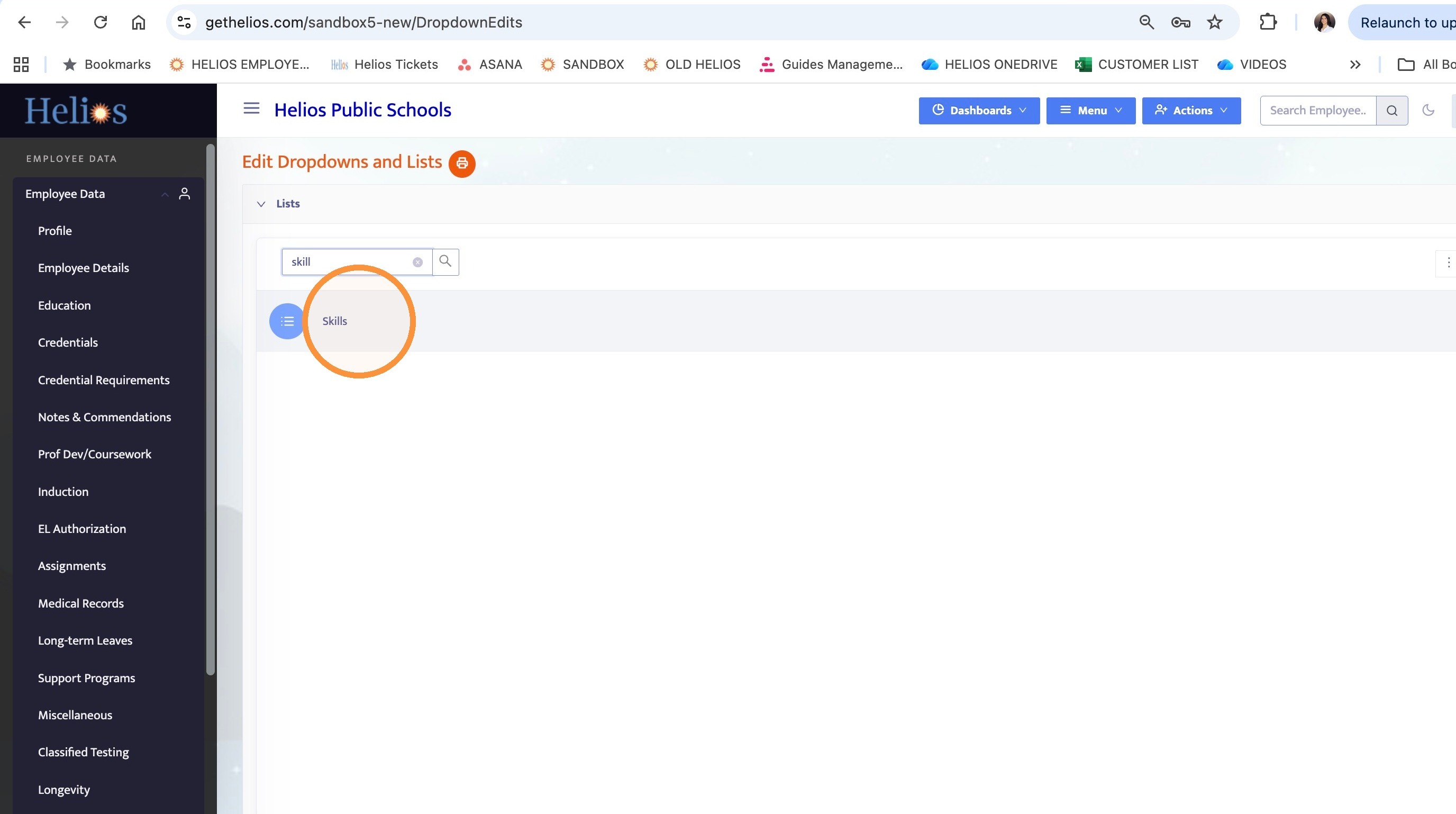
3. Search for "Skills."
4. Click the Skills list
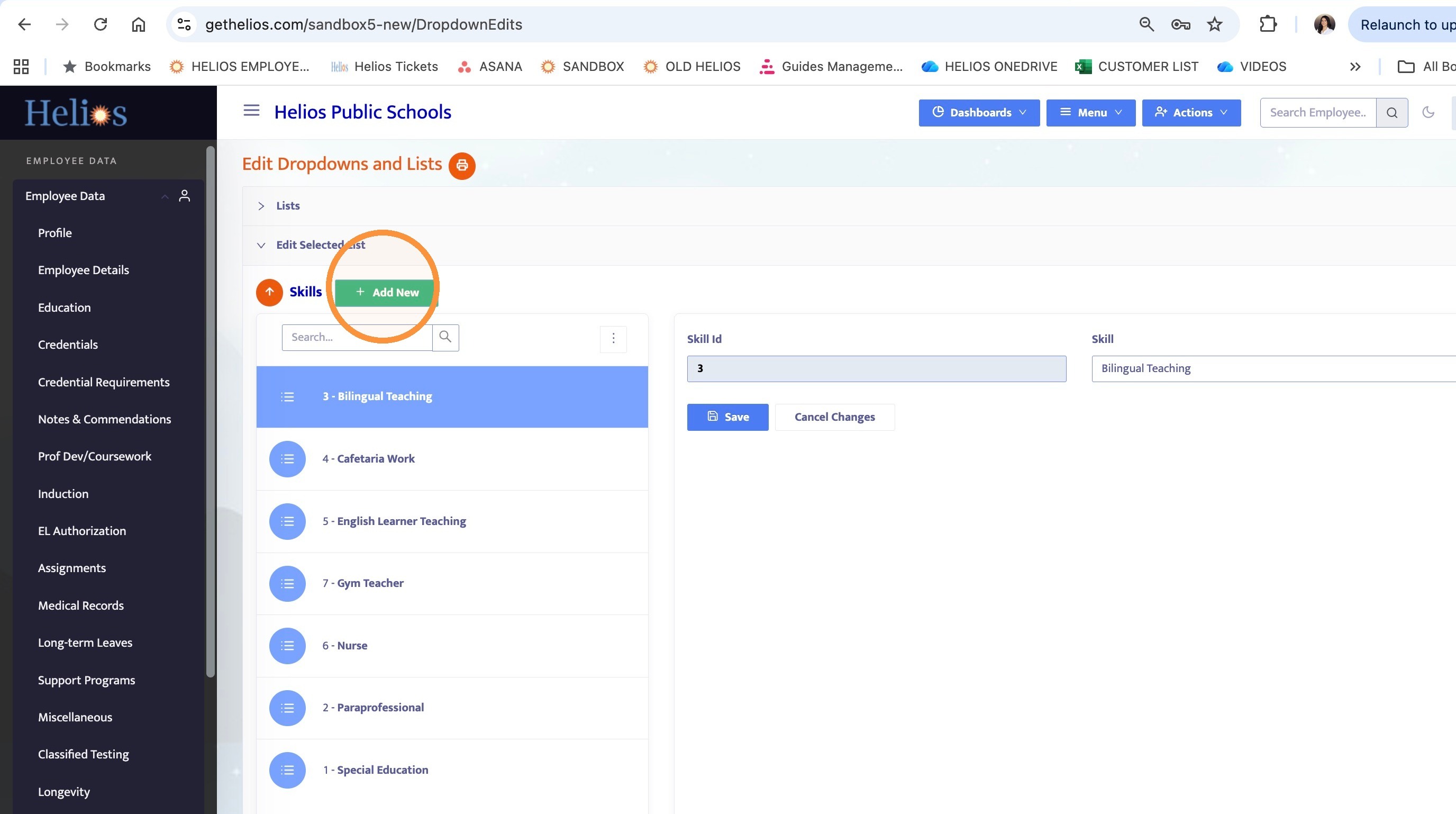
5. Click Add New, then enter the name of the new skill.
For this example, enter Elementary School K-5 as the skill name.
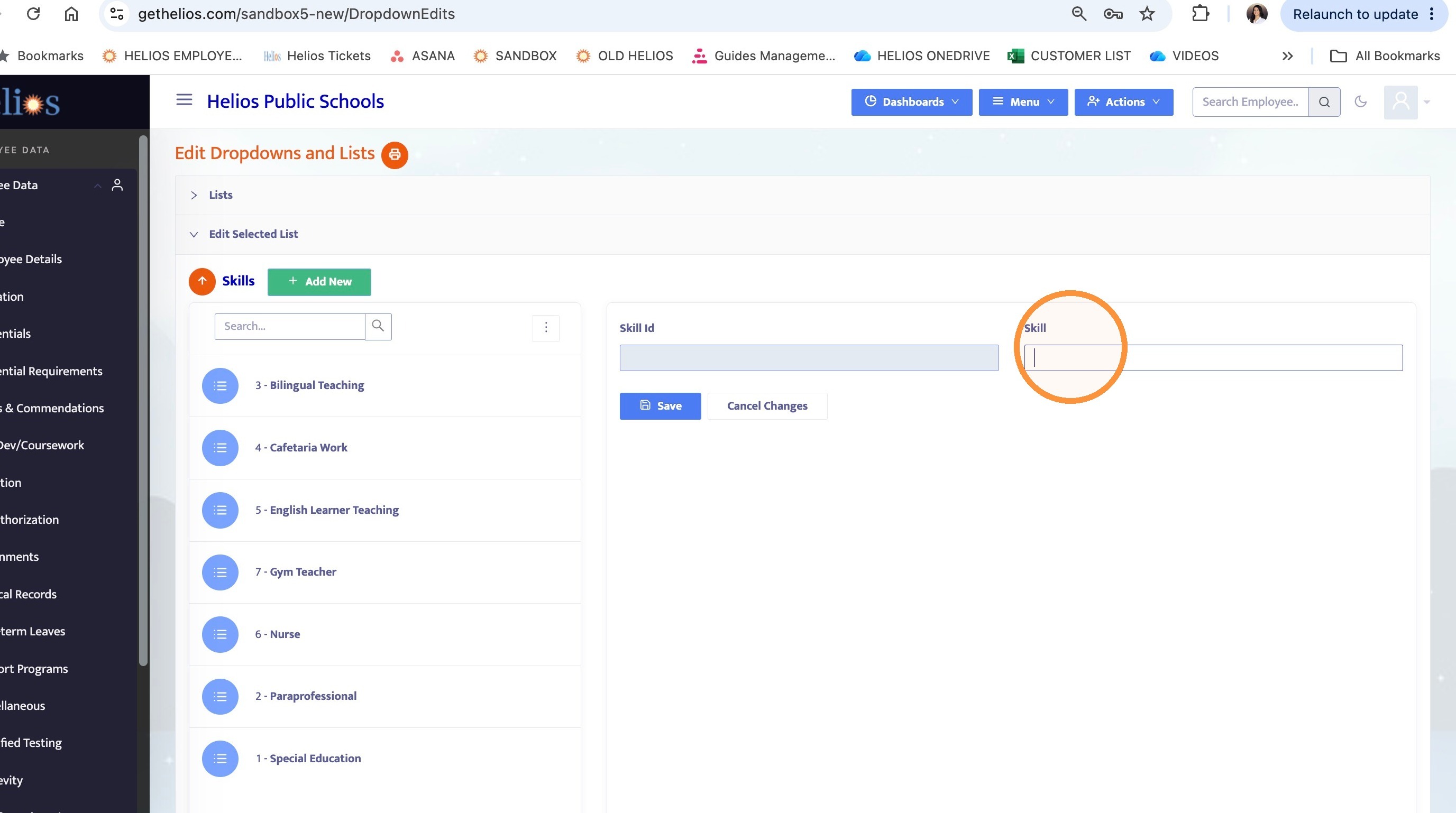
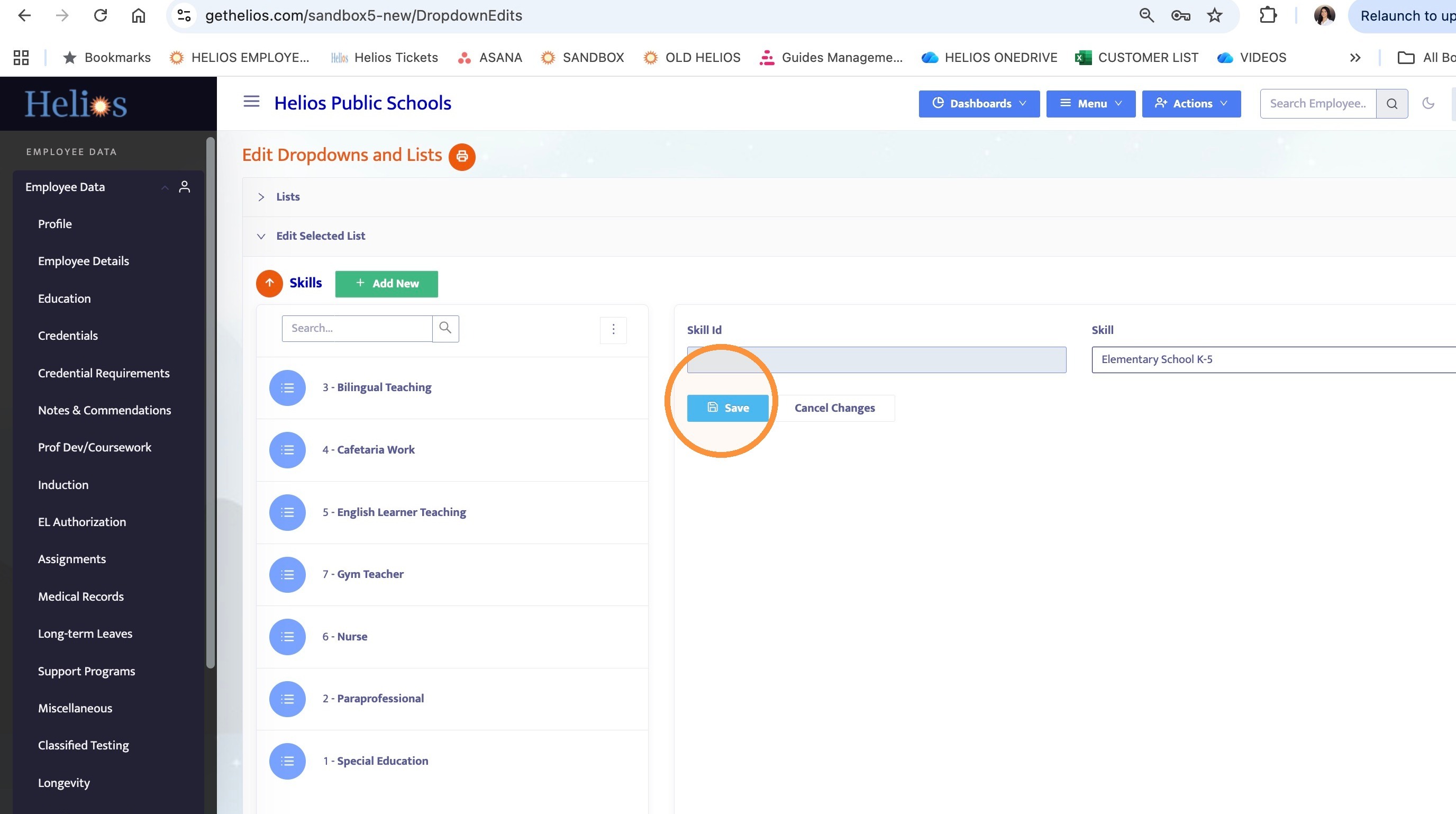
6. Click Save
Setup Employees
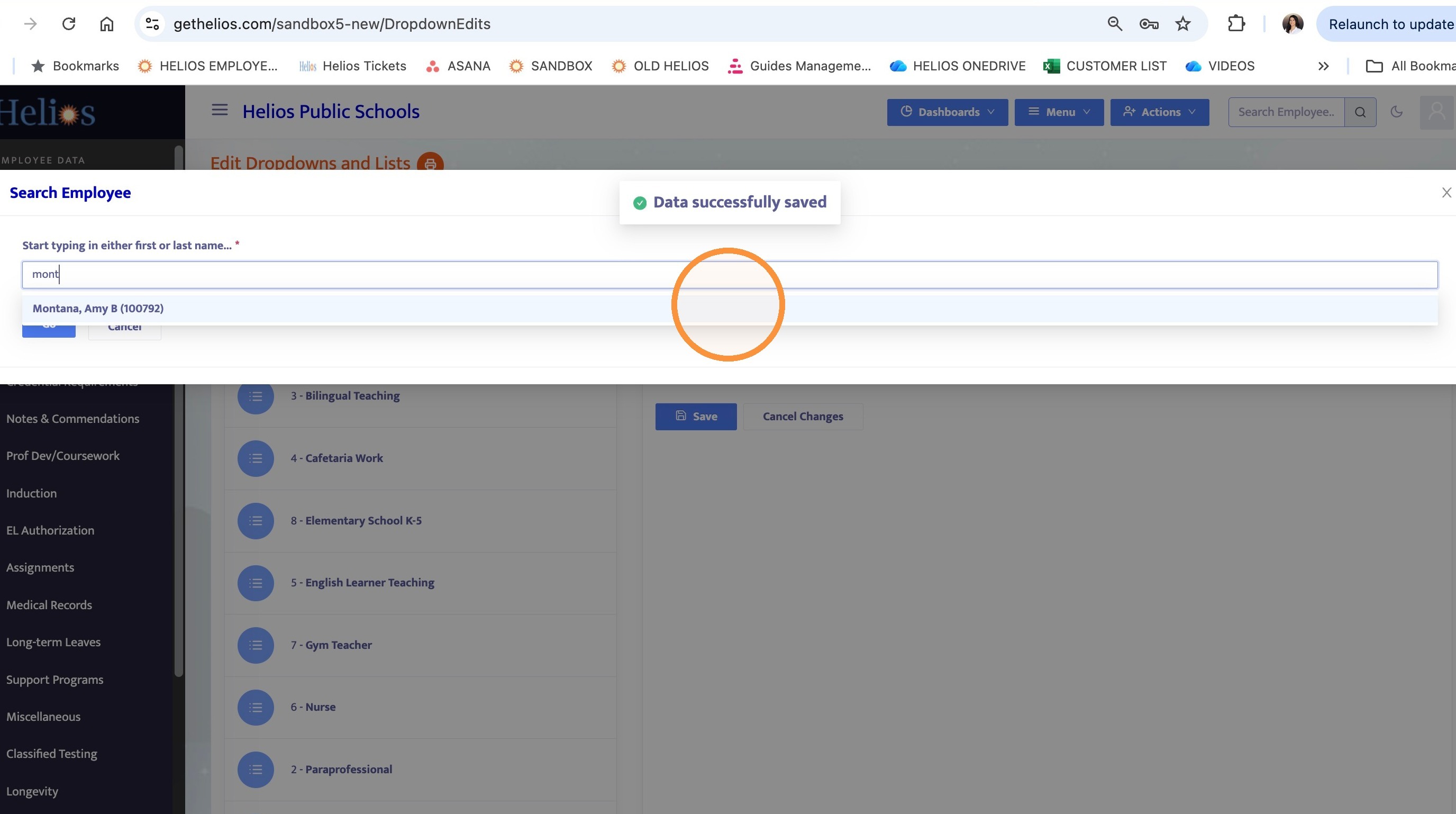
7. Search for the employee who will be entering the absence. In this example, this is the teacher.
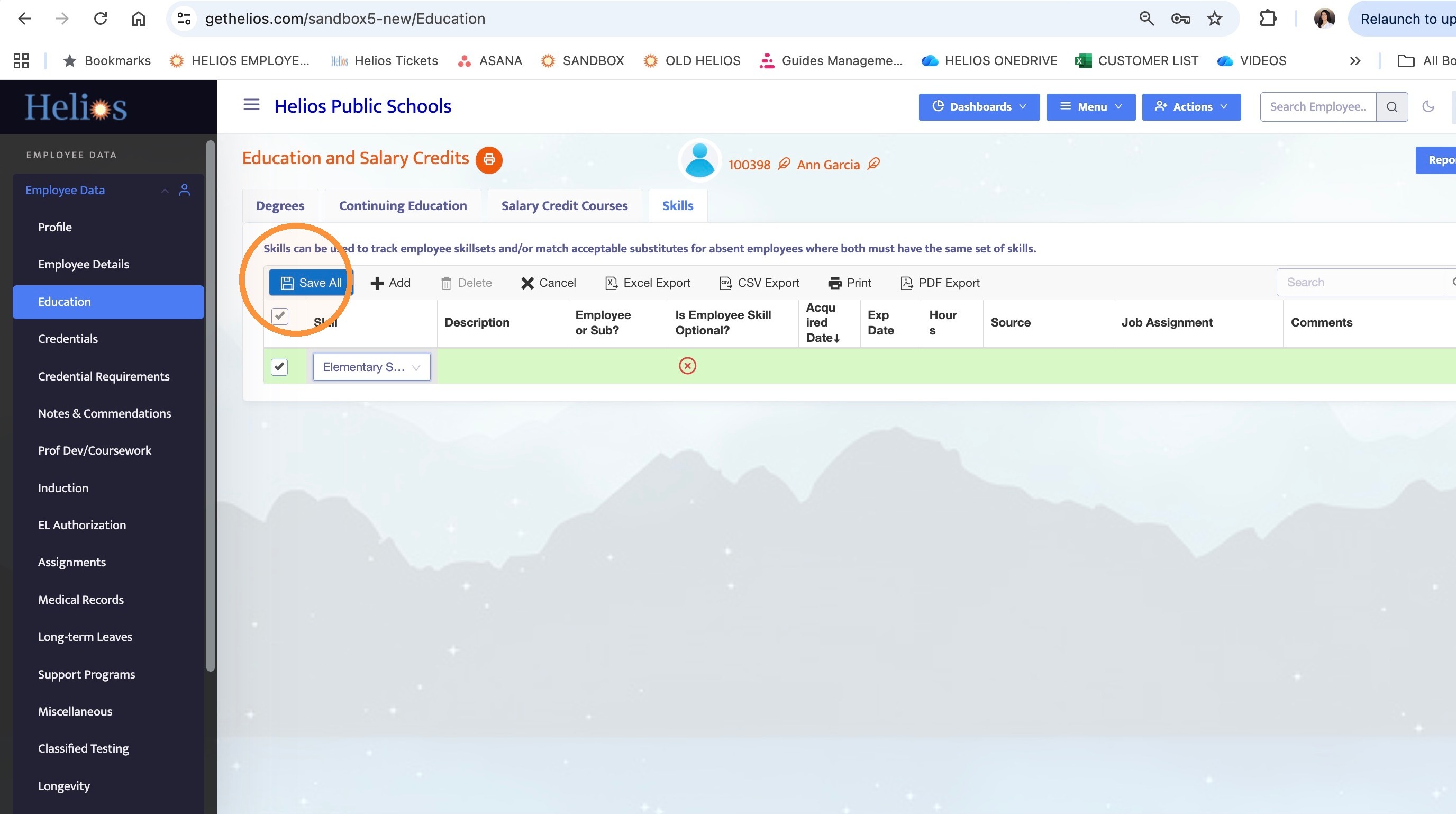
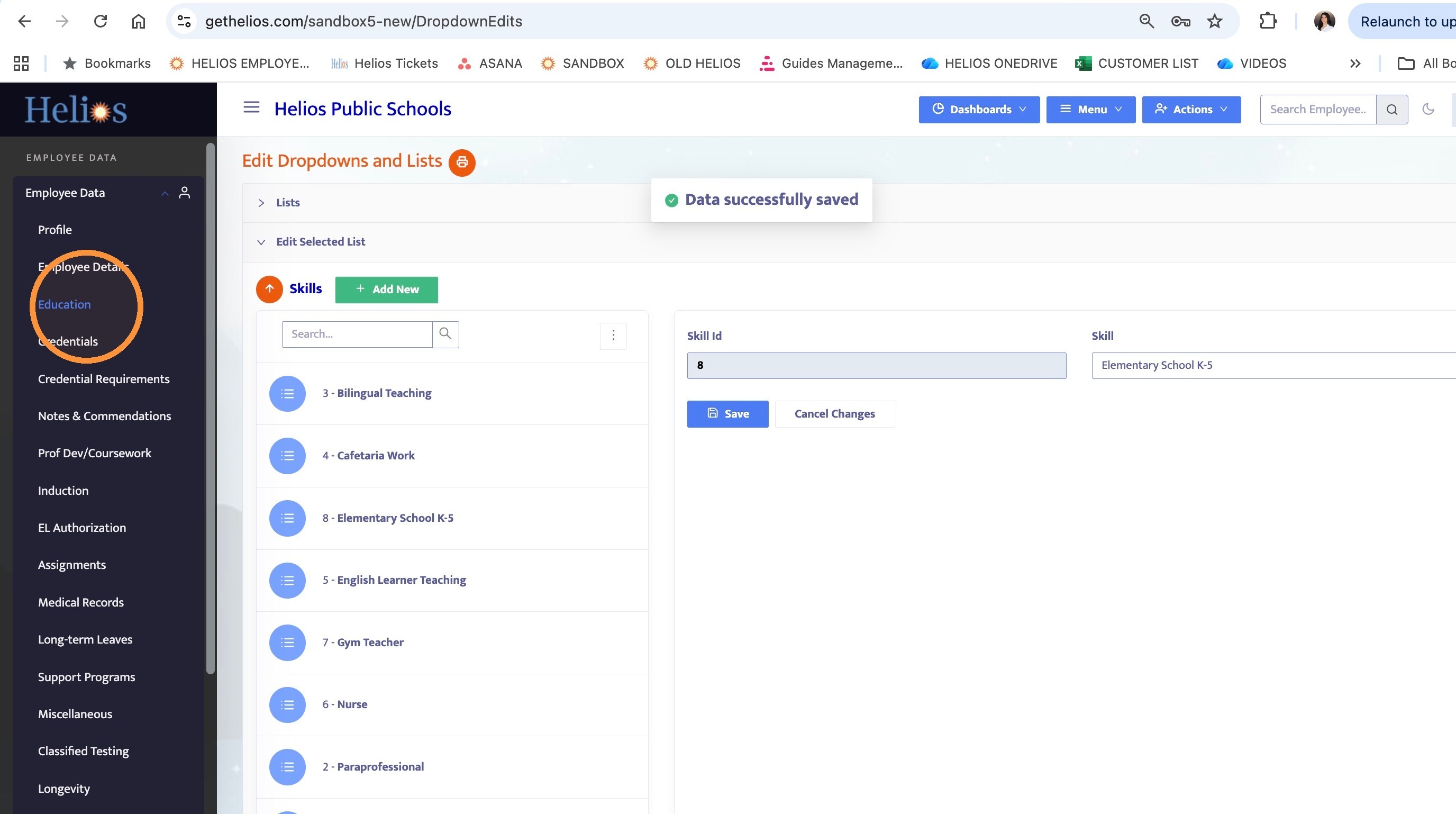
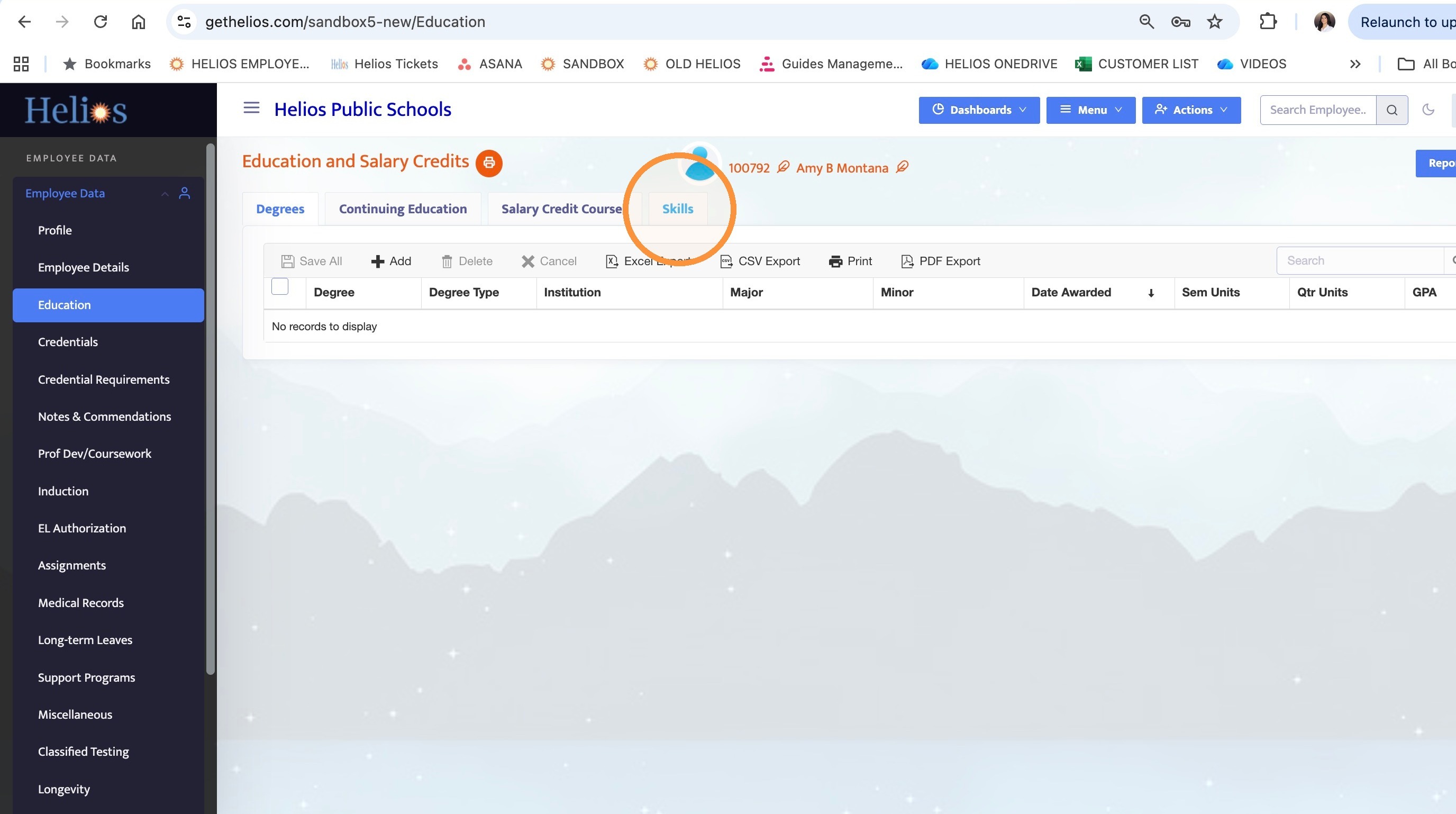
Open the employee's Education tab.
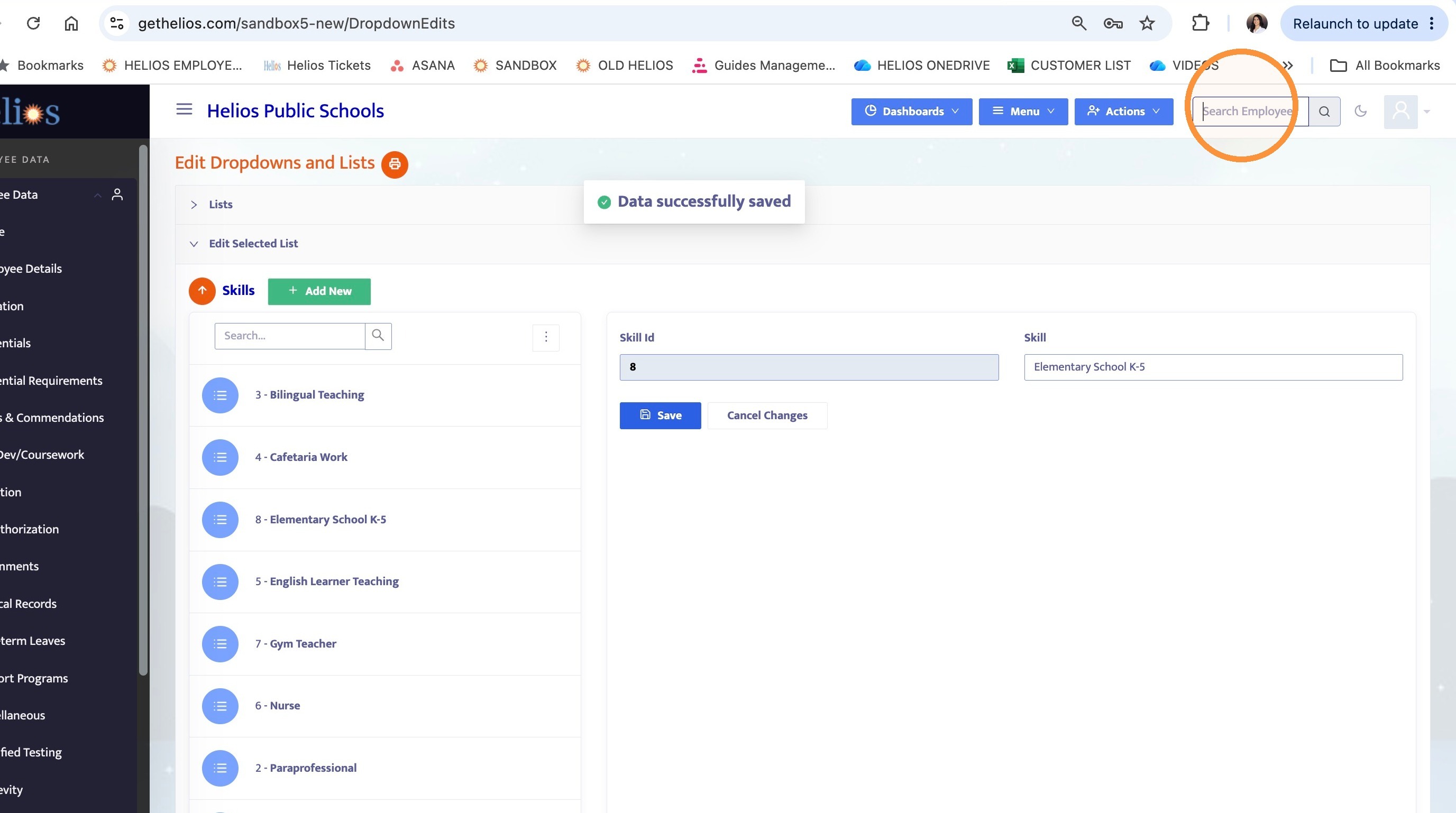
8. Select the employee
9. Click Education
10. Click the Skills tab
11. Click Add
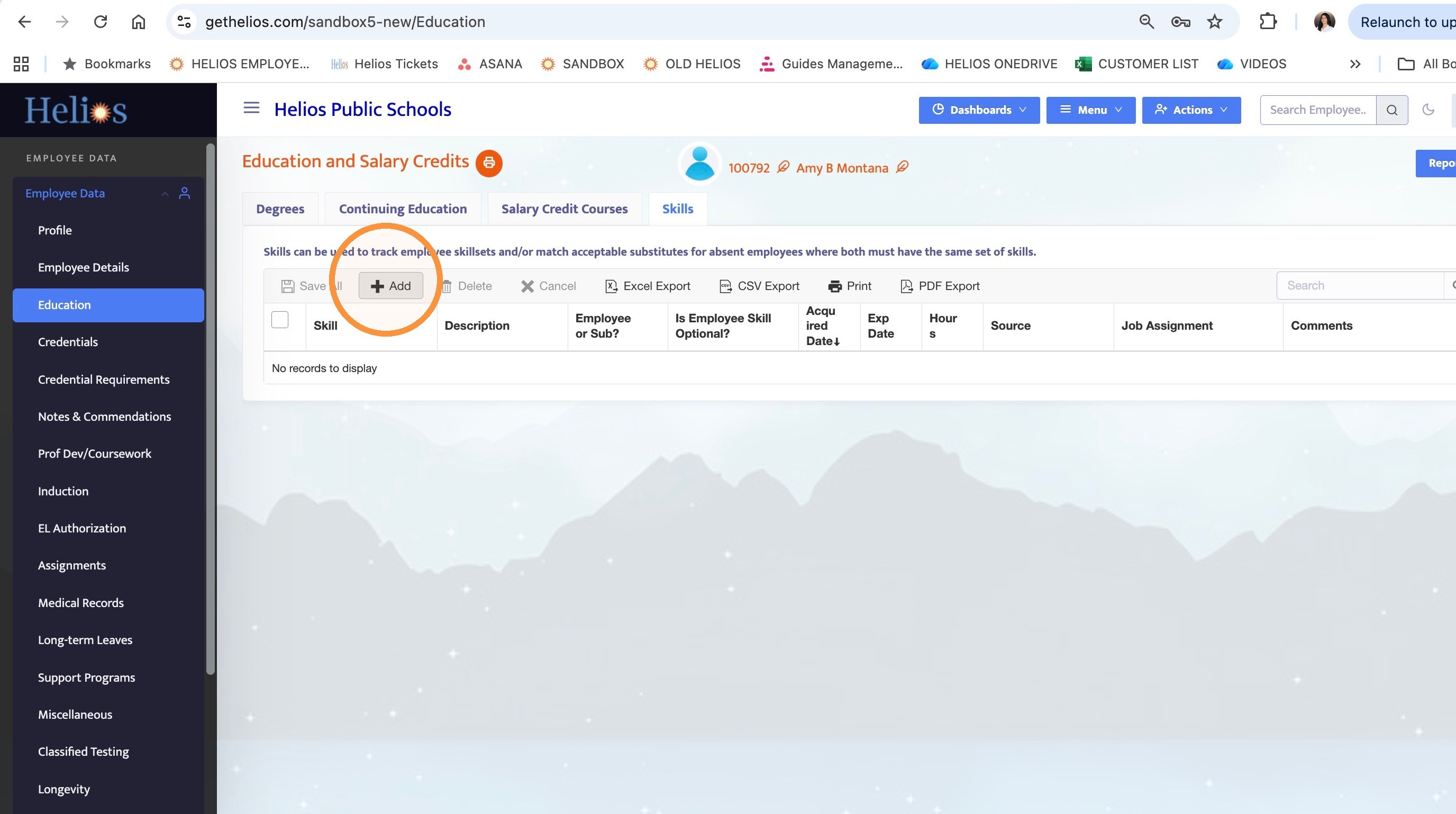
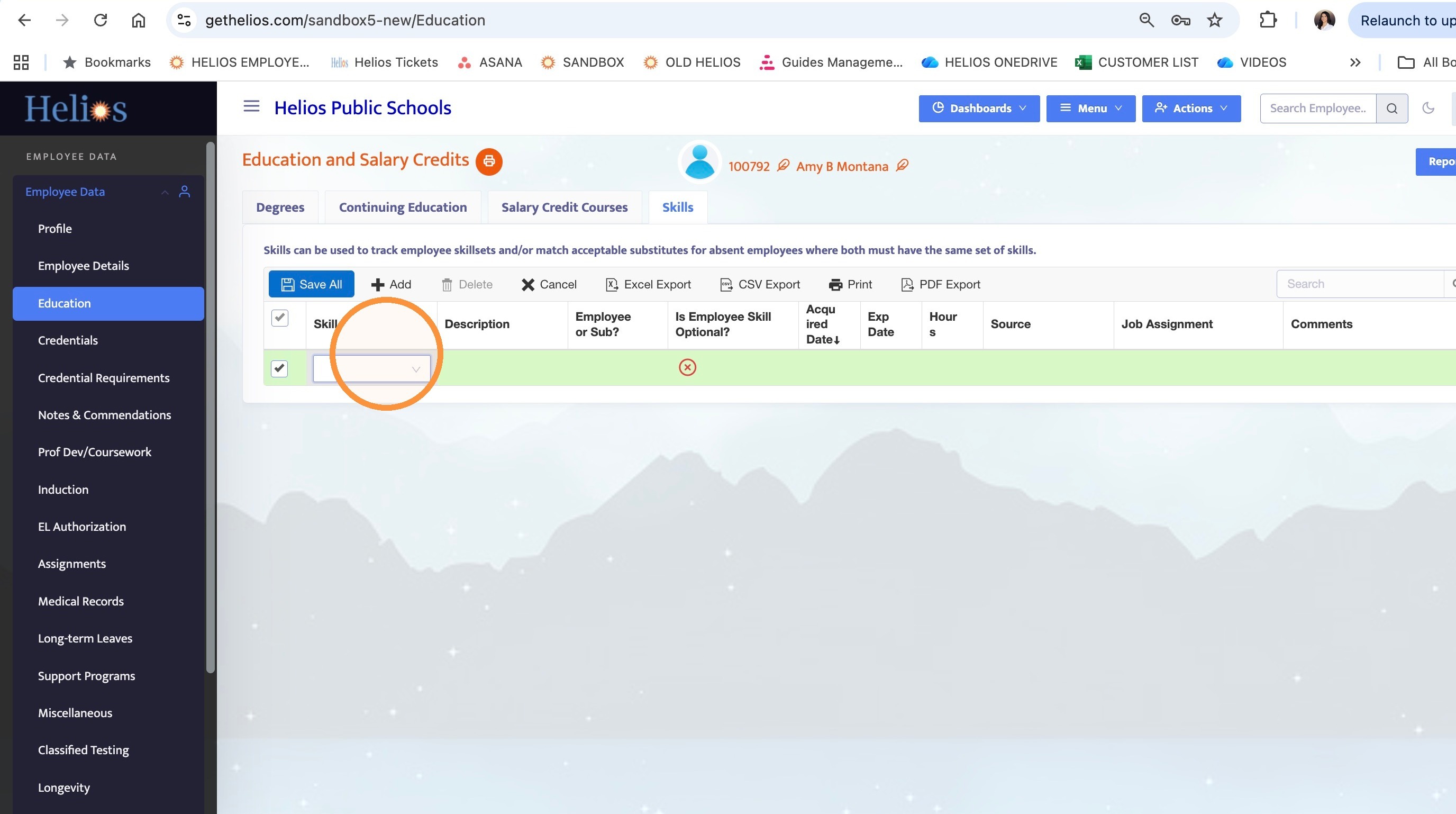
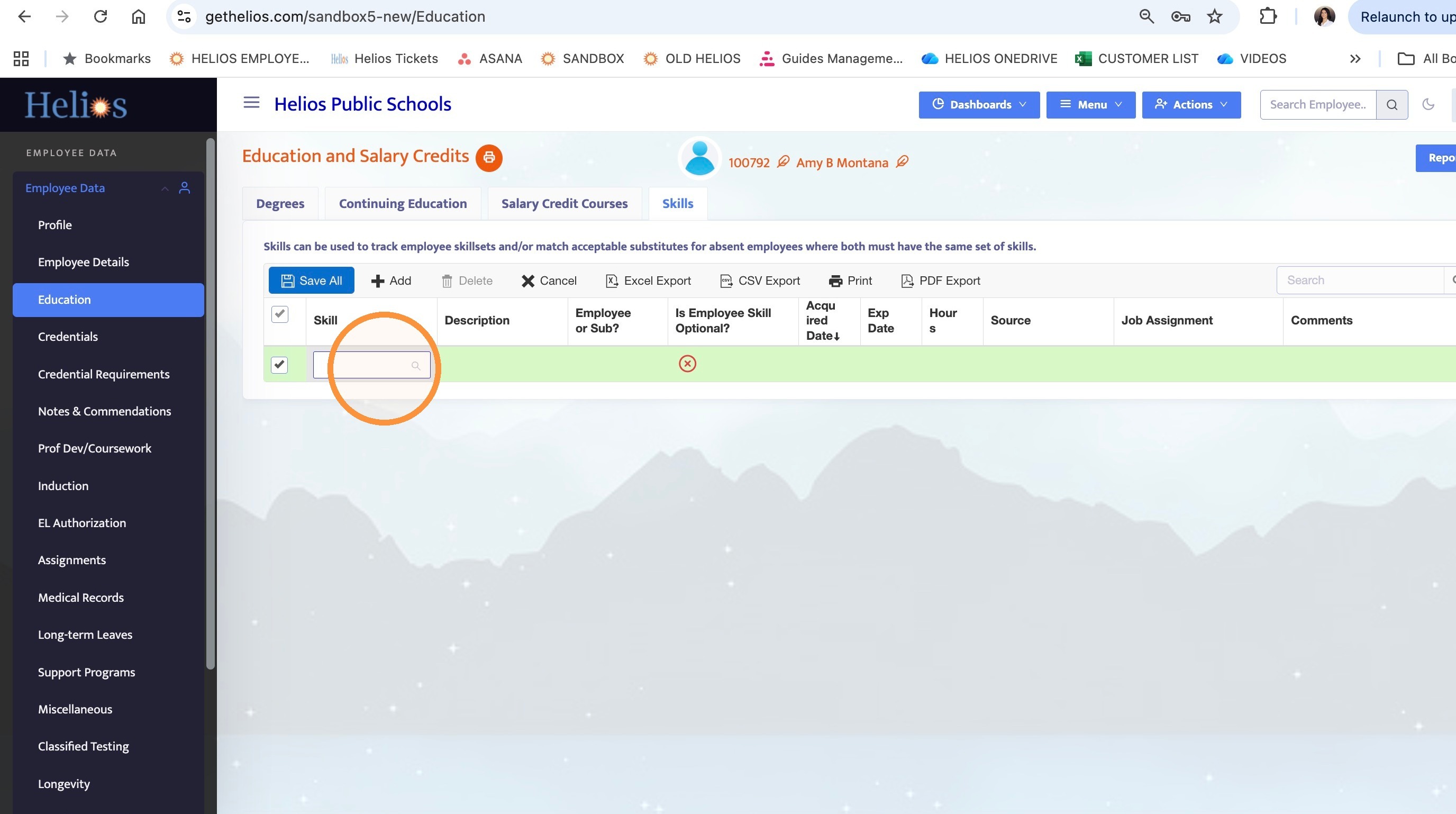
12. Search for the skill you just created, Elementary School K-5.
13. Select the Elementary School K-5 skill.
Once this skill is assigned to the employee, any absences they enter will only be visible to substitutes who also have the same skill assigned.
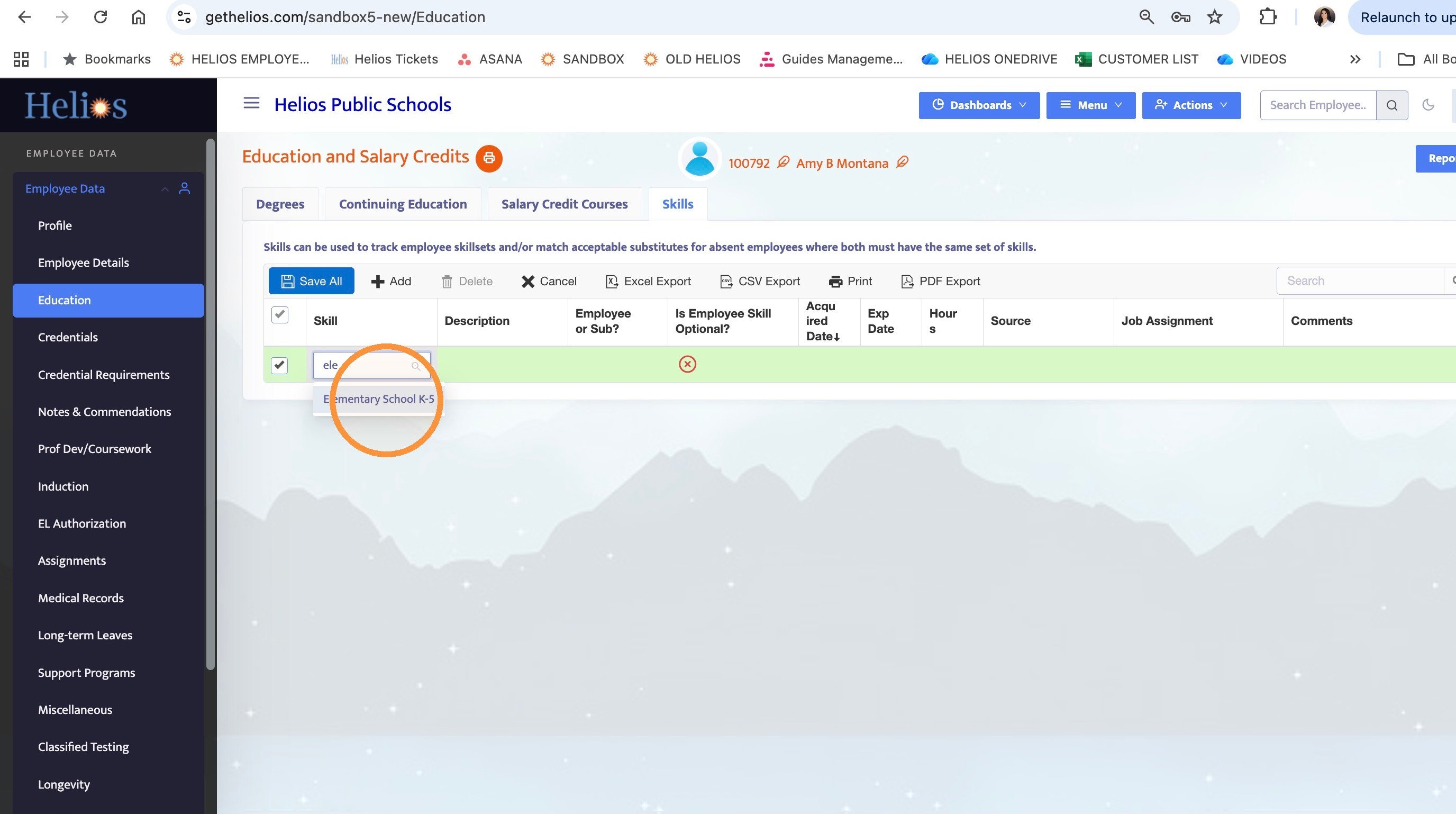
14. Select the Elementary School K-5 skill.
Once this skill is assigned to the employee, any absences they enter will only be visible to substitutes who also have the same skill assigned.
Make sure to SAVE.
Setup the Subs
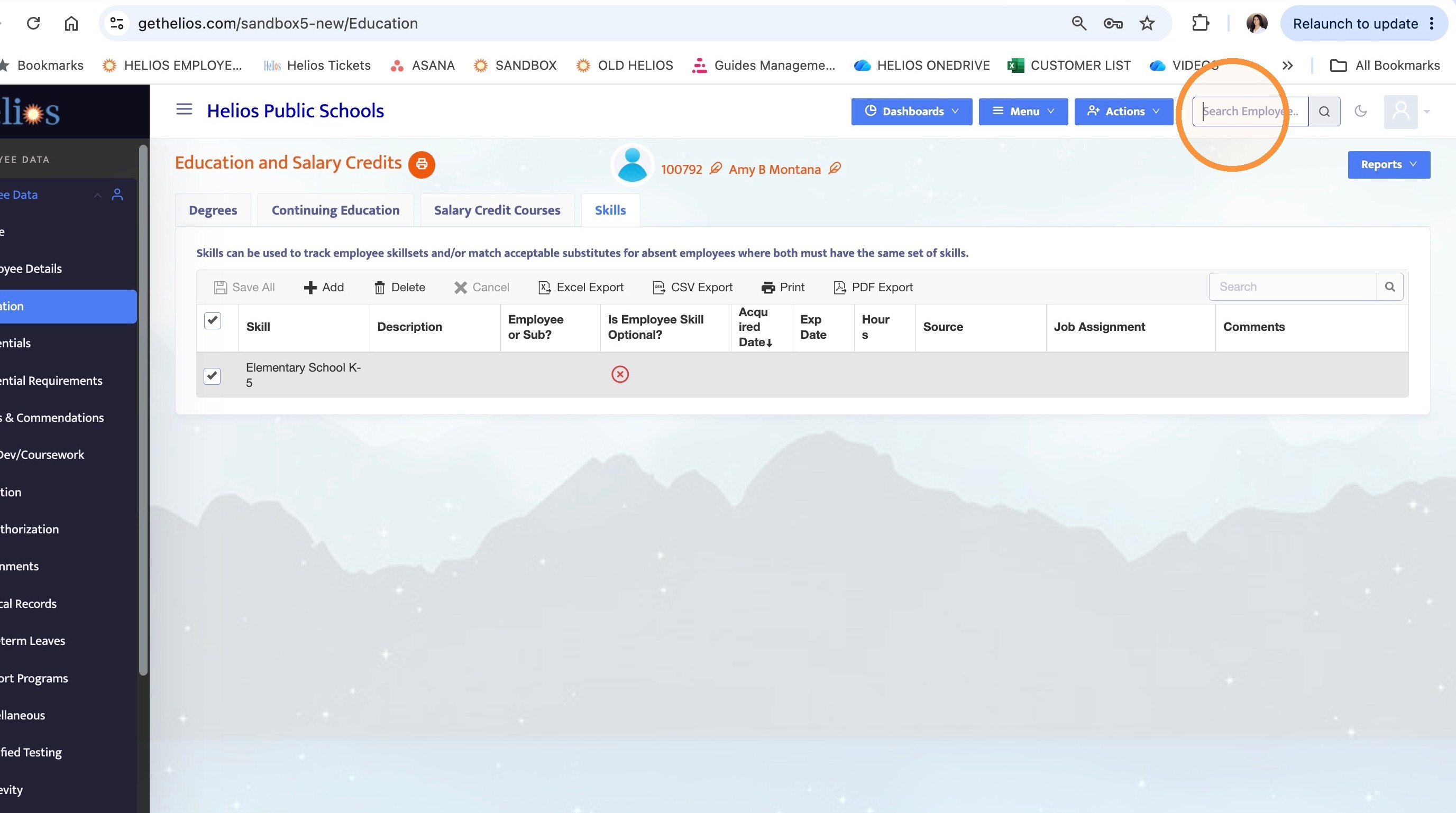
15. Click the employee search field
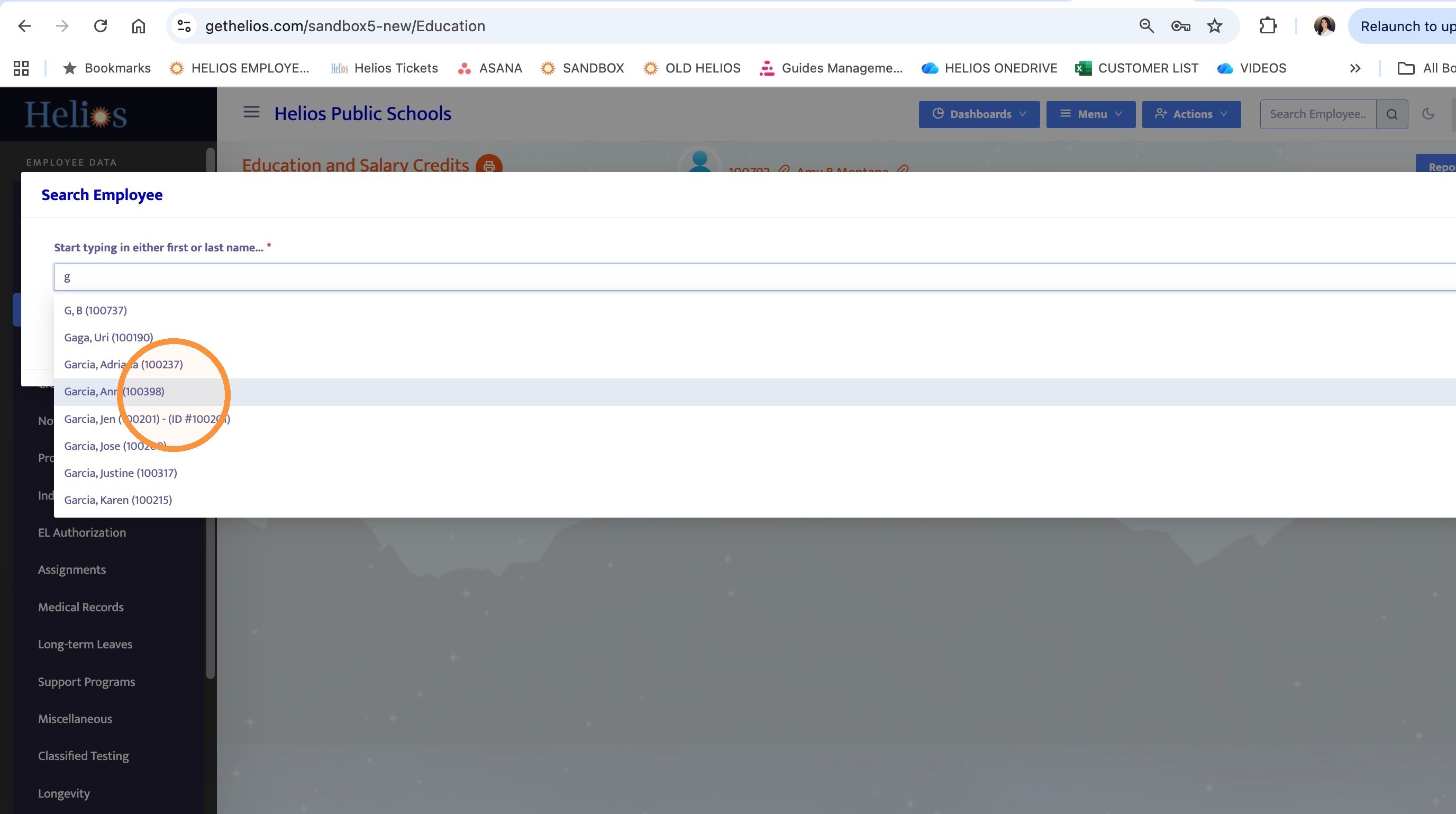
16. Select Garcia, Ann (100398)
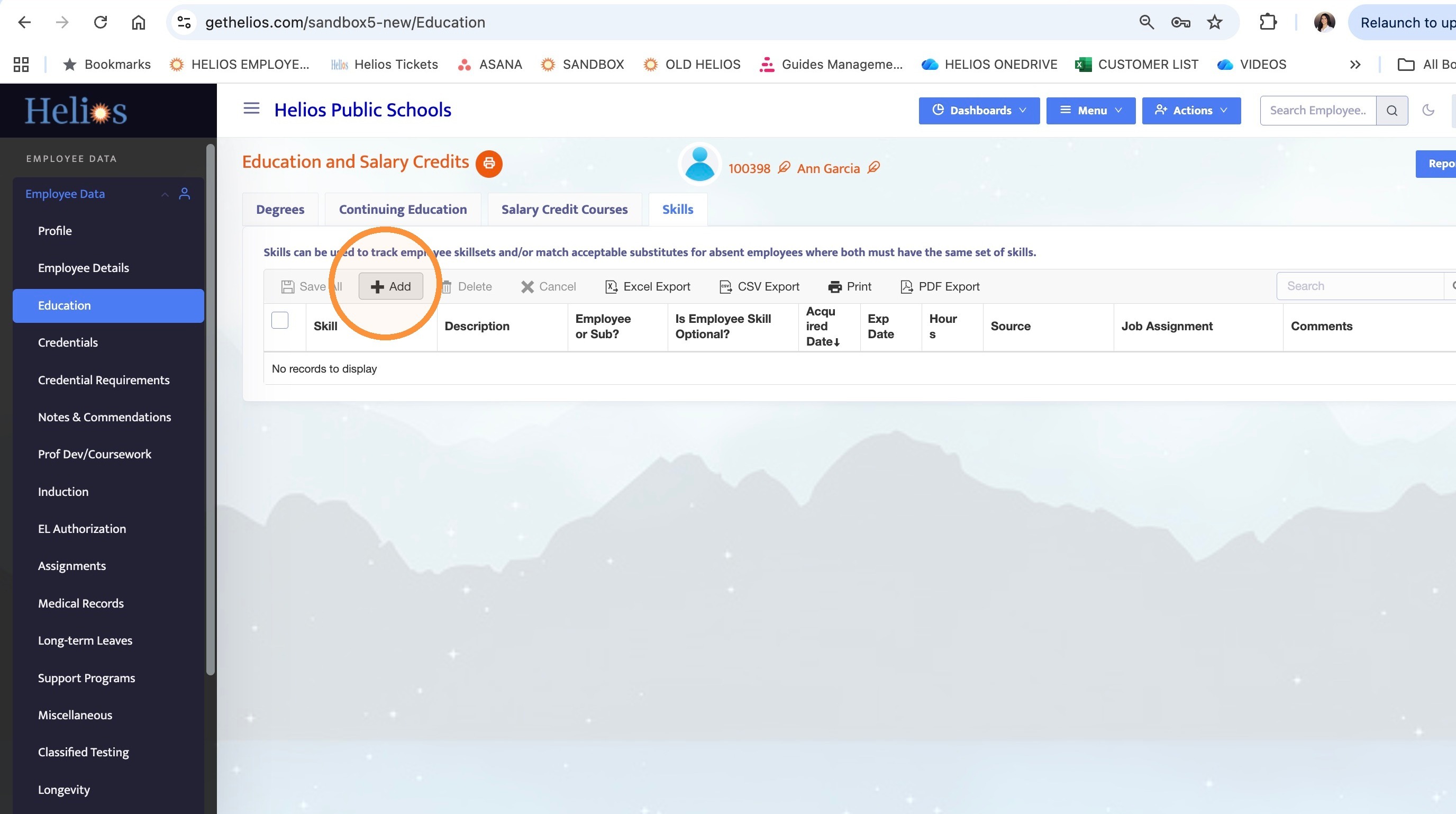
17. Click Add
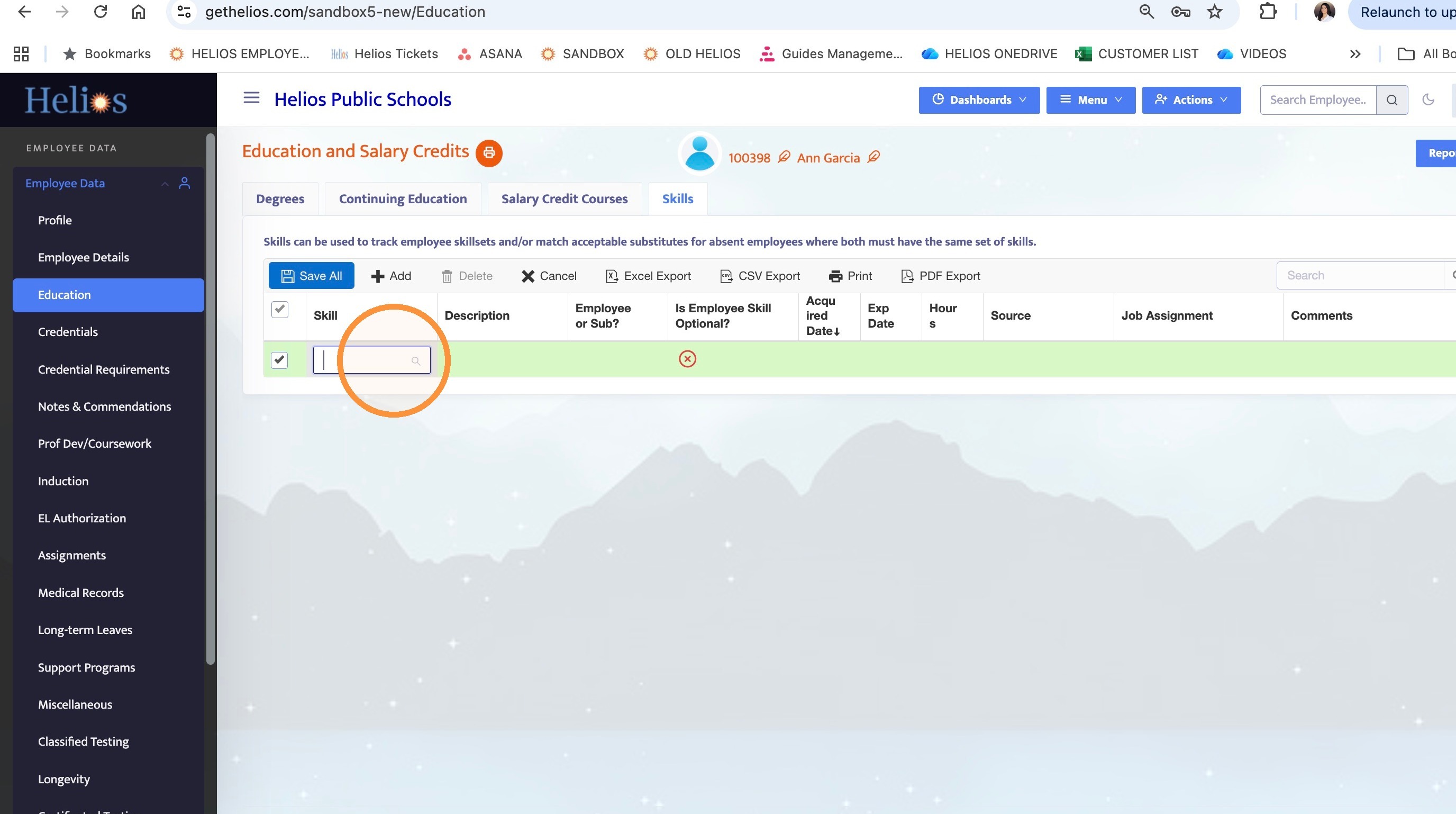
18. Click the Skill field
19. Select Elementary School K-5
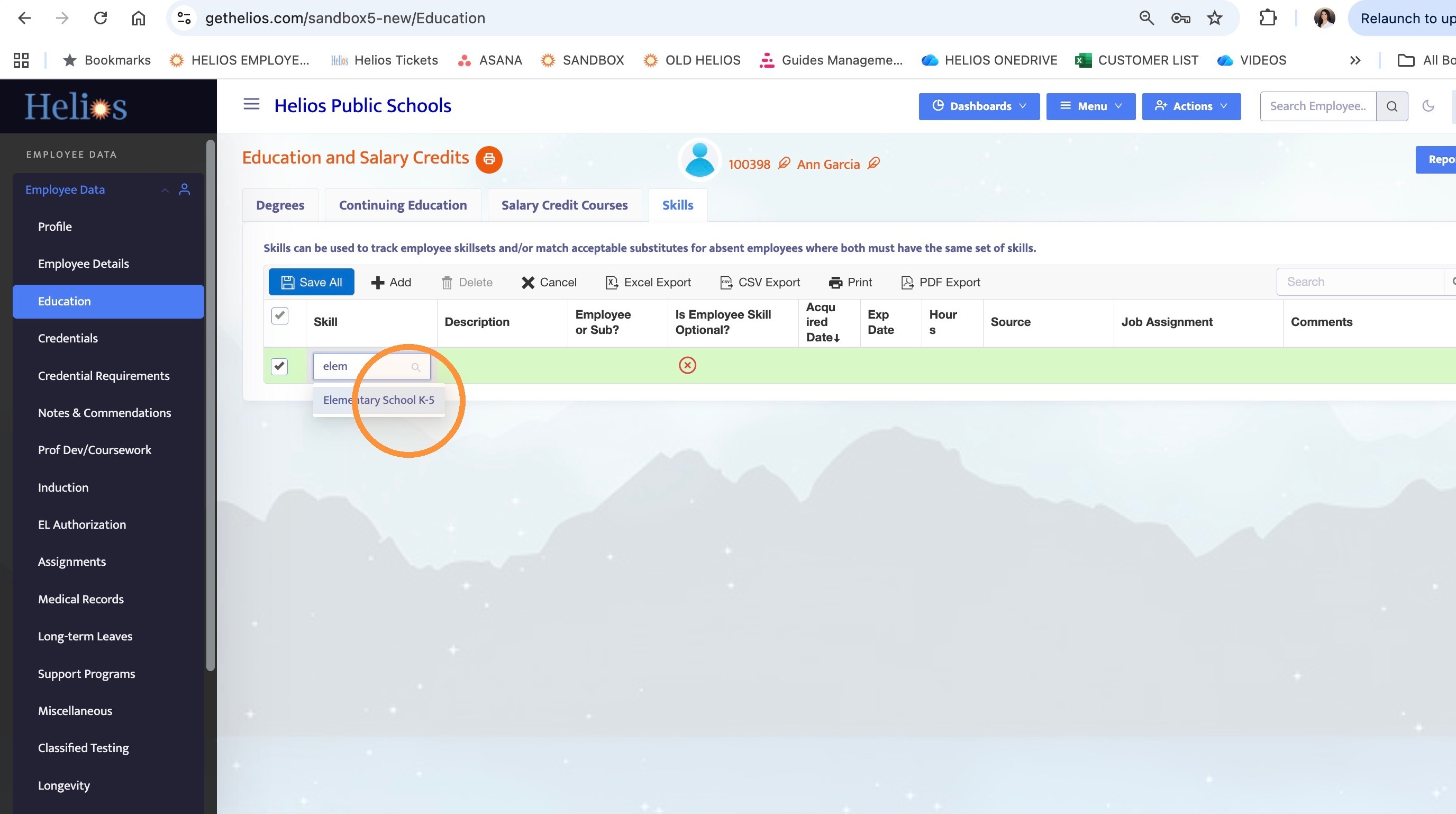
20. Click Save All