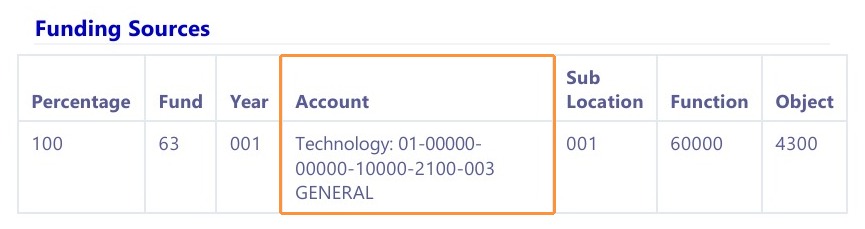
This guide shows how to customize which account code fields appear and how they are ordered in workflows so your team can view the relevant data in the preferred layout.
1. Workflows have a section for Funding Sources, where there are fields for Account, Fund, Year, etc. These fields can be re-organized and toggled on or off in the Settings menu.

Navigate to Account Codes Settings
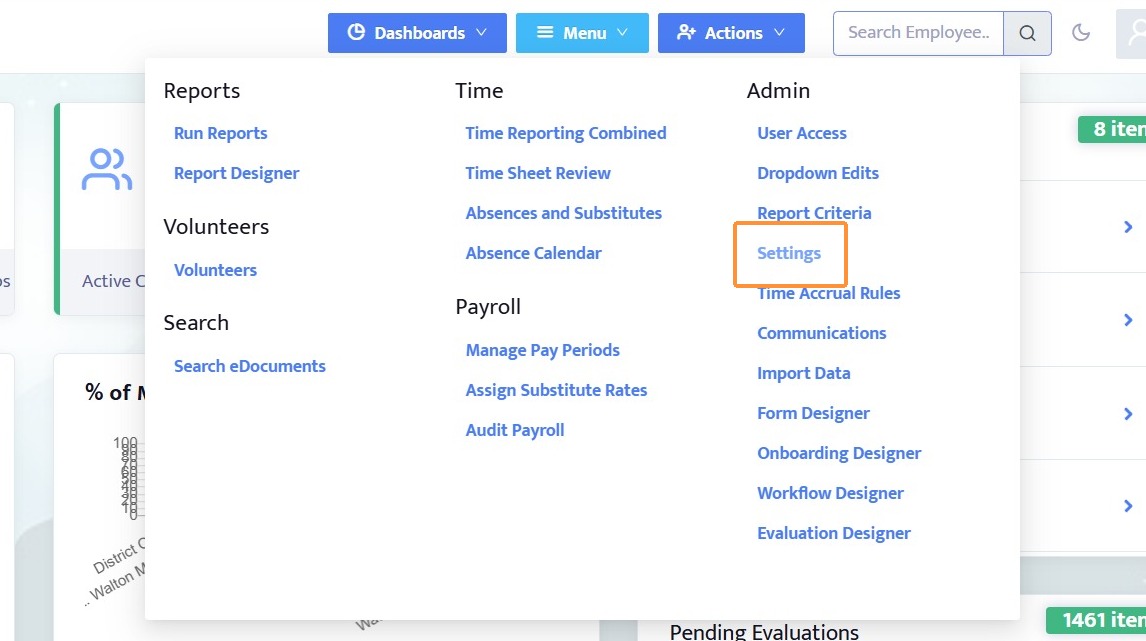
2. Open the Menu at the top of the screen and click Settings
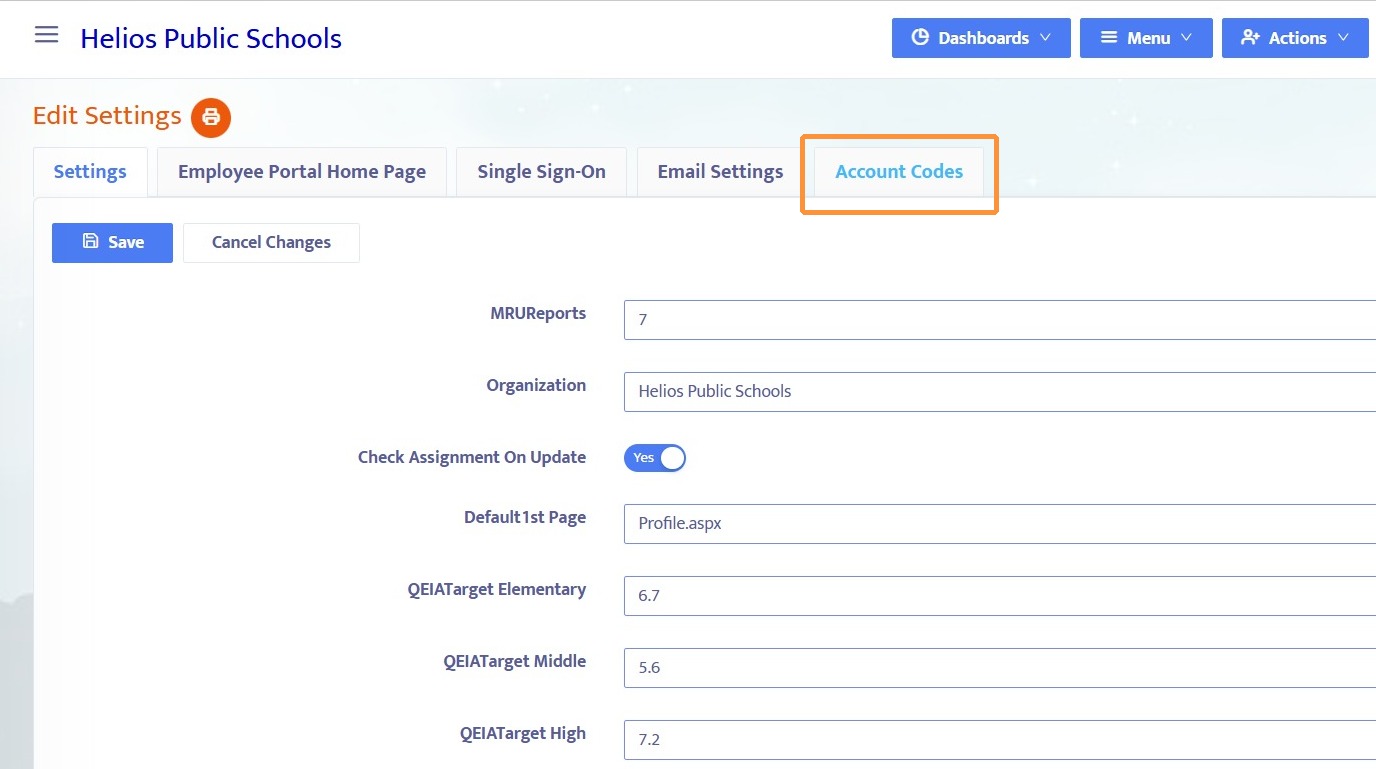
3. Click the Account Codes tab
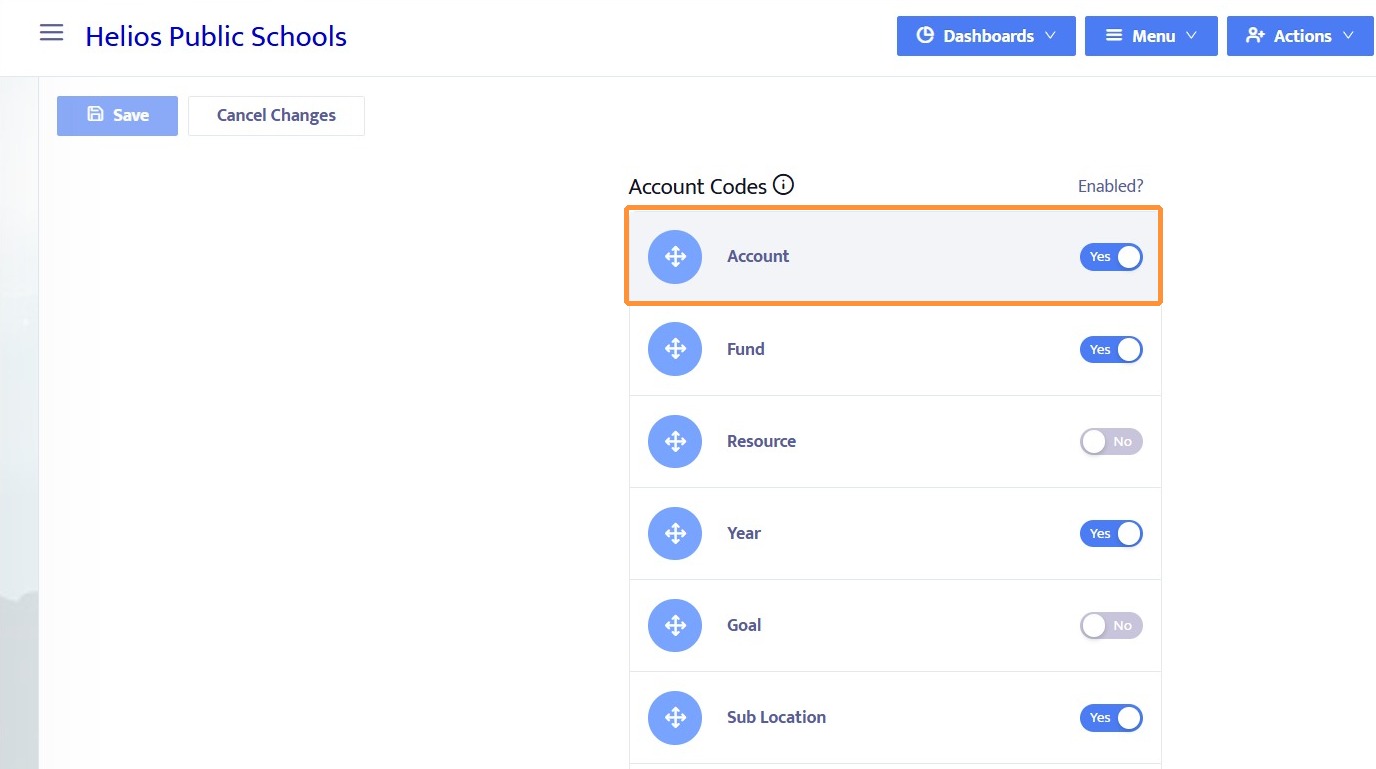
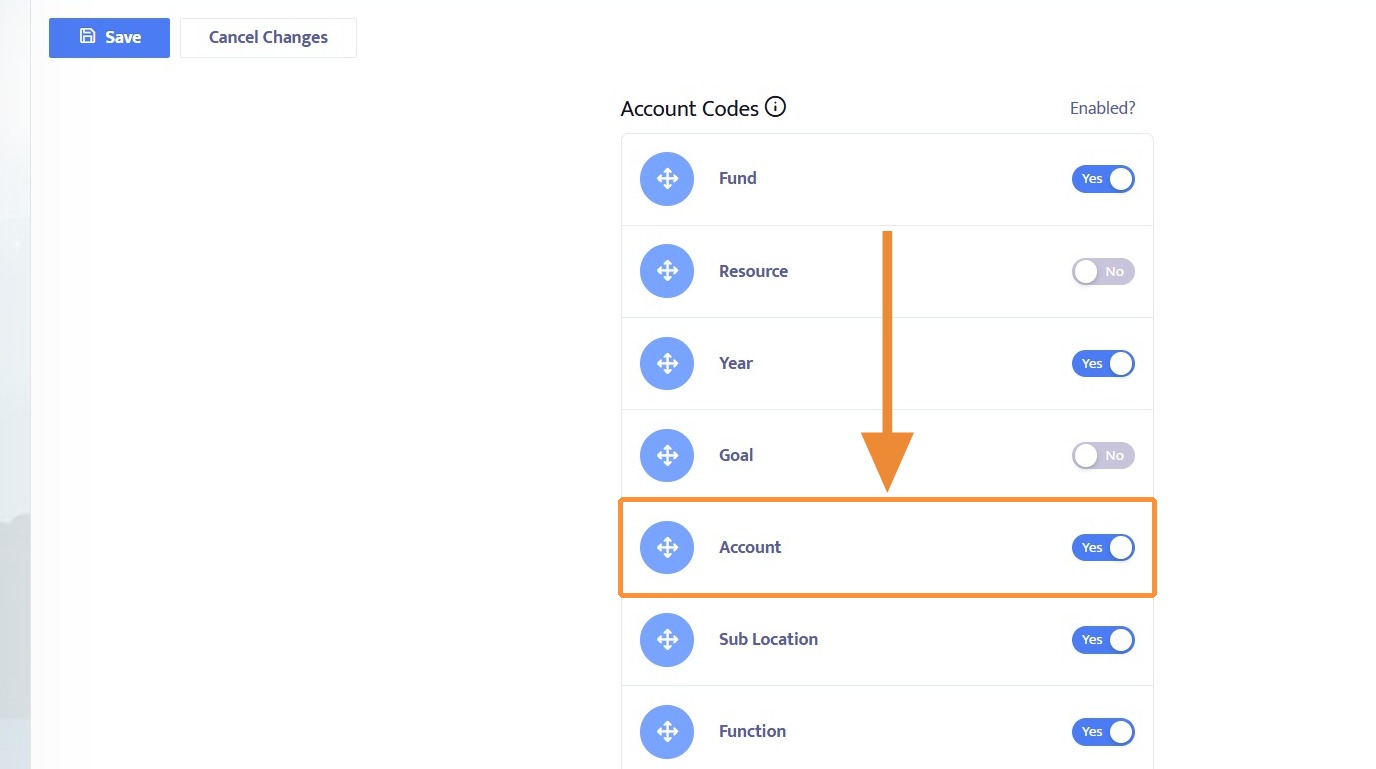
4. Here, you can click and drag account code names to re-order them. You can also toggle the account code on or off by clicking the Enable? switch.
Editing Account Codes
5. In this example, I placed Account further down on the list by clicking and dragging the field
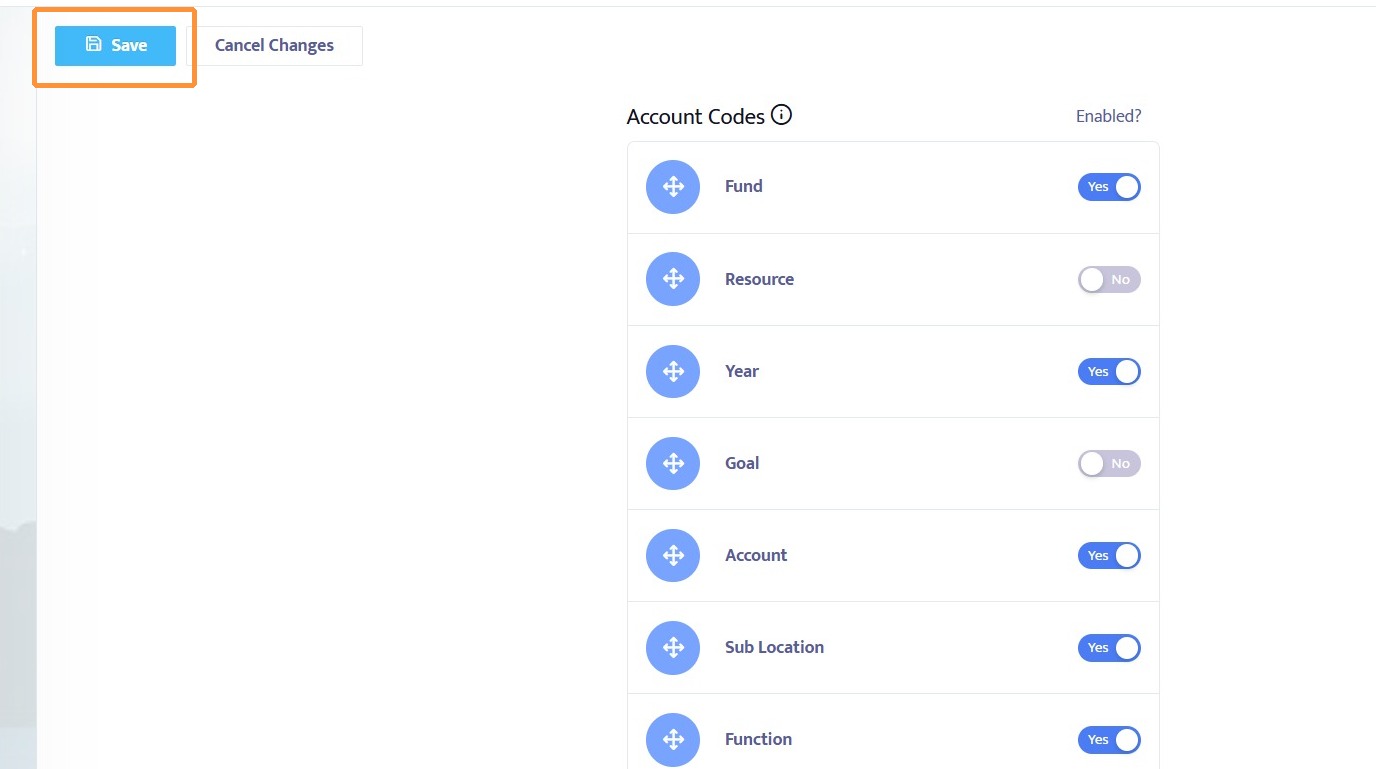
6. Click Save to save changes
7. Checking the funding sources for a workflow, the Account field has shifted to the right

Note: The fields Resource and Goal do not appear because they have been deactivated. The Percentage field always appears to the left of the account codes and cannot be deactivated or re-ordered.
8. This also affects how Funding Sources are displayed when printing the workflow