
Troubleshooting Admin Can’t Log In
This guide walks through some of the most common things to check when an administrator is unable to log into Helios. While the exact cause can vary depending on the district’s setup and authentication methods, these troubleshooting steps will help identify and resolve the most common login issues experienced by admin users.
SSO USER CANT LOGIN
1. The most common cause of Single Sign-On (SSO) login issues is that the user’s username in Helios is not set to their district email address.
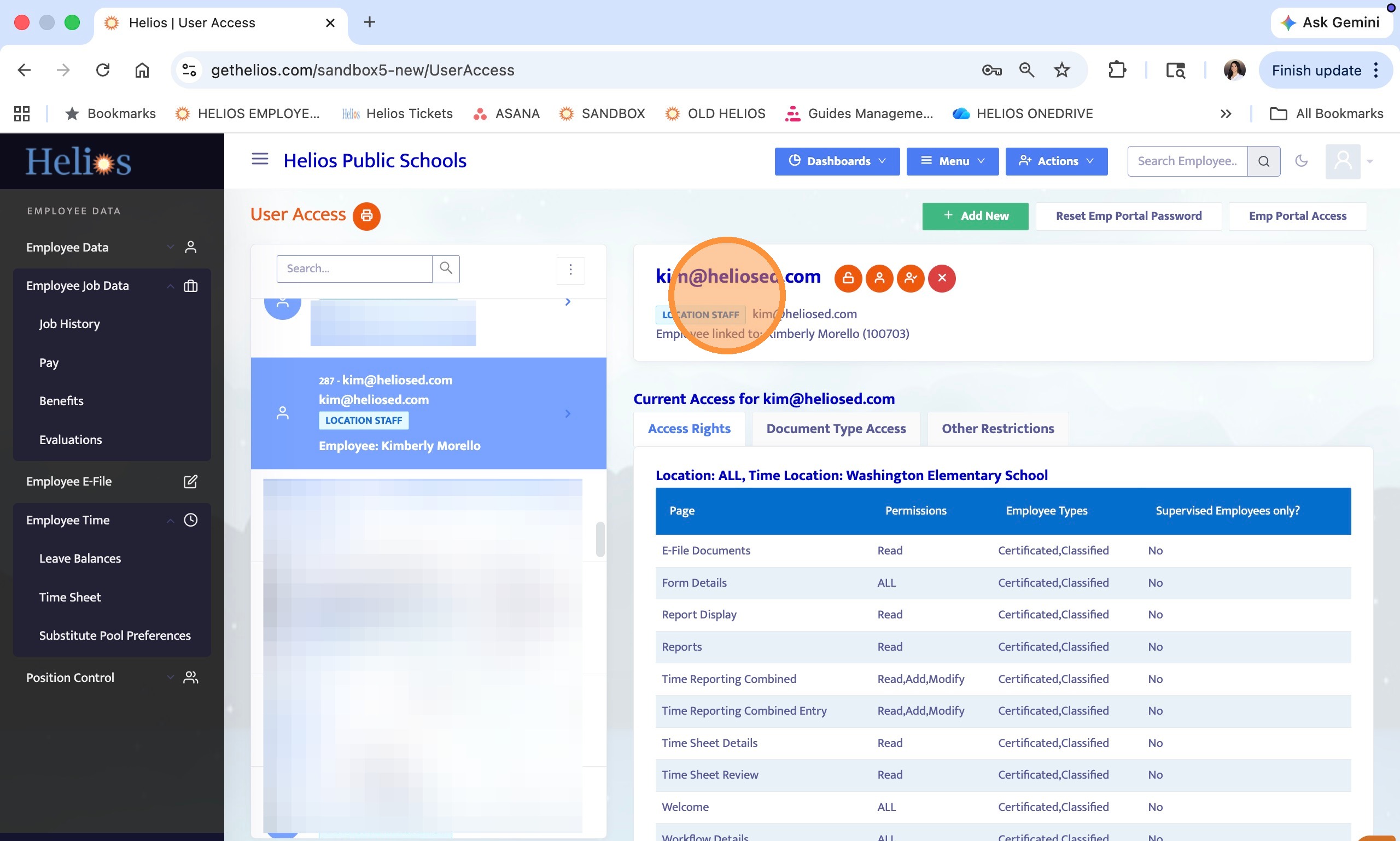
For Single Sign-On to work correctly, the username on the Helios account must exactly match the user’s district email. If the username is anything else, Helios will not be able to match the Single Sign-On login attempt to the correct account, and the user will be unable to log in.
The following steps will show you how to verify that the username is configured correctly and how to resolve the issue if it is not.

2. Navigate to User Access from the main menu.
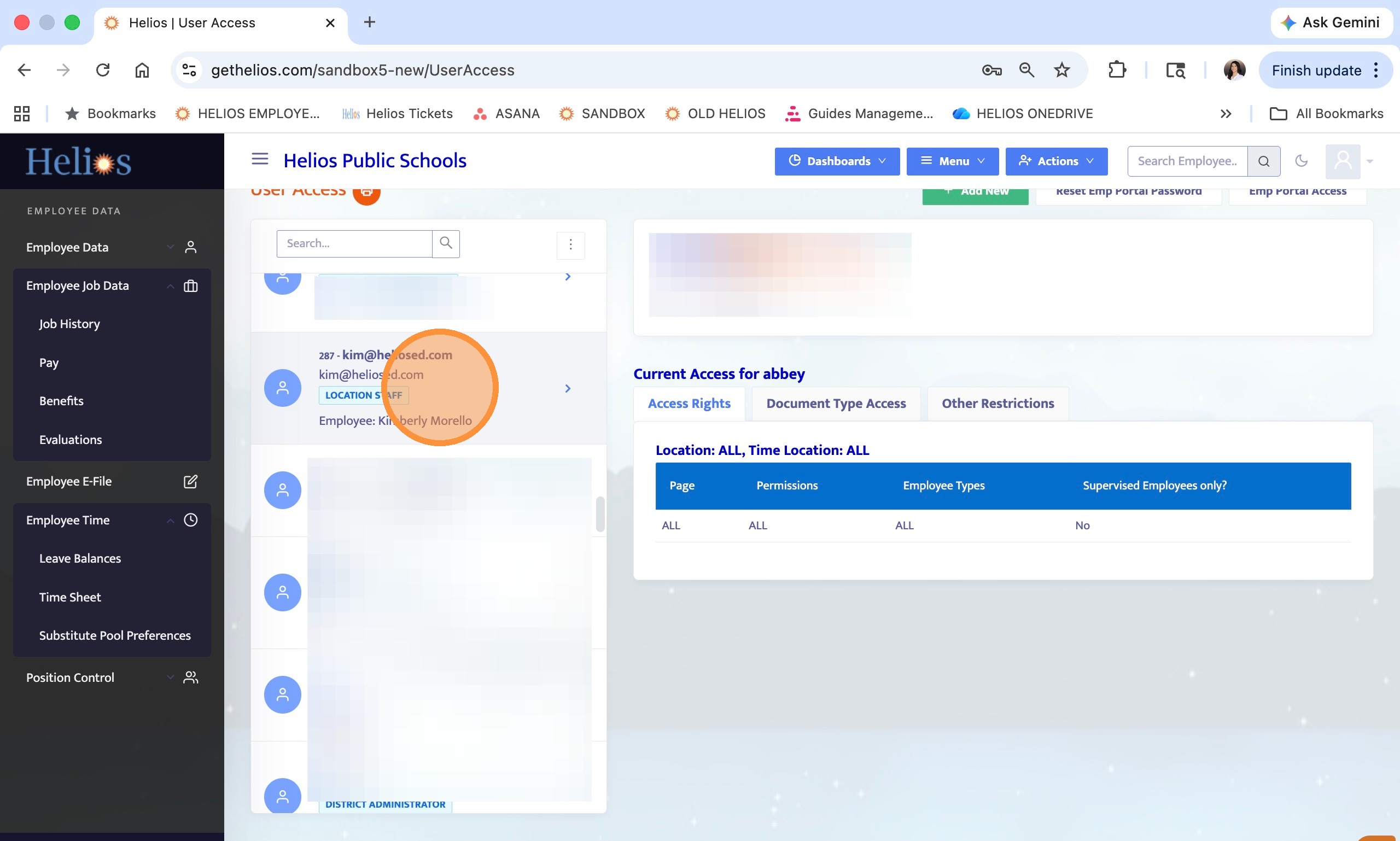
3. Search for and select the user experiencing login issues.
4. Verify the username displayed in blue matches the user's district email.
5. If you determine that the username is not the user’s district email address, there are two ways to correct the issue.
• Option 1: Newly Created User Access Account
If the User Access account was recently created and does not have any important data attached to it, the quickest solution is to delete the account and create a new one.
When recreating the account, make sure the user’s district email address is entered as the Username.
• Option 2: Existing User Access Account
If the User Access account has been in the system for some time and may already have data attached to it, such as workflow history or other records, we do not recommend deleting it.
Instead, contact the Helios Support Team. We can work with our Data Team to update the username to the user’s district email address while preserving any existing data associated with the account.
RESETTING HELIOS CREDENTIALS
6. If your users log in using their Helios credentials rather than Single Sign-On and they are unable to access their account, the next troubleshooting step is to reset their password.
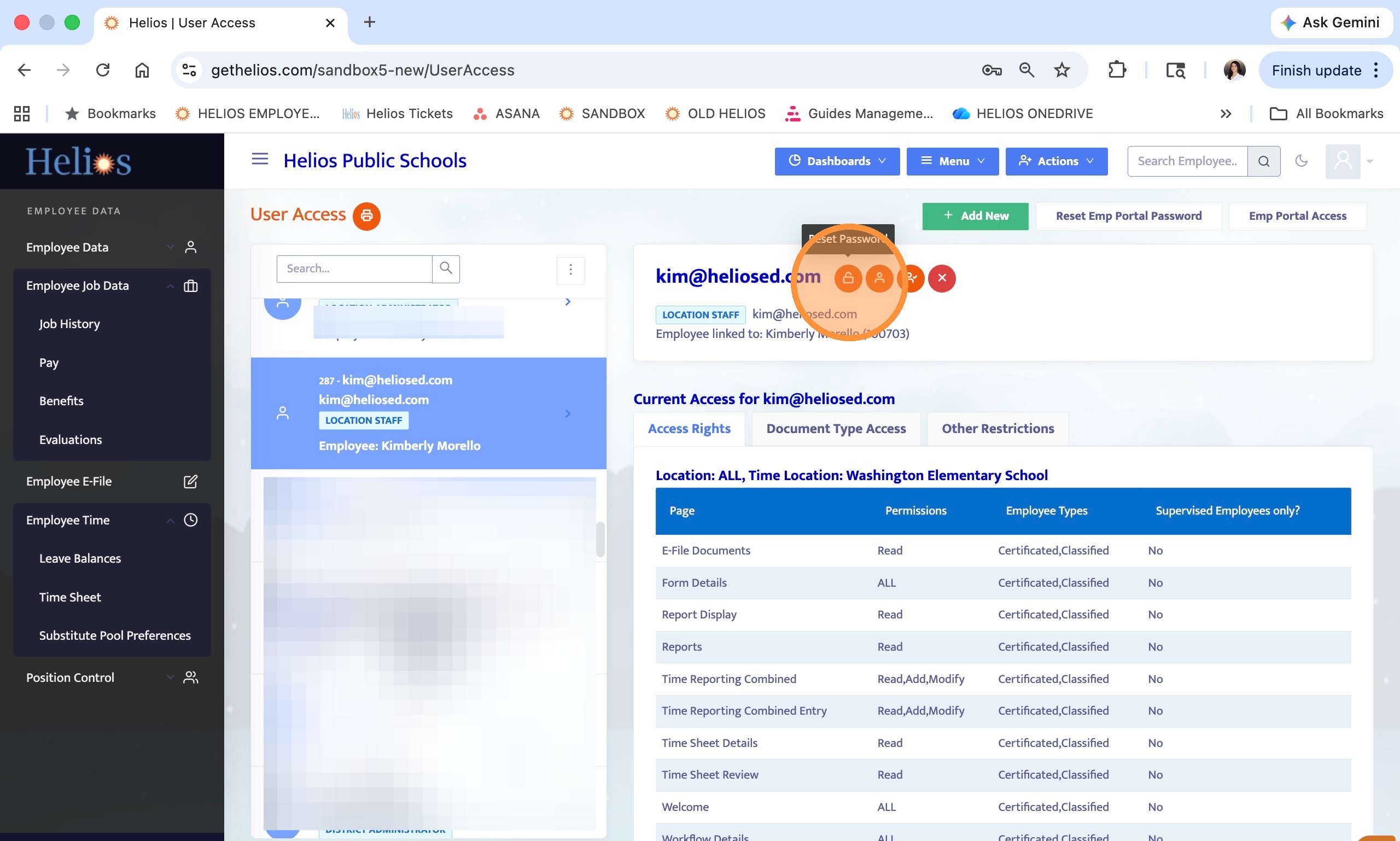
From the User Access screen, locate the user and click the Reset Password button.
Once the password has been reset, provide the user with the reset password and have them attempt to log in again using their username and the newly reset credentials.
In many cases, this resolves login issues that are related to an incorrect, forgotten, or expired password.
If the user is still unable to log in after the password reset, continue with the remaining troubleshooting steps in this guide.
7. Click the 'Reset Password' icon for users with standard Helios credentials.
8. Contact district IT to verify Single Sign-On (SSO) configuration if login issues persist.