
Troubleshooting Single Sign-On (SSO) Login Issues
This guide walks through the most common causes of Single Sign-On (SSO) login issues in Helios and how to troubleshoot them. Generally, SSO login problems fall into one of two categories: either there is an issue with the district’s SSO configuration and setup, or there is an issue with how the user account is configured within Helios. This guide will help you identify which scenario applies and walk through the steps needed to resolve the issue.
1. Identify Where the Error Message Is Coming From
When troubleshooting Single Sign-On (SSO) login issues, the first thing you’ll want to determine is where the error message is coming from.
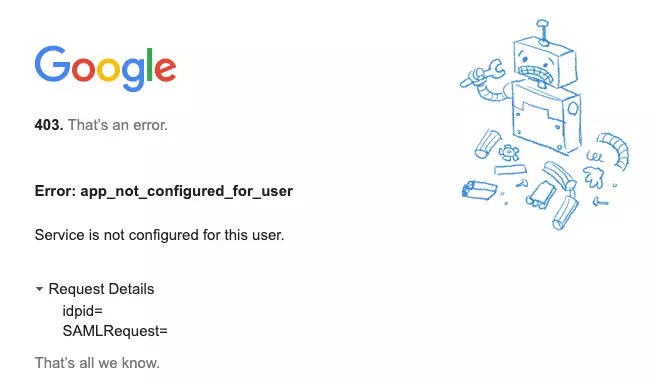
If the user clicks the Single Sign-On button and receives an error message from Google or Microsoft before ever reaching Helios, the error is typically related to the district’s Single Sign-On configuration rather than the user’s account in Helios.
The error message will generally come directly from Google or Microsoft and may look similar to the example shown in this screenshot.
When the error originates from Google or Microsoft, we recommend reaching out to the district’s IT department or the individual responsible for managing the district’s Single Sign-On setup. They can verify that:
• The user has been properly configured within the identity provider.
• The user has been granted access to the Helios application.
• The Single Sign-On configuration is functioning correctly.
• No recent changes have been made to the district’s authentication settings.
Once the district’s IT team has confirmed that the Single Sign-On configuration is working correctly, continue with the next troubleshooting steps if the user is still unable to access Helios.
2. Research the Error Message
When an error message like the one shown above is received, the quickest way to begin troubleshooting is to have your district’s IT administrator research the specific error message being displayed.
Both Google and Microsoft maintain documentation for their authentication and Single Sign-On error codes. In most cases, searching the exact error message in Google will return Microsoft or Google documentation explaining:
• What the error means
• What is causing the error
• Recommended troubleshooting steps
• How to resolve the issue
Because these errors are being generated by the identity provider rather than Helios, the fastest path to resolution is typically reviewing the documentation provided by Google or Microsoft for that specific error code.
Once the cause of the error has been identified and corrected by the district’s IT team, have the user attempt to log in again.
ADMIN SSO ISSUE
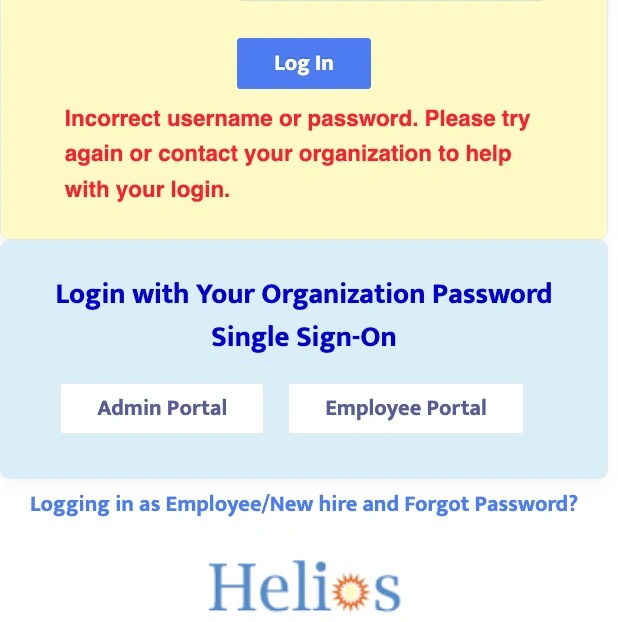
3. If the user receives an error message that looks something like the example shown below, the error is coming from Helios itself rather than from Google or Microsoft.
When this type of error occurs, it typically indicates one of two things:
• The administrator’s User Access account has not been configured correctly in Helios.
• The employee’s Employee Portal account is missing required information or has not been configured correctly.
Unlike the errors discussed in the previous steps, these messages are not generally related to the district’s Single Sign-On configuration. Instead, they indicate that Helios was able to receive the Single Sign-On request but was unable to properly match it to a user account within the system.
The next steps in this guide will walk through the most common account configuration issues that can cause this type of error and how to resolve them.
EMPLOYEE SSO ISSUE
4. If the issue is occurring with an administrator account, navigate to the User Access screen and locate the user who is unable to log in.
This is the most common issue we encounter when troubleshooting Single Sign-On login problems.
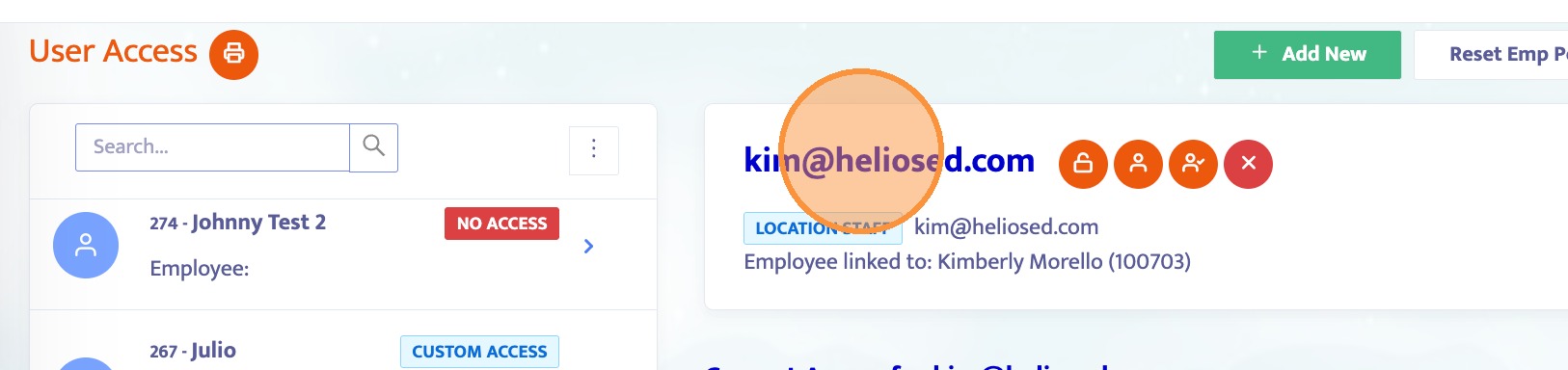
For Single Sign-On to work correctly, the username on the User Access account in Helios must exactly match the user’s district email address.
In the screenshot below, the username is displayed in blue and bold. This is the value that Helios uses when matching the Single Sign-On login attempt to a user account.
If the username does not match the user’s district email address, the user will not be able to log in using Single Sign-On.
If the username is incorrect, there are two possible solutions:
• Newly Created User Access Account
If the User Access account was recently created and does not have any important data attached to it, the quickest solution is to delete the account and create a new one.
When creating the new account, make sure the district email address is entered as the Username.
• Existing User Access Account
If the User Access account has been in the system for some time and may have data attached to it, such as workflow history or other records, we do not recommend deleting it.
Instead, contact the Helios Support Team. We can work with our Data Team to determine whether the username can be updated while preserving the data associated with the account.
Before continuing to additional troubleshooting steps, always verify that the username matches the user’s district email address, as this is by far the most common cause of Single Sign-On login issues.
5. If the login issue is occurring with an employee rather than an administrator, there are a few key items that should be verified on the employee’s account.
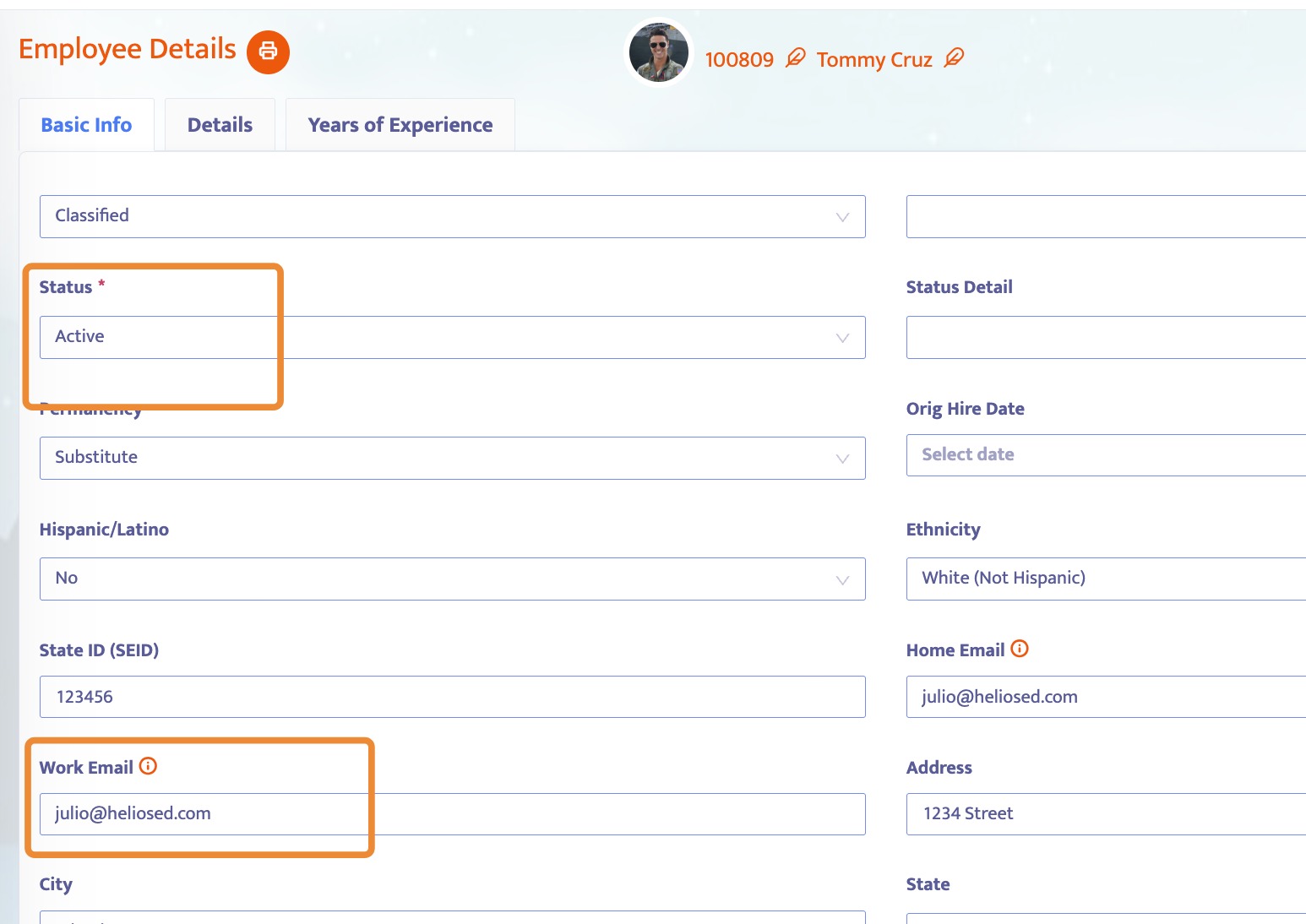
Navigate to the employee’s Employee Details screen and verify the following:
• The employee’s Status is set to Active.
• A Work Email address is entered on the employee’s profile.
Both of these items are required for Single Sign-On to function properly for employee accounts.
6. Once those items have been verified, navigate to the employee’s Job History screen.
Review the employee’s job history records and ensure that at least one job history record is marked as Current.
7. These are the most common account configuration issues we encounter when troubleshooting Single Sign-On login problems for employee accounts. If all of these items are configured correctly and the employee is still unable to log in, please contact the Helios Support Team (support@heliosed.com) for further assistance.