Helios Employee Login Troubleshooting Guide
This guide walks through the troubleshooting steps to take when an employee reports that they are unable to log into Helios. It is designed to help identify common login issues, verify account access, and determine the appropriate resolution or next steps. The guide covers basic troubleshooting, account verification, password reset considerations, access checks, and additional items to review before escalating the issue further.
Employee Search
1. Before beginning troubleshooting, there are two major things to take into consideration when an employee reports that they are unable to log into their Employee Portal account.
First, it is important to determine whether the employee is missing one of the required conditions needed to access the Employee Portal. Second, if those requirements are already met, the issue may simply be related to the employee forgetting their password or needing a password reset.
There are two requirements that must be met in order for an employee to successfully access the Employee Portal:
- The employee’s status must be marked as Active
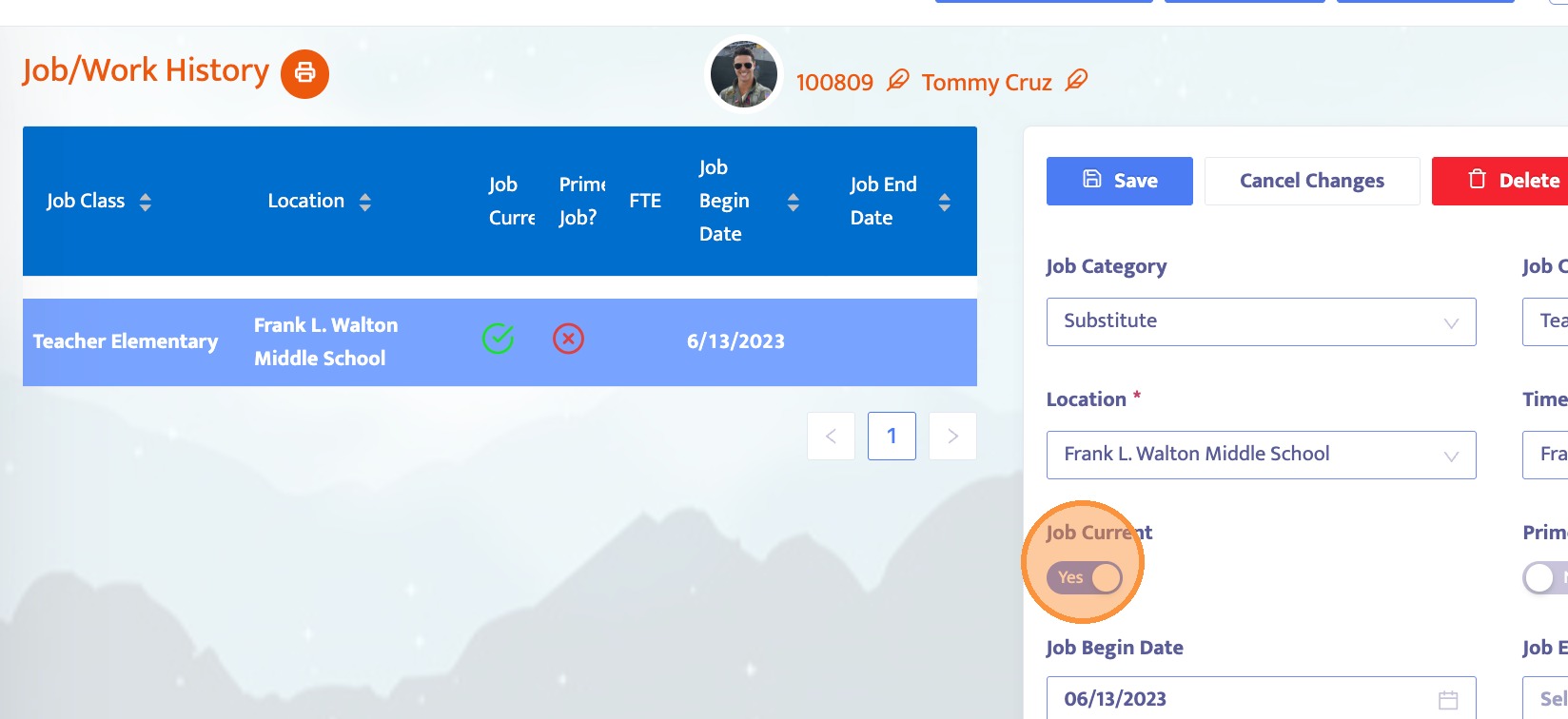
- The employee must have at least one current Job History record in the system
The steps below will walk through how to verify these requirements and how to reset the employee’s password if needed.
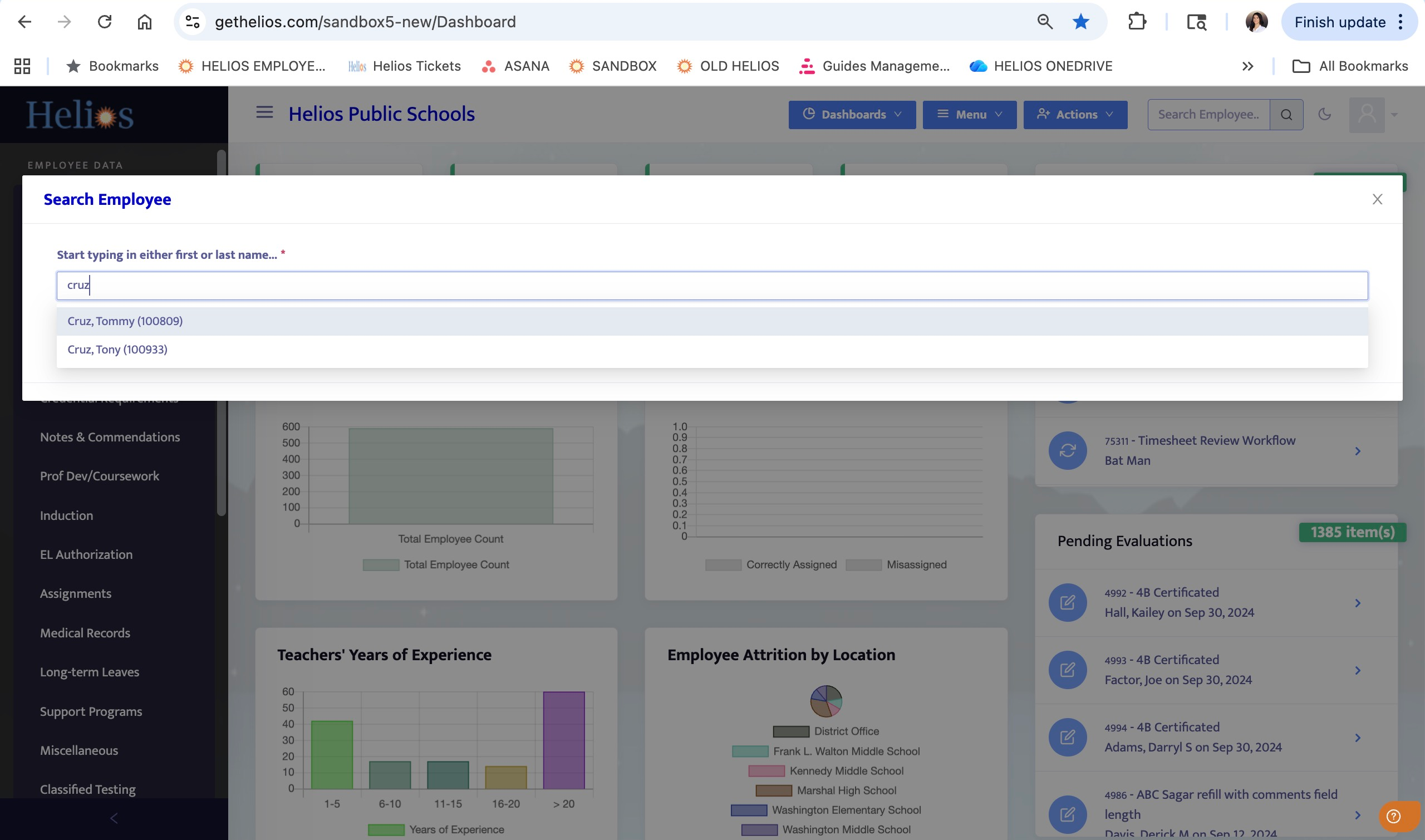
2. Search for the employee who is experiencing the login issue.
Employee Data Review
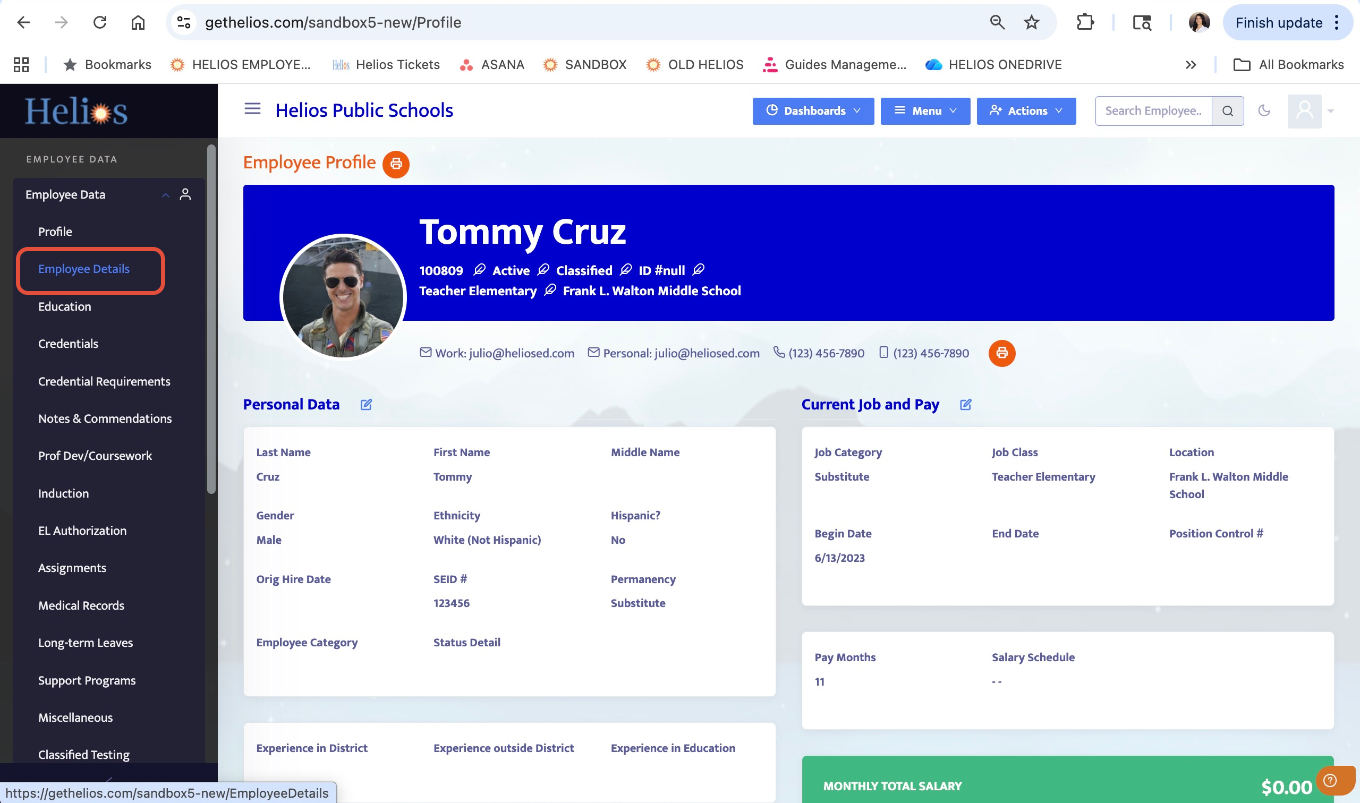
3. Once the employee is selected, navigate to the Employee Details page.
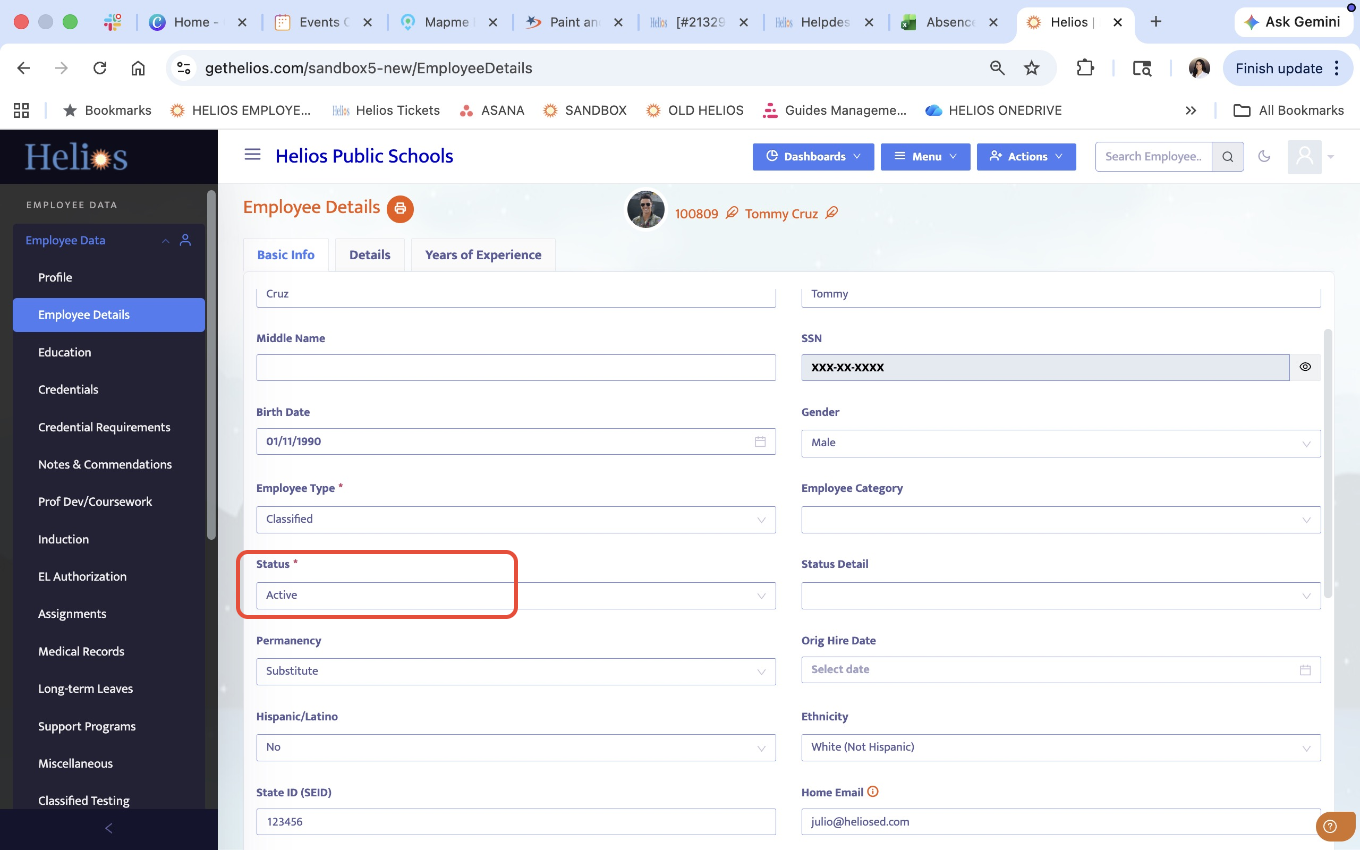
4. In Employee Details, verify that the employee is marked as Active in the system.
5. Next, navigate to the Job History section and confirm that the employee has at least one current active job in the system.
Password Reset Administration
6. If the employee is active and has a current job, but is still unable to log in, the issue may be related to:
-A forgotten or recently changed password
-Issues with Single Sign-On (SSO)
-Incorrect login credentials
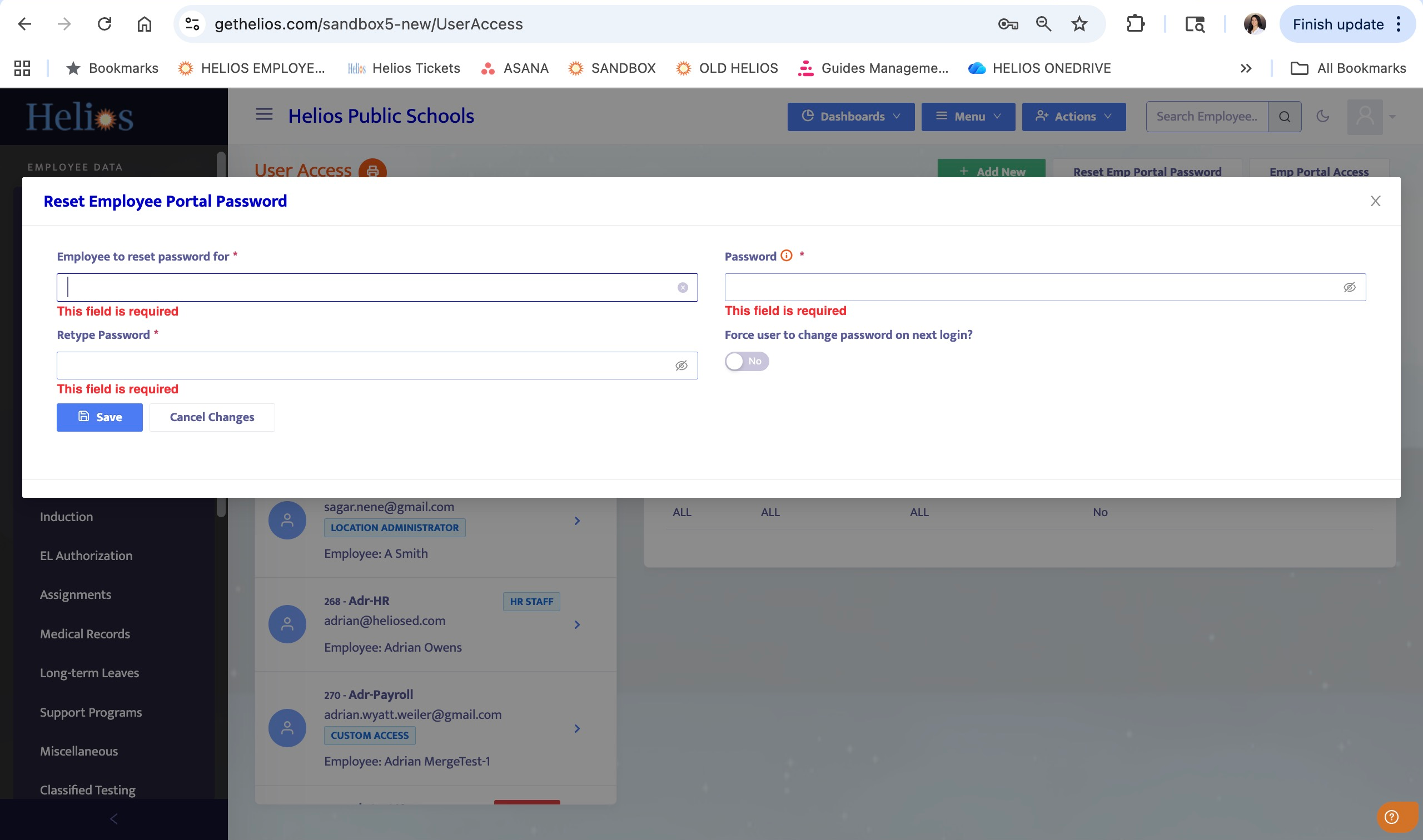
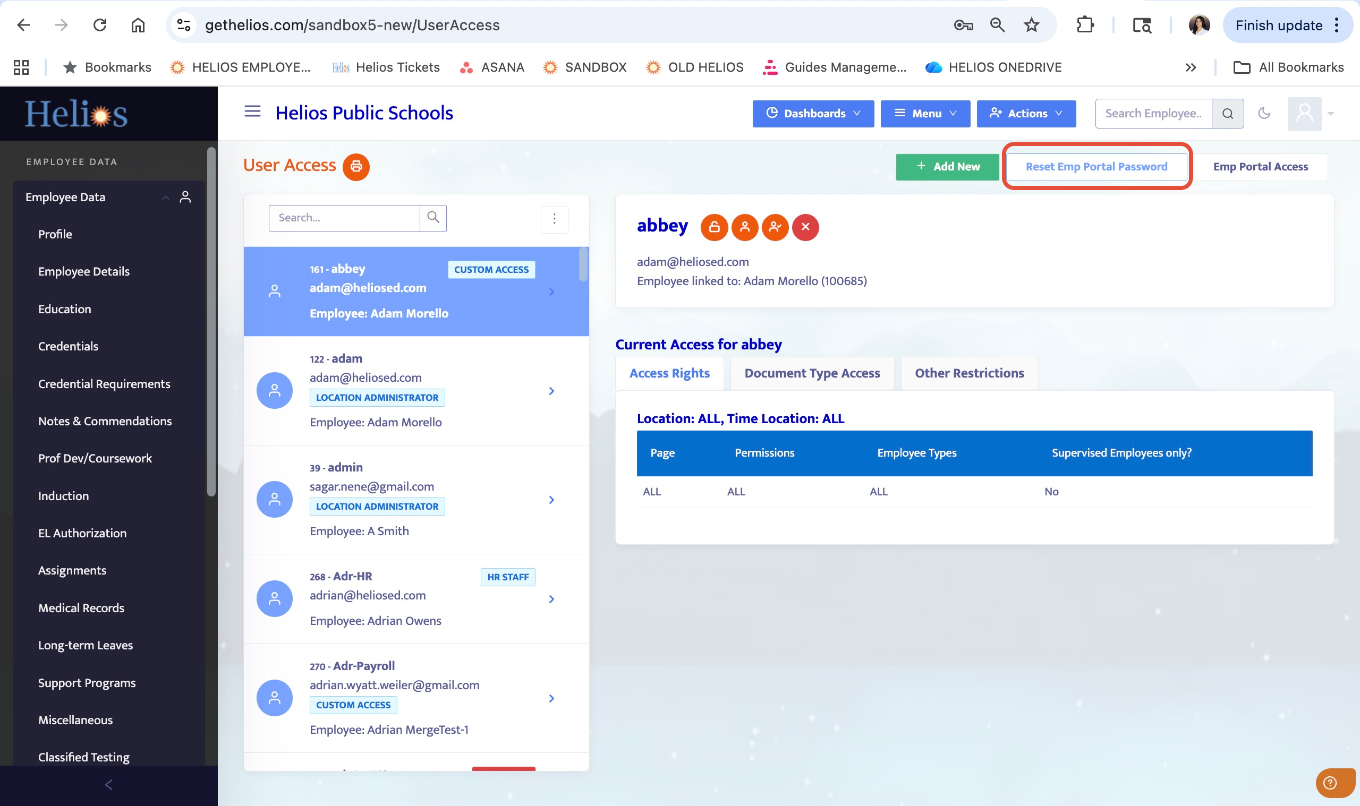
7. If the employee logs in using Helios credentials, you can reset their password by following these steps:
- Navigate to the User Access page
-Click Reset Employee Portal Password
8. Identify the employee in the password reset window