
Offboarding
This guide will walk through the employee offboarding process in Helios, including considerations for districts that use Helios as their sole point of record as well as districts that use nightly imports and interfaces from an external HRS system.
1. Offboarding in Helios can vary depending on how your district uses the system. Some districts use Helios as their sole point of record, while others have nightly imports coming in from an external HRS system.
Because of that, the exact offboarding process may differ depending on your district’s setup and interface configuration.
This guide will walk through the primary screens and most important areas involved in offboarding an employee in Helios, including Employee Details, Job History, and considerations for districts using nightly imports.
Employee Search
2. The first step in the offboarding process is locating the employee you wish to offboard. To do this, use the Search Employee bar located in the top right corner of the screen.
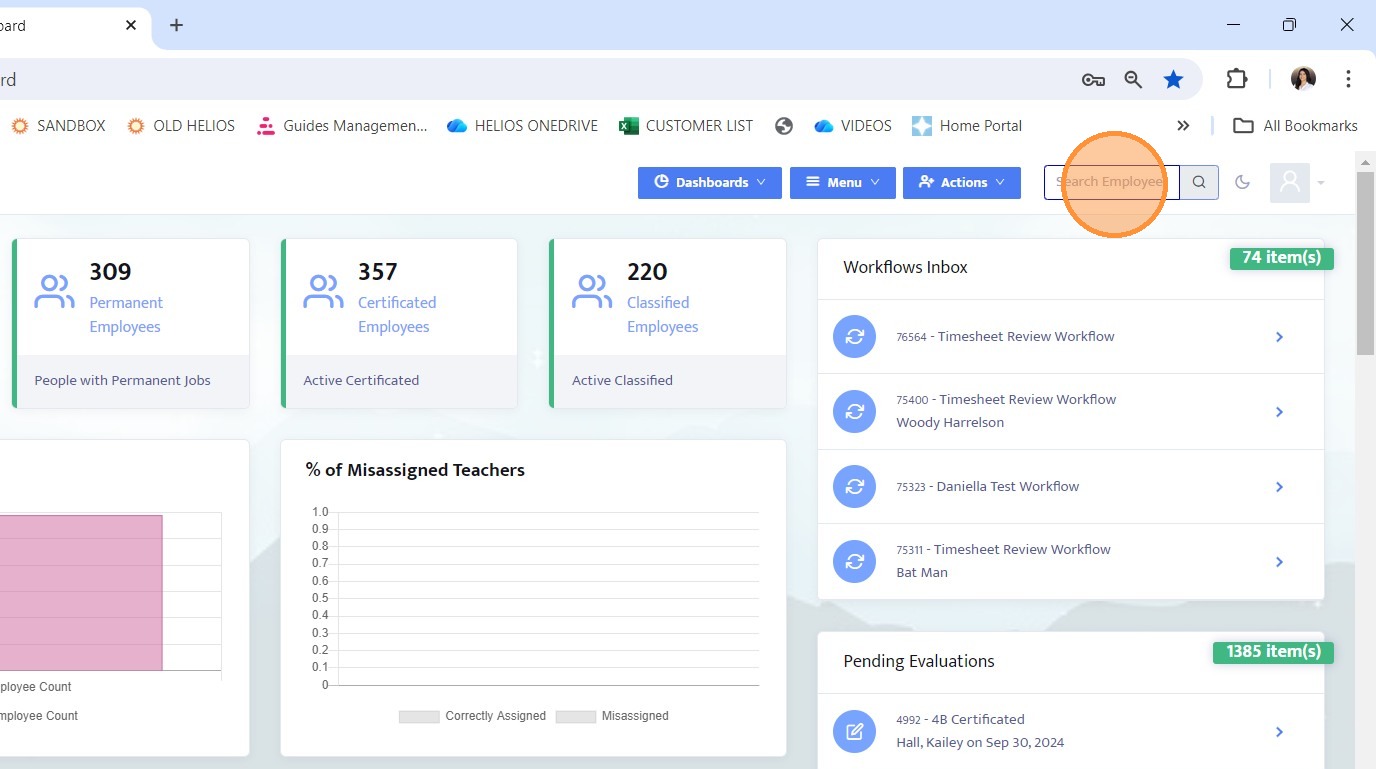
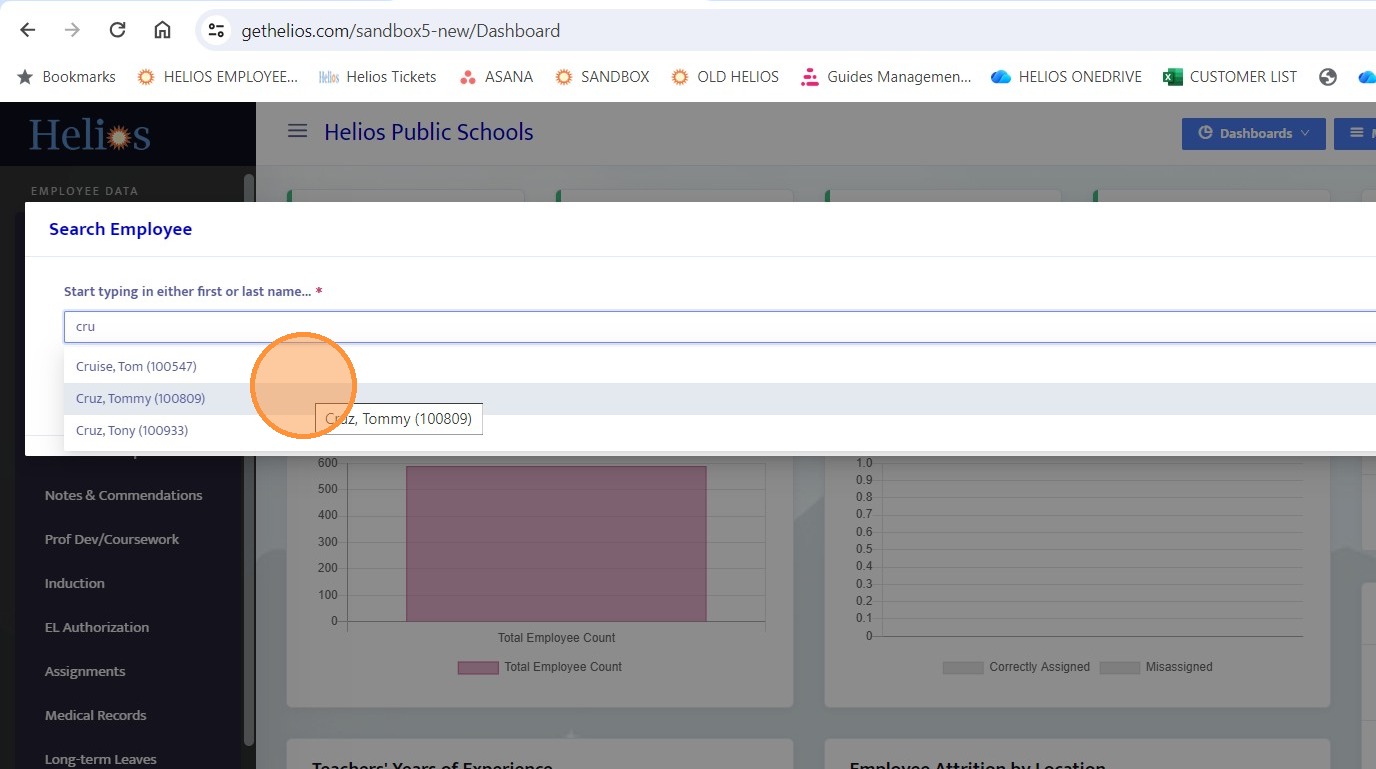
3. Search for the employee and select their profile
Employment Status Update
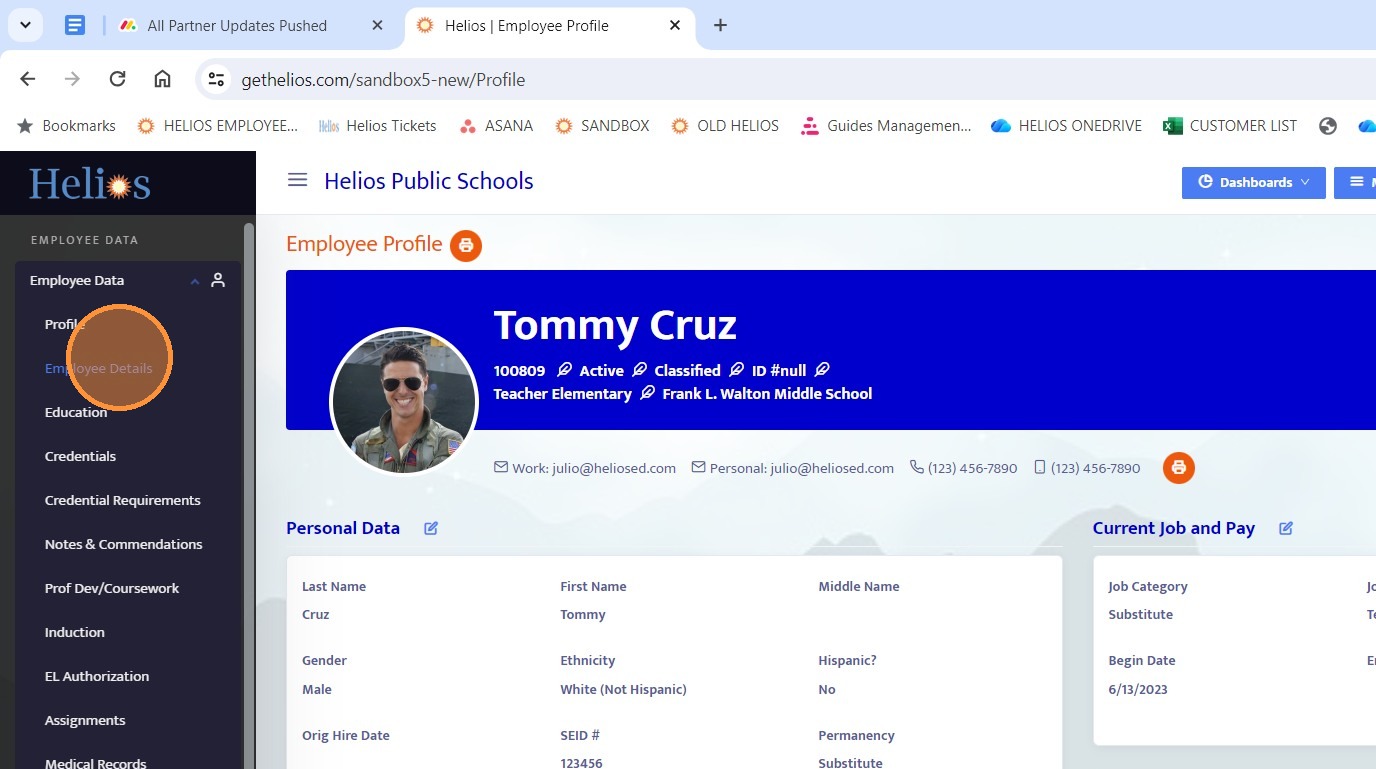
4. Once selected, navigate to the employee’s Employee Details screen.
5. For general understanding, an employee must meet two conditions in order to log into the Employee Portal:
• The employee must have an Active employee status
• The employee must have at least one Current job history record
When offboarding an employee, you will generally want the opposite to be true so the employee no longer has access to the Employee Portal.

6. In the Employee Details screen, locate the employee’s Status field.
• If Helios is your district’s sole point of record, change the employee’s status from Active to Terminated.
• If your district uses a nightly import from an HRS system, the employee’s status should instead be updated within the HRS system that feeds Helios. The nightly import will then update the employee status in Helios accordingly.
Job History Management
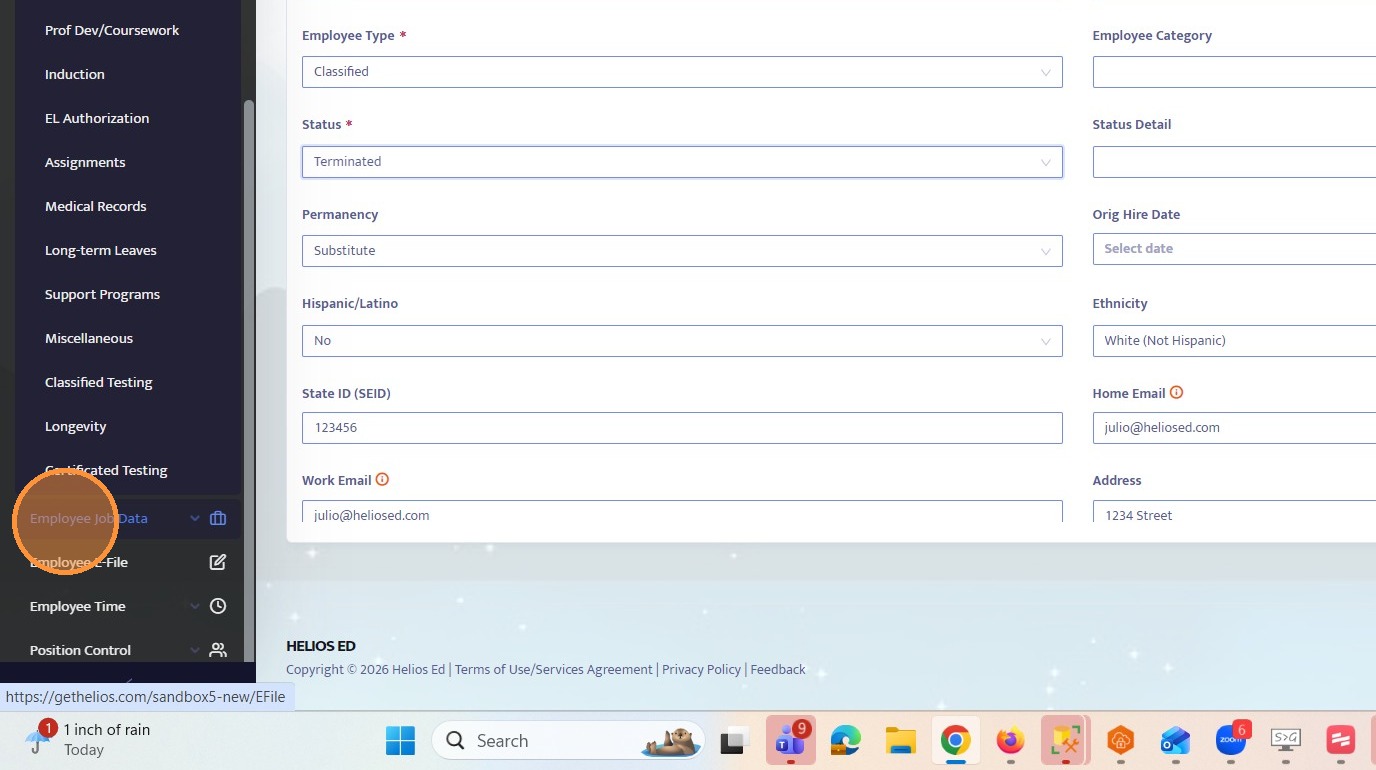
7. Next, navigate to Employee Job Data.
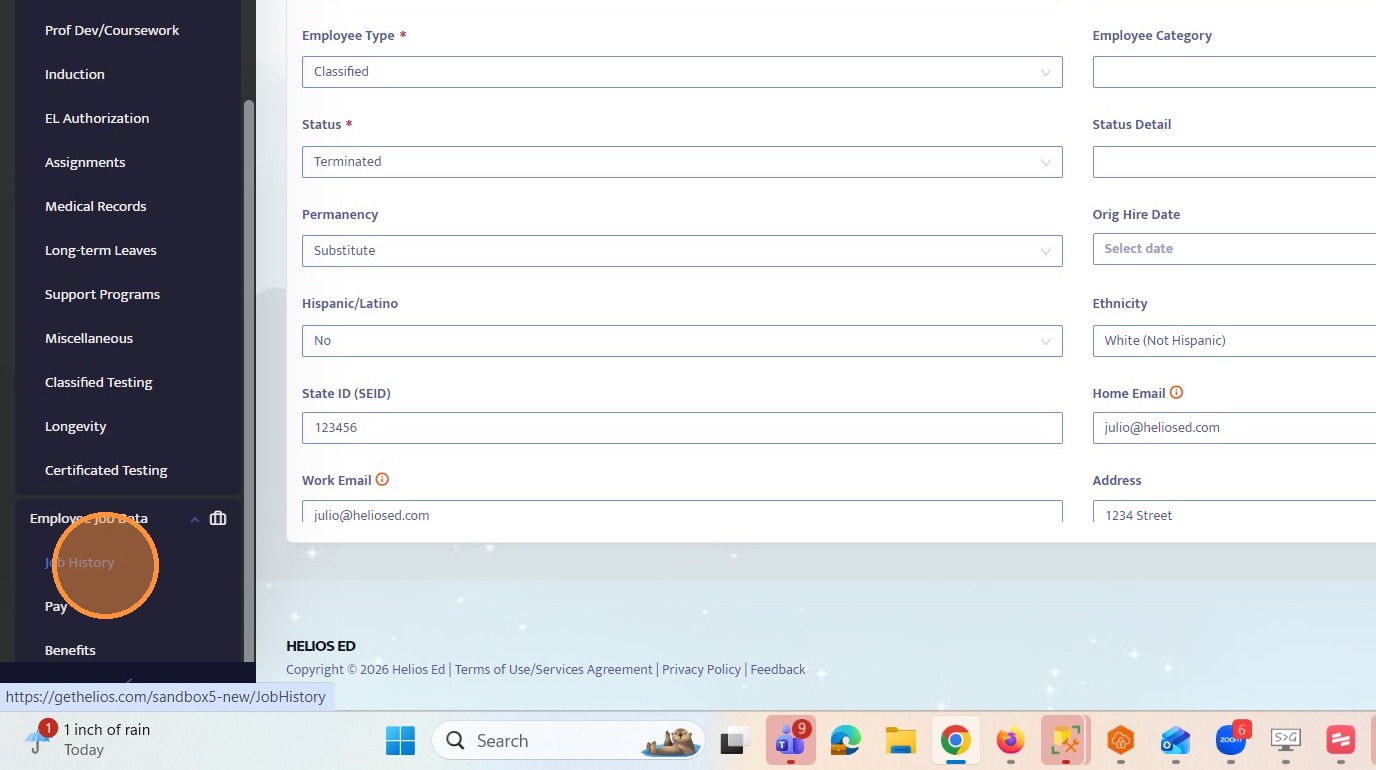
8. Select "Job History"

9. Within Job History, locate the Job Current toggle for the employee’s position.
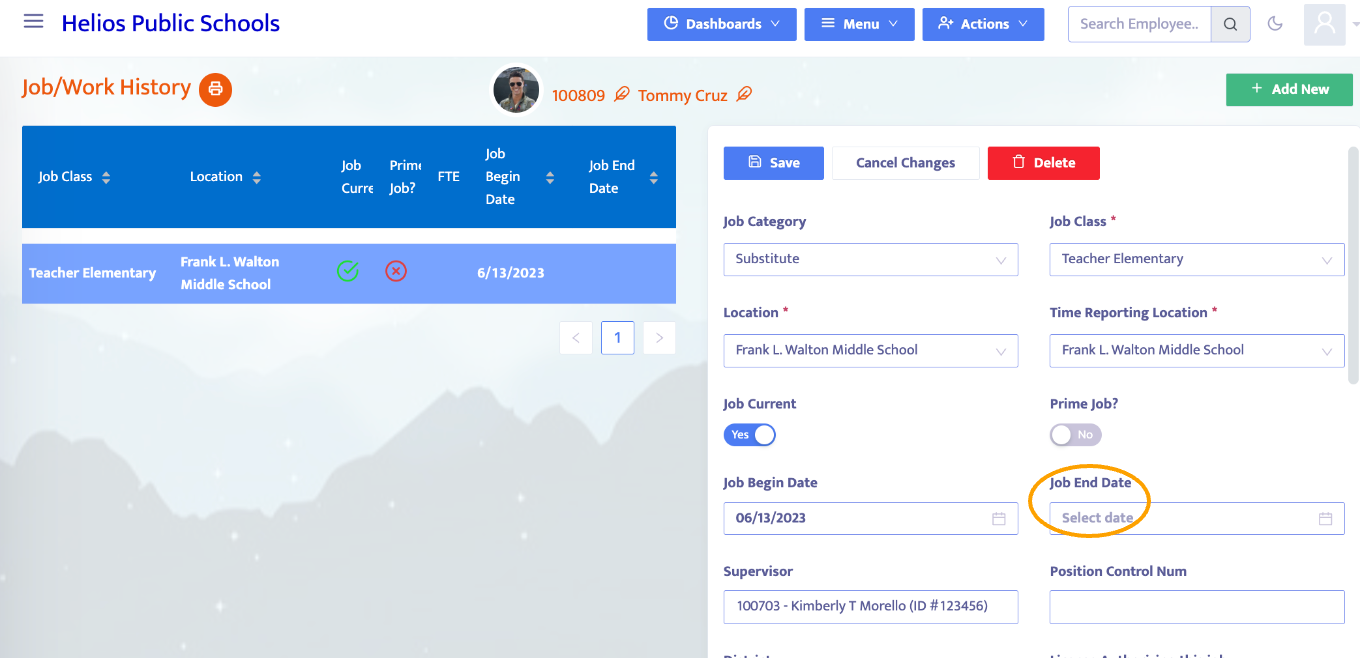
• If Helios is your district’s sole point of record OR job histories are maintained manually (not included in nightly files), toggle the Job Current field to No and enter a Job End Date for the position.
• If your district uses nightly imports and job histories are included in the import, you will instead want to verify that the employee’s job record in the HRS system is no longer marked as current and that a termination date is included. Once the nightly import runs, Helios will reflect those changes automatically.
If your district includes active job assignments in the import file, your district may also need to notify the Helios team so logic can be added to the interface script to disable the current flag for job assignments that are no longer present in the import.
10. When using nightly imports, the employee termination date must also be included in the HRS system. This termination date is required when adding records to the termination table. If a termination date is not included, the system can default the termination date to the previous date.
11. If you ever have any questions about offboarding an employee or any other process in Helios, you are always welcome to reach out to our Support Team. We are always happy to help.
The support team can be reached at:
Support@heliosed.com