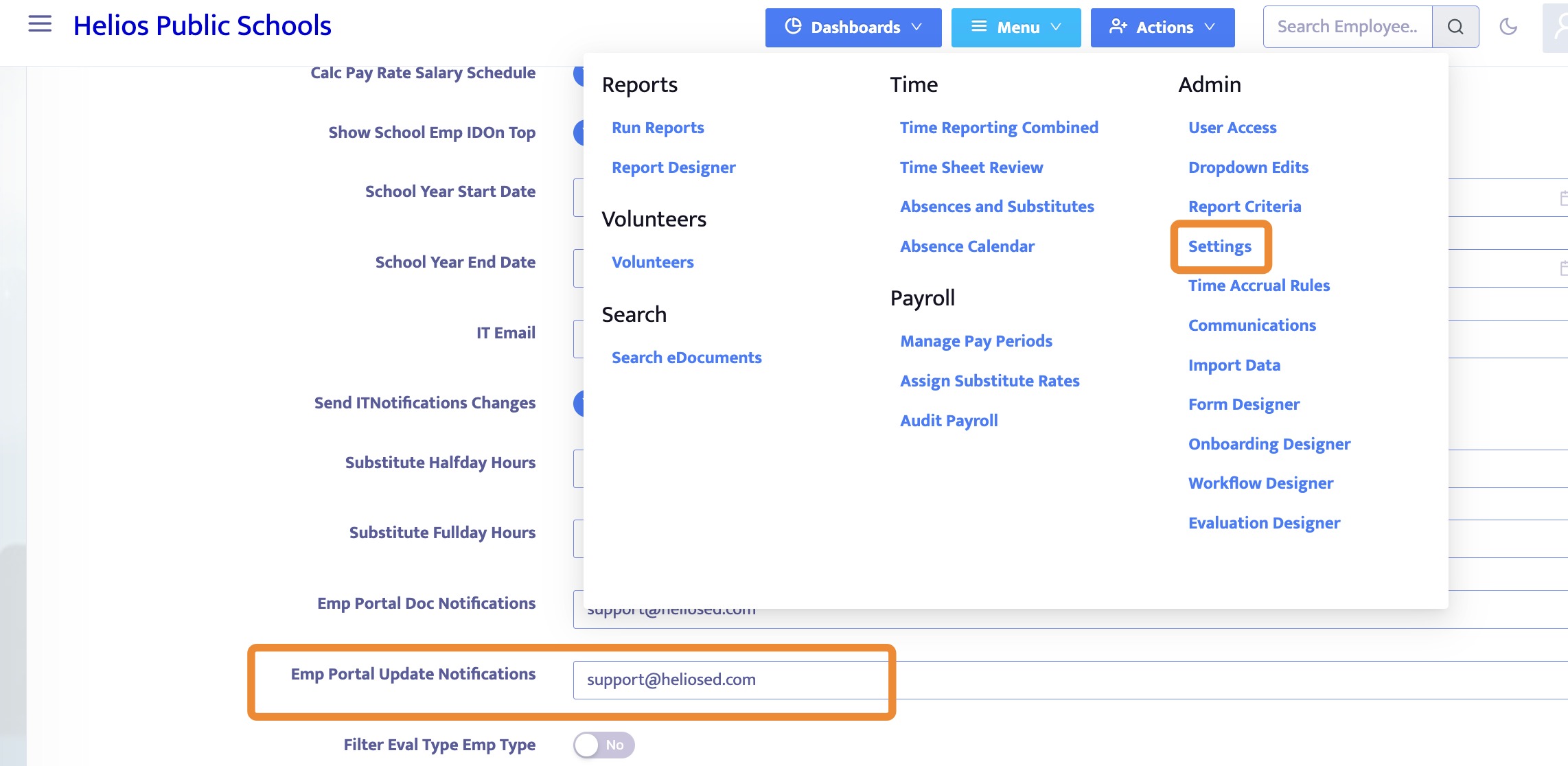
External Forms in Onboarding
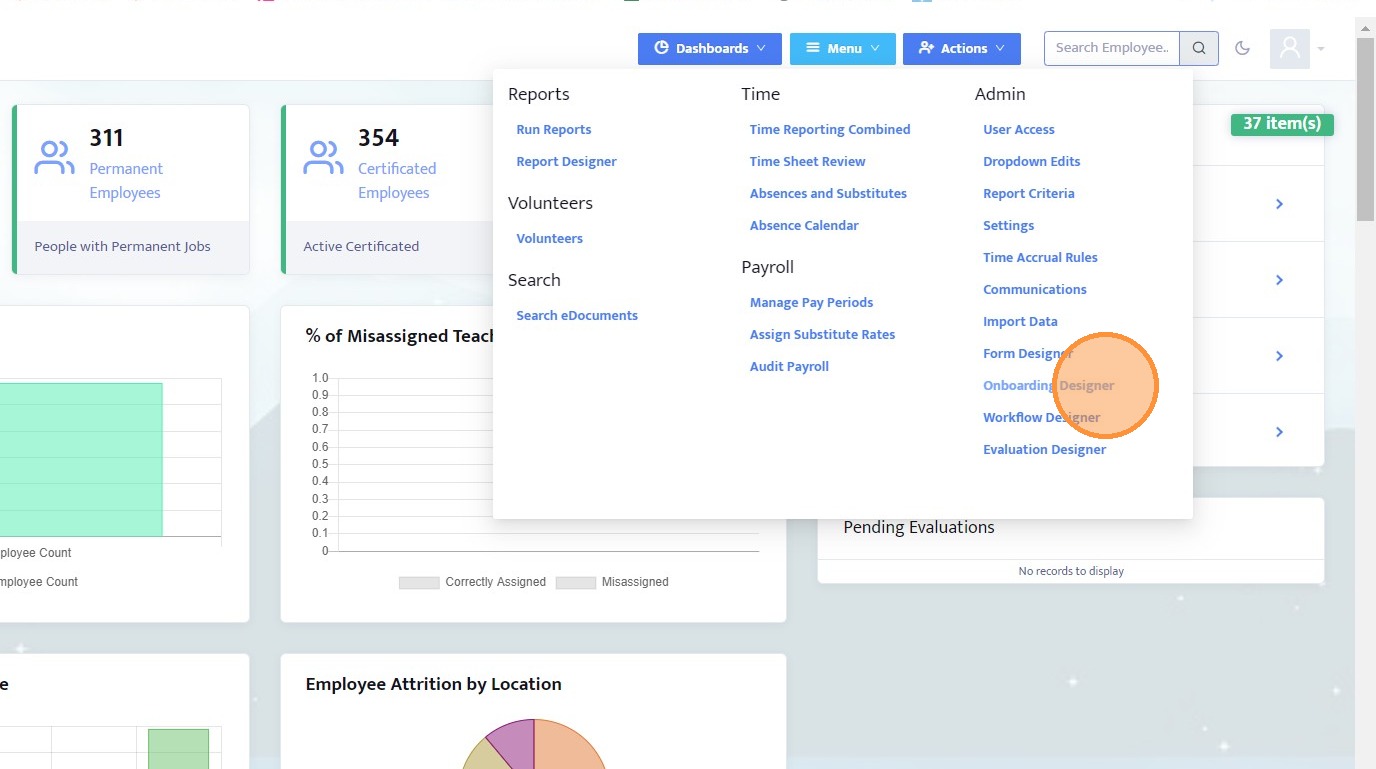
1. Navigate to the Onboarding Designer
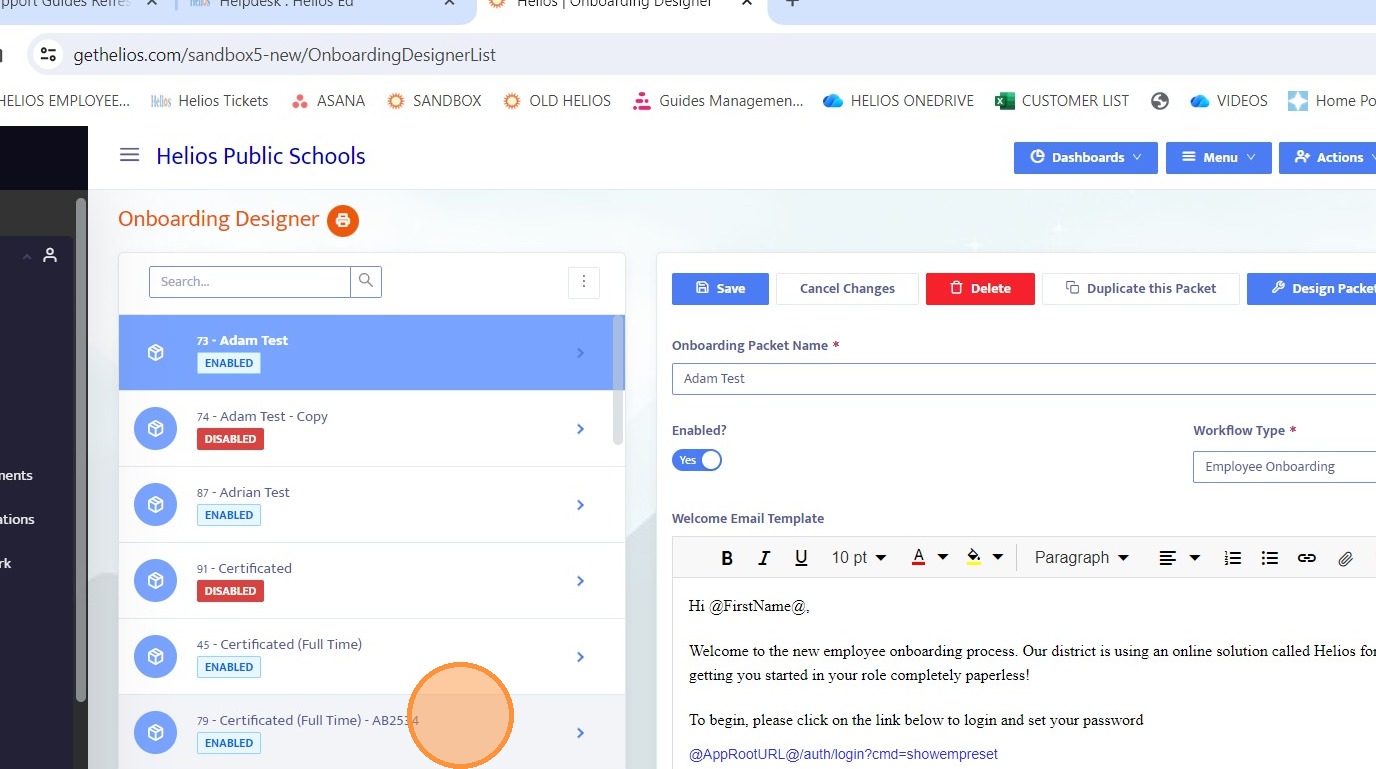
2. Select the onboarding packet you want to edit, either one that already includes external forms or one you want to add them to.
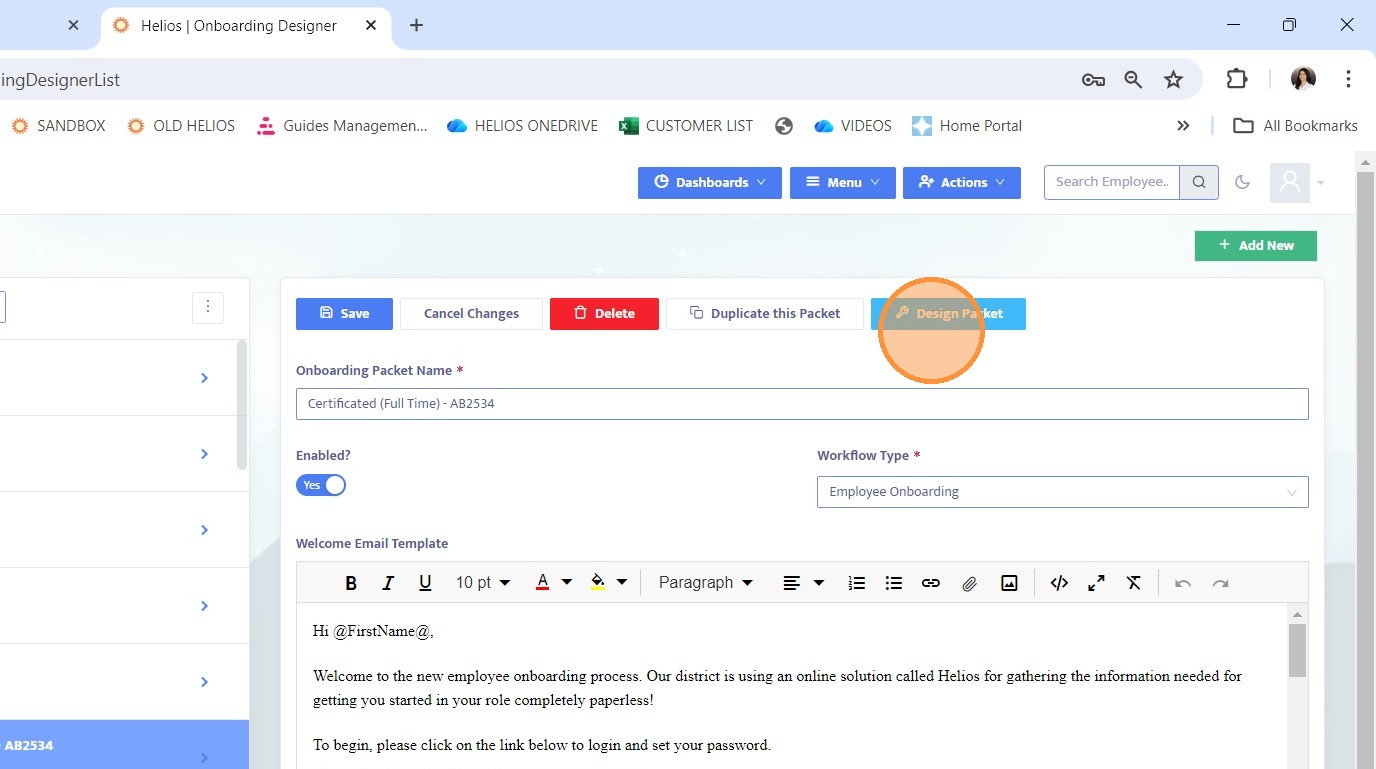
3. Click Design Packet to open the packet configuration.
4. Go to the External Forms tab within the Onboarding Designer.
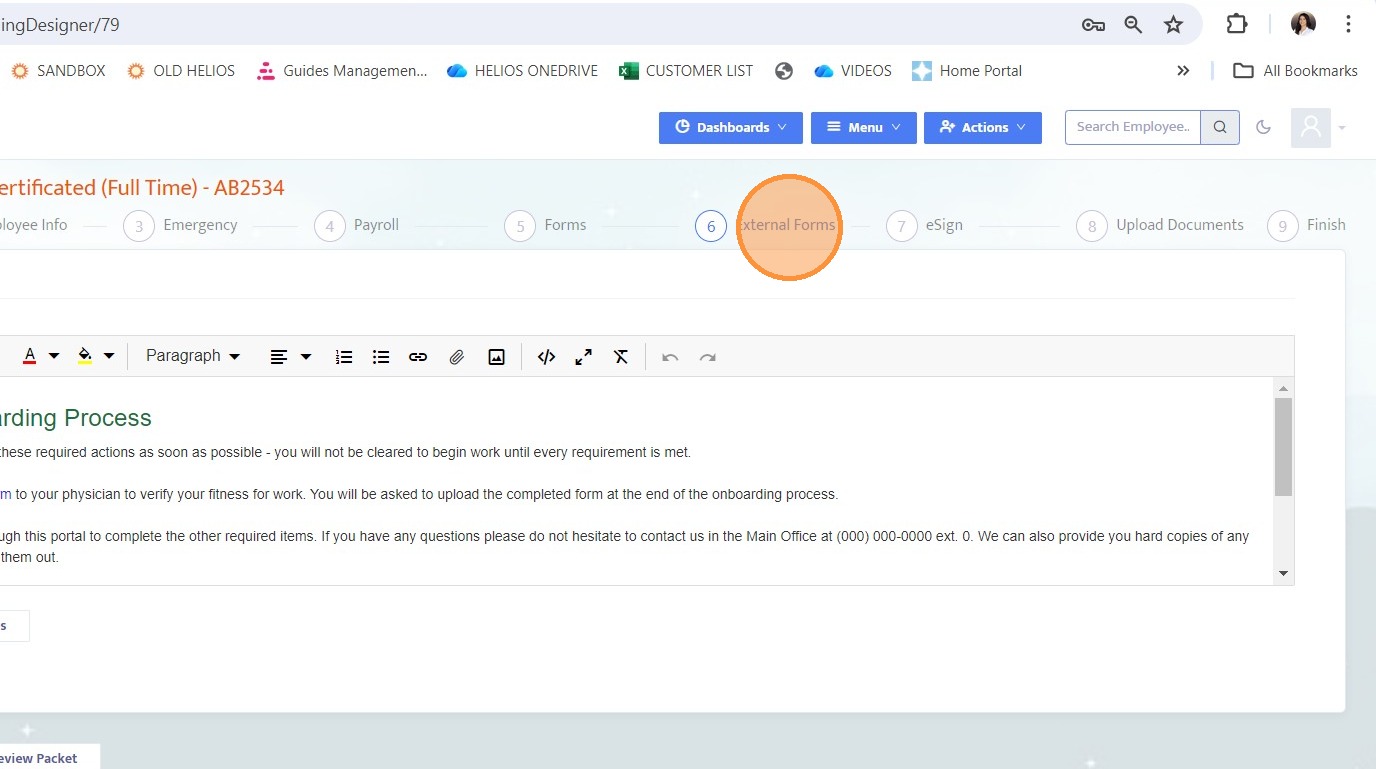
5. View the list of external forms currently included in the packet.
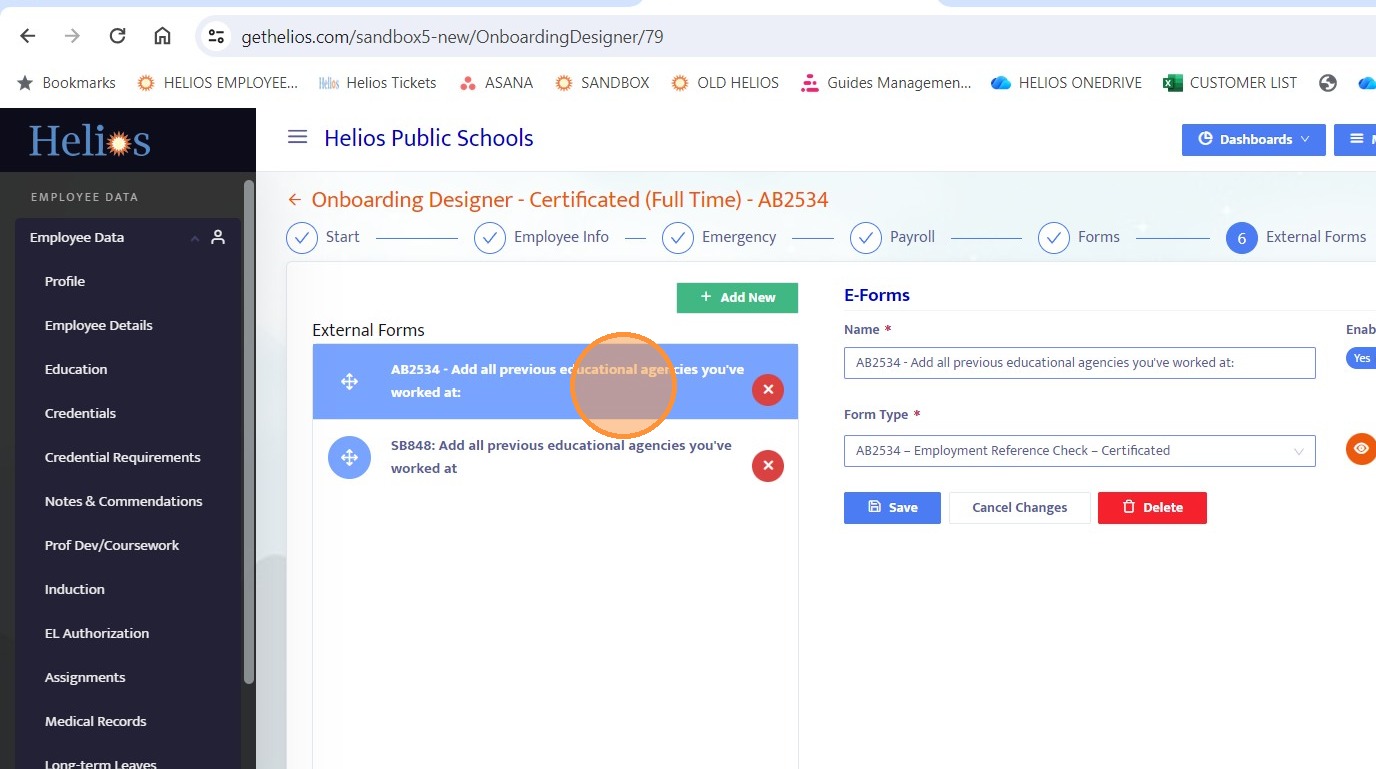
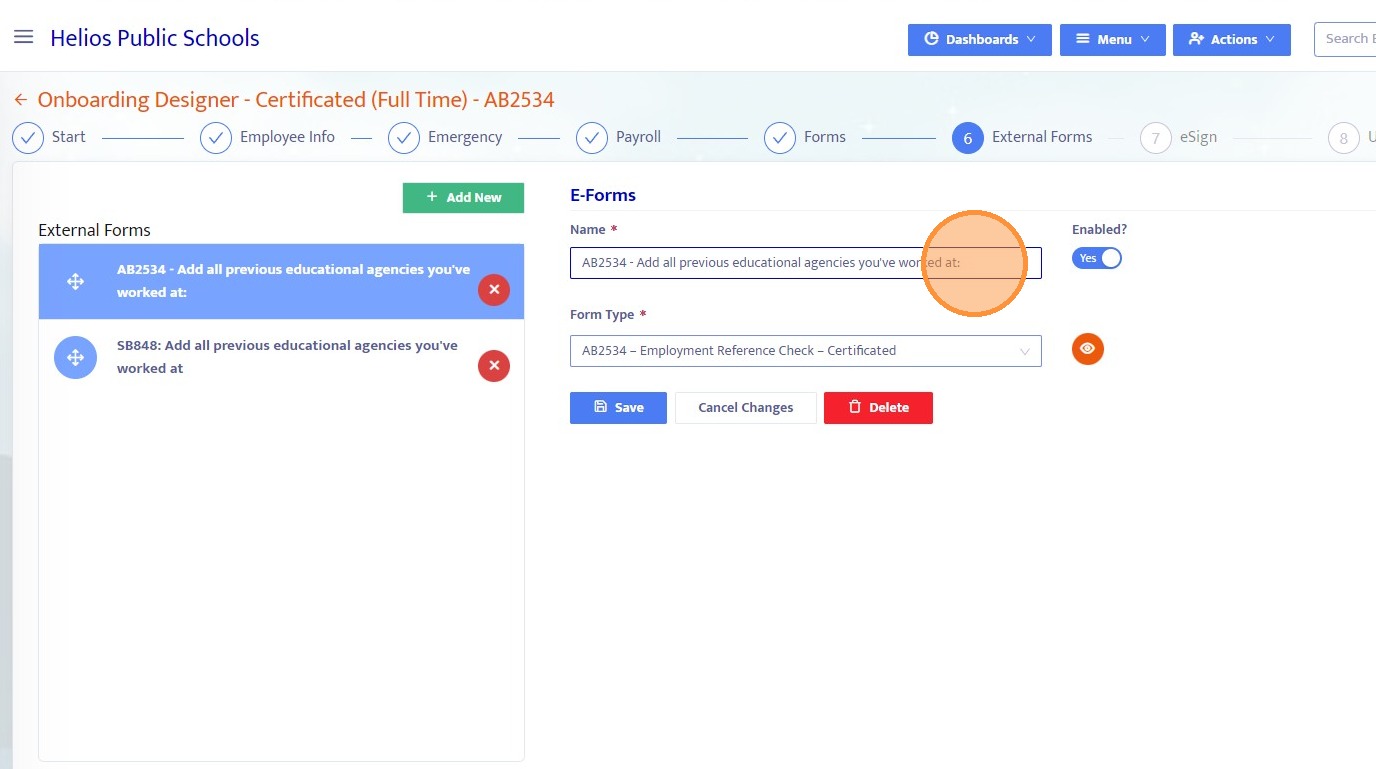
6. Enter a name for the external form and add a description if needed to guide the onboarding employee on what recipients should complete.
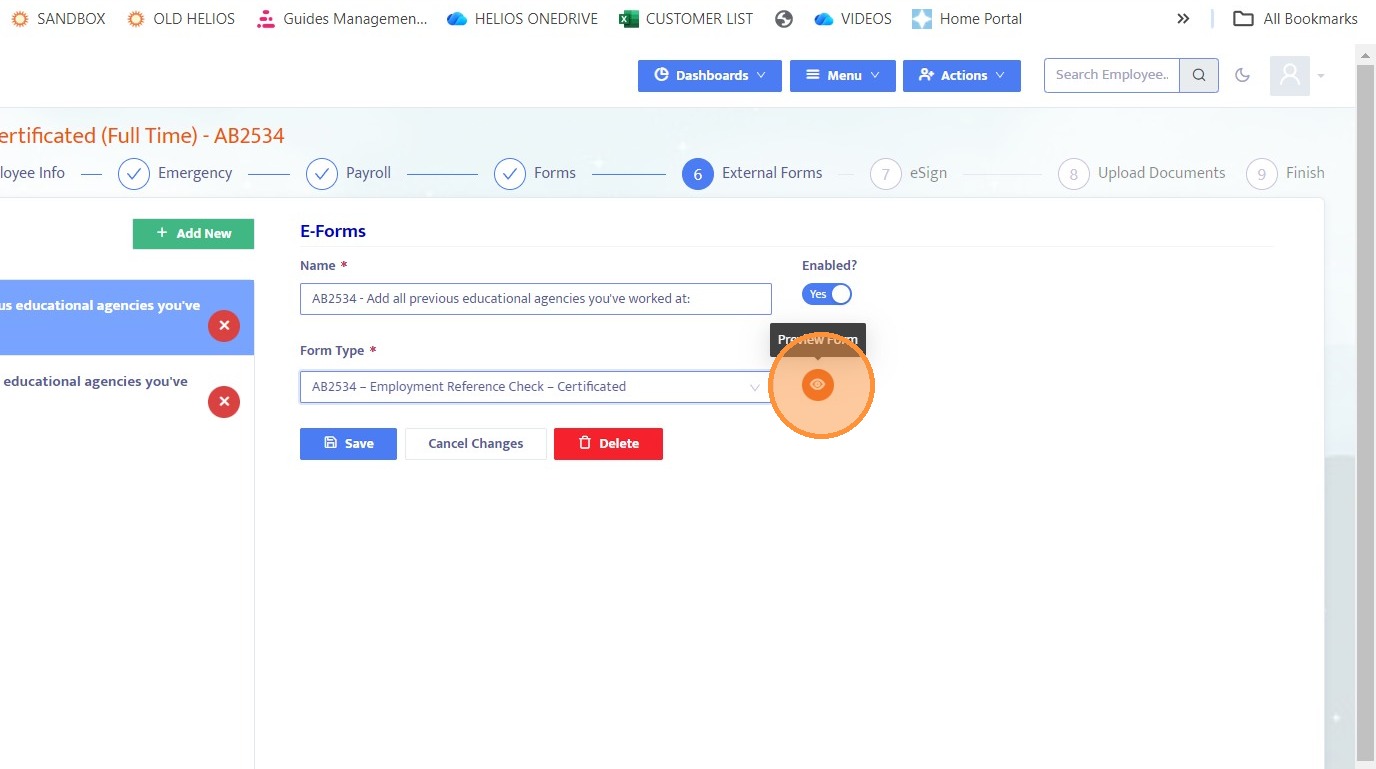
7. Select the appropriate form from the Form Type dropdown. This form must already be created in the Form Designer and is the form that will be sent to external recipients.
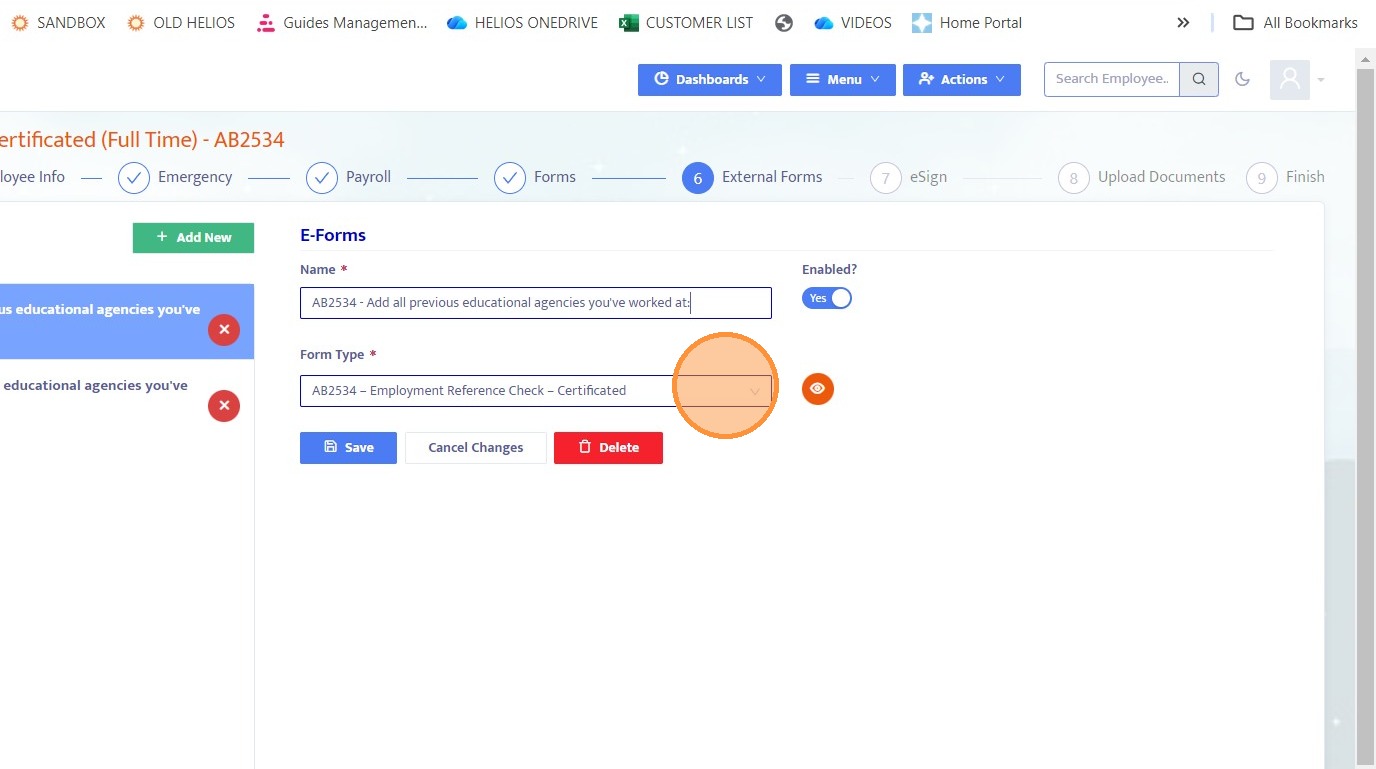
8. Click the eye icon to preview the selected external form.
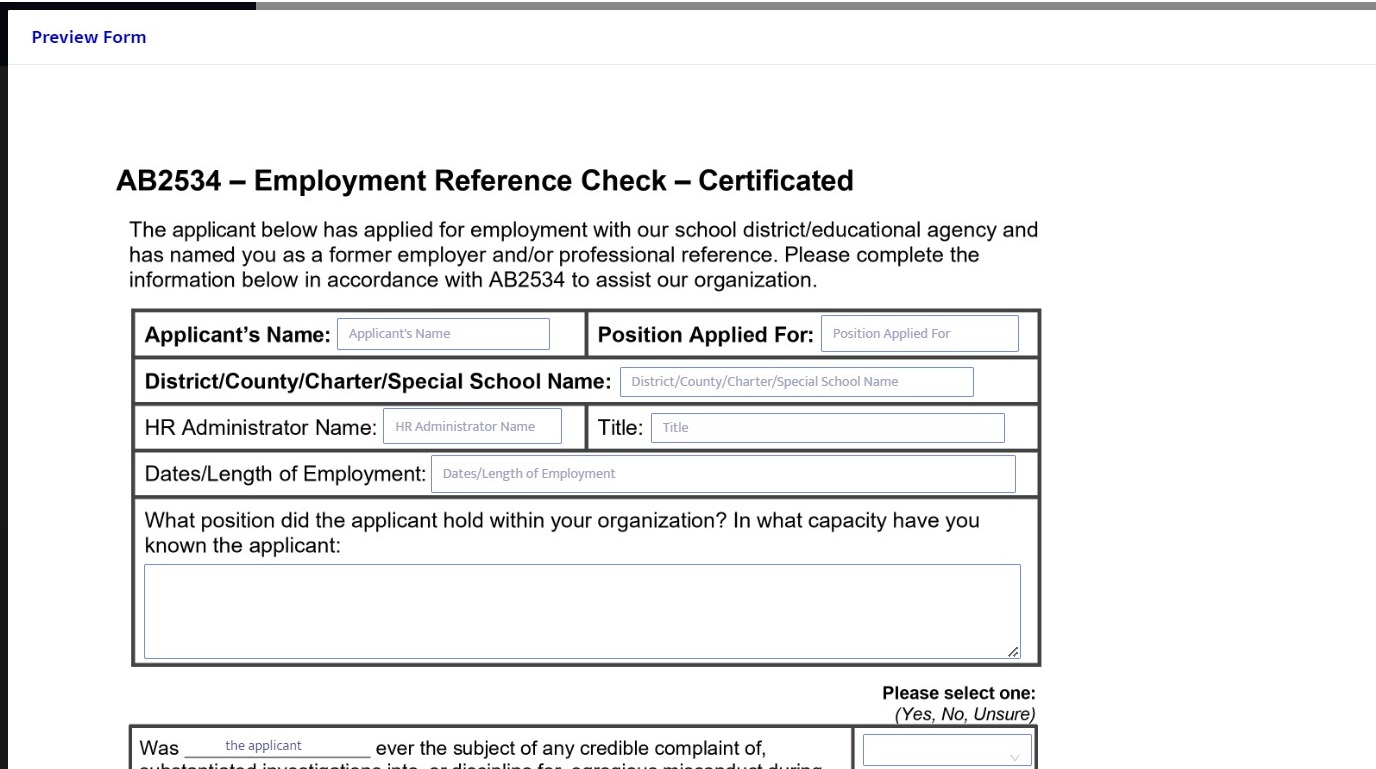
9. This preview shows exactly what the external recipient will see when they receive the form via email.
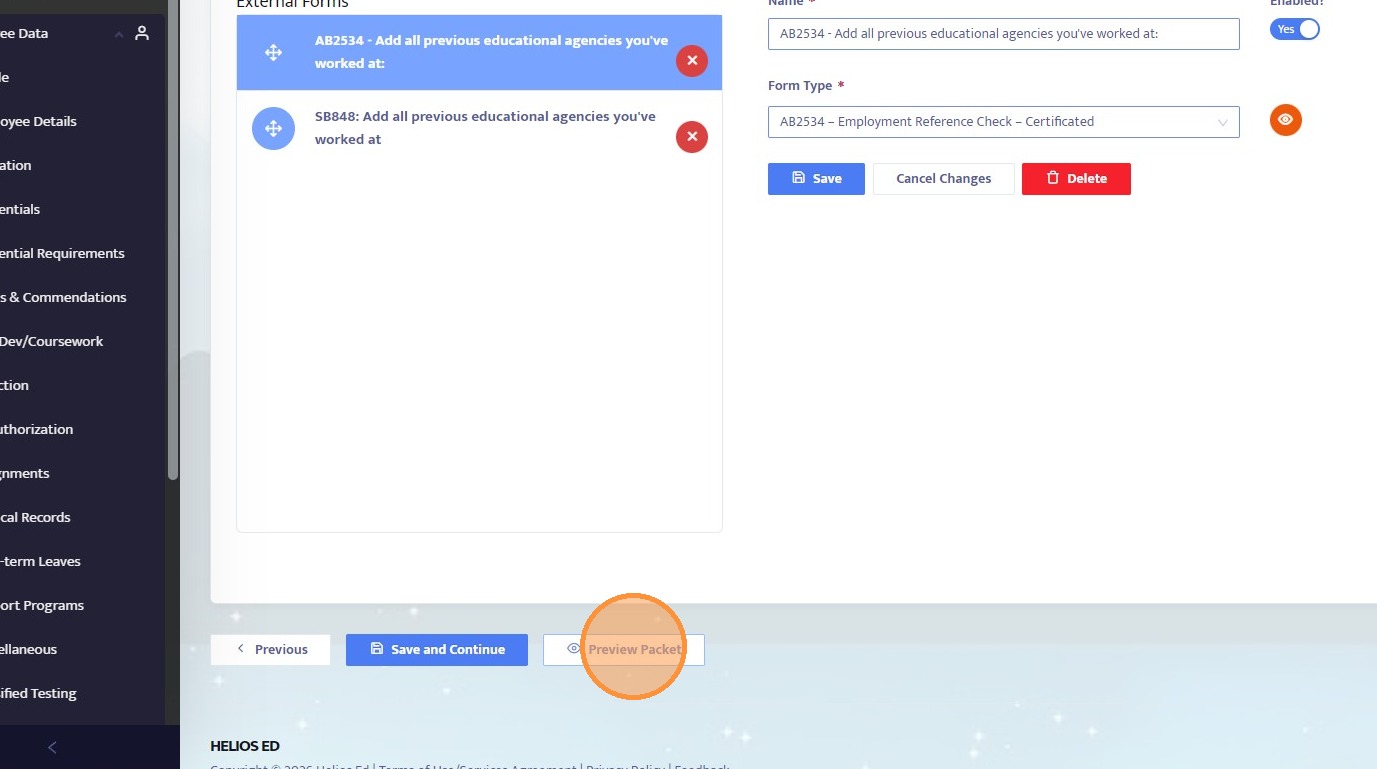
10. Scroll down and click Preview Packet to see how the onboarding packet appears to the onboarding employee.
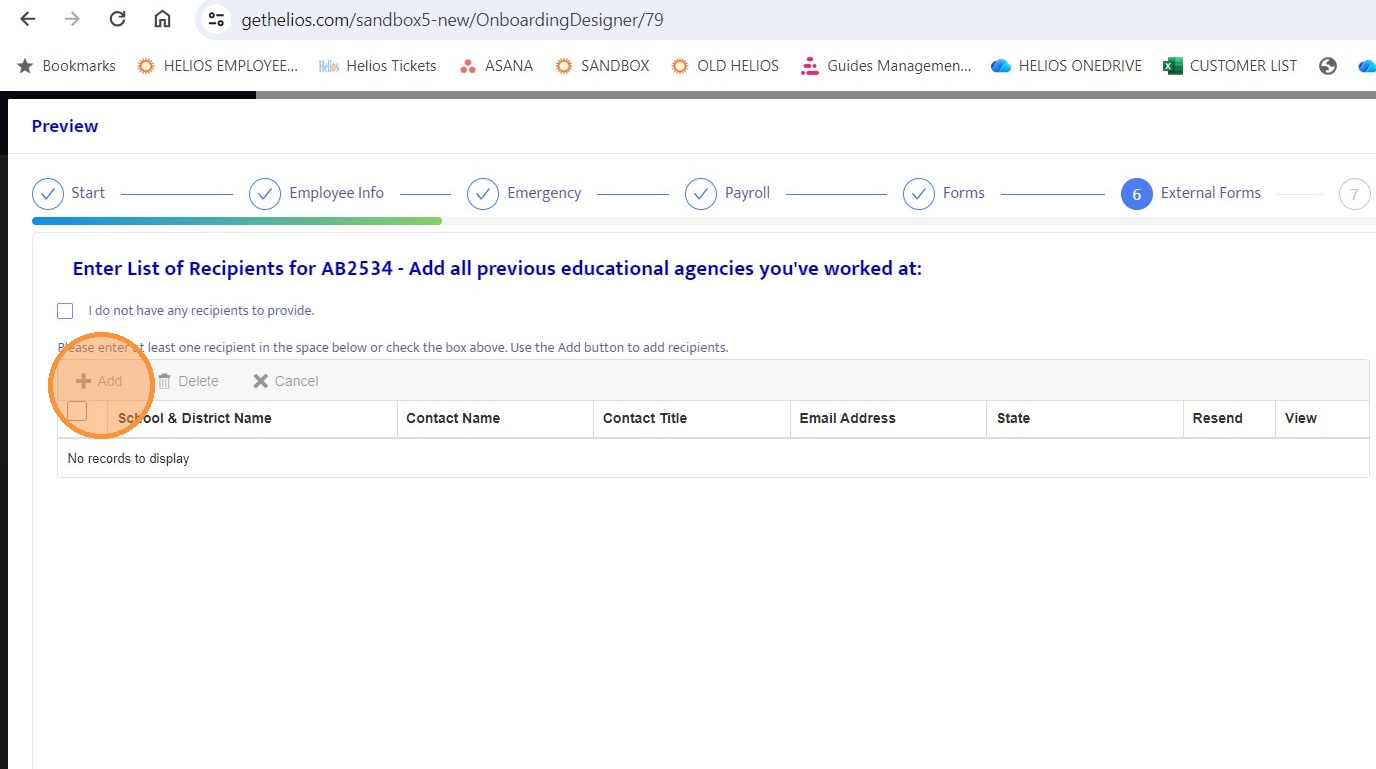
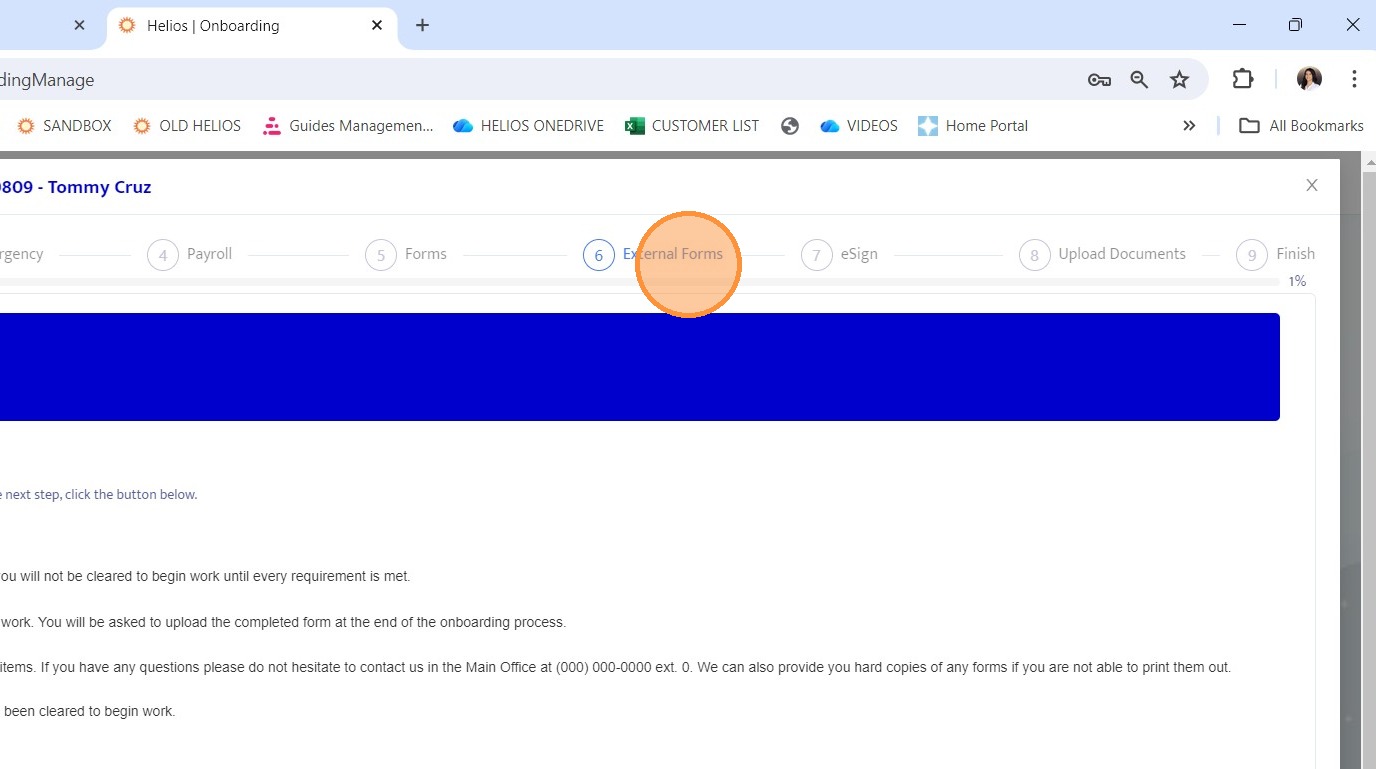
11. In the packet preview, navigate to the External Forms step.
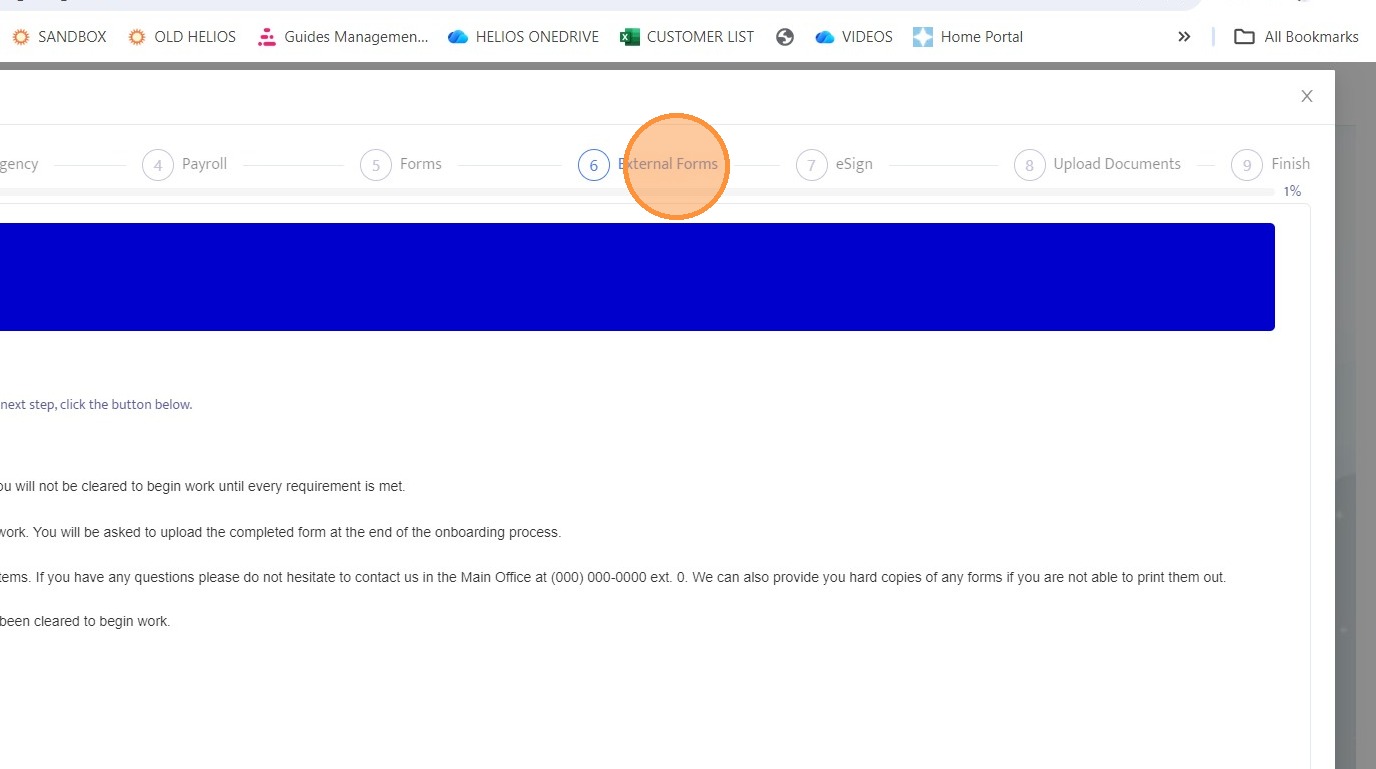
12. You will see that the onboarding employee can enter recipient information for the external form at this step.
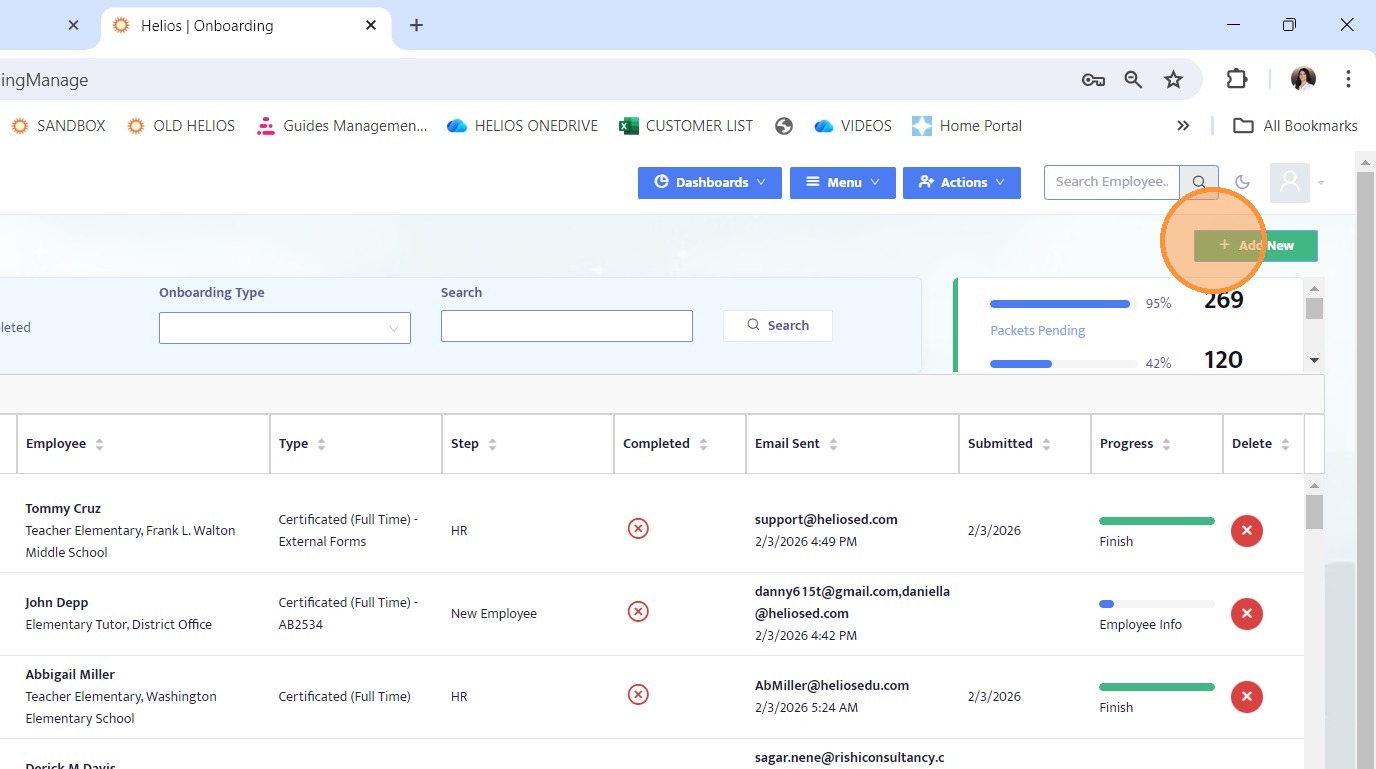
13. Click Add New to initiate an onboarding packet that includes external forms.
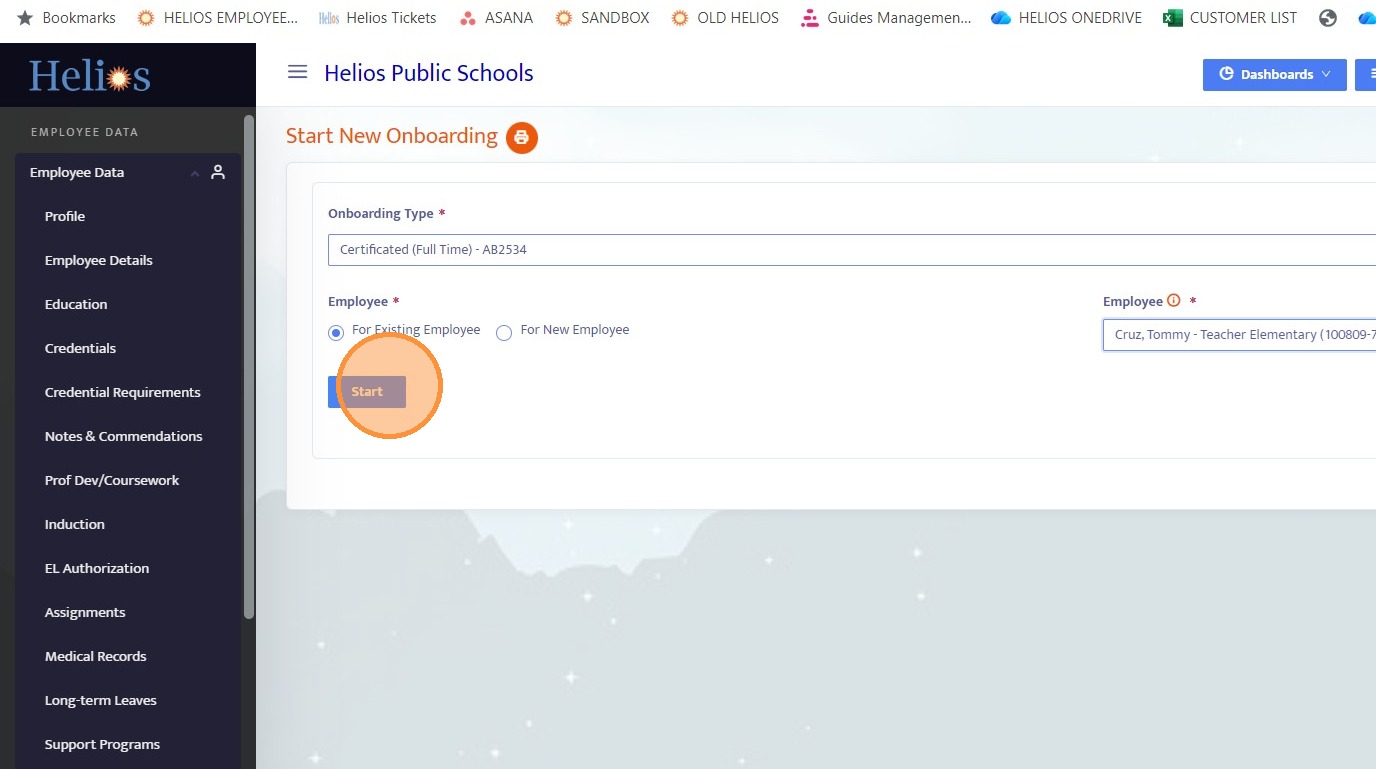
14. Select the onboarding type that includes the external form, choose an existing employee, and click Start.
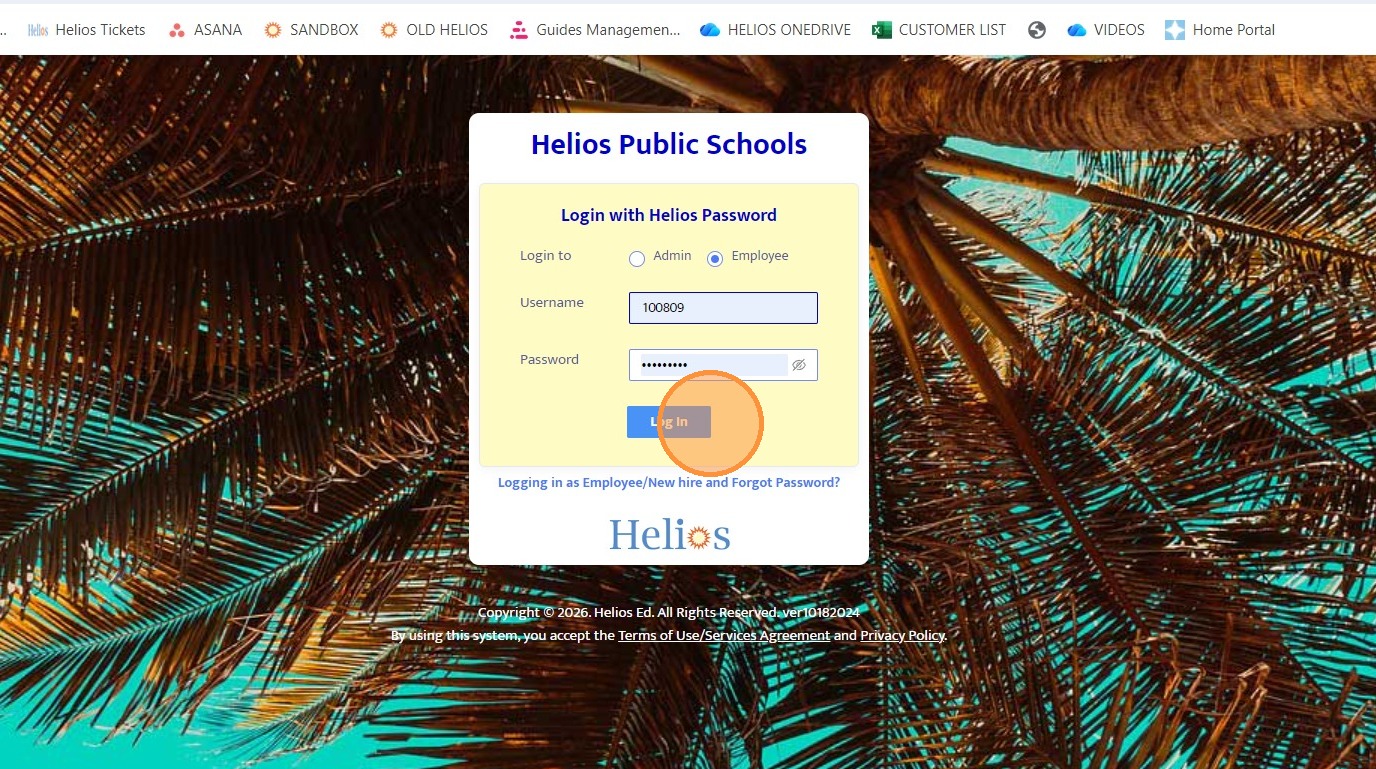
15. Log in as the selected employee to demonstrate the employee experience.
16. Proceed through the onboarding packet as the employee.
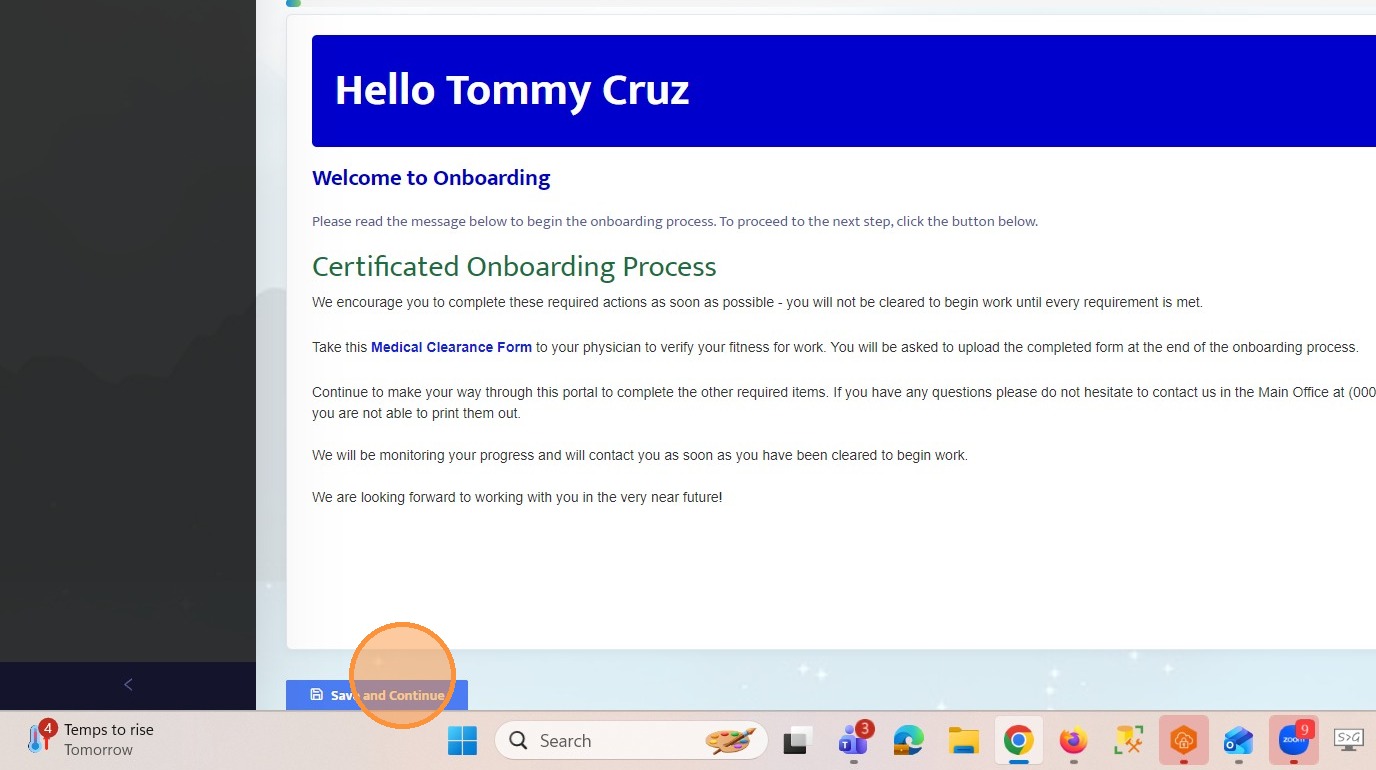
17. When reaching the External Forms section, enter recipient information.
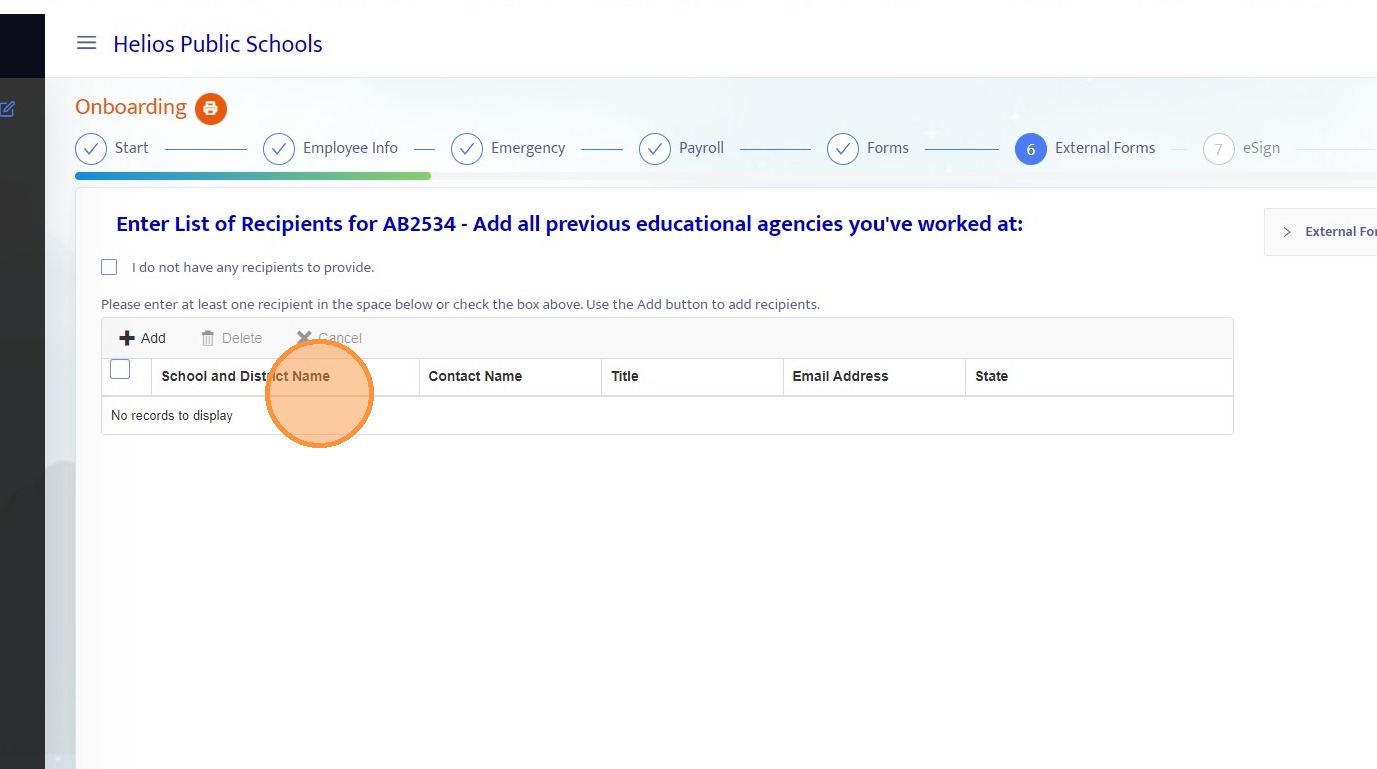
18. Click Add to add a new external recipient.
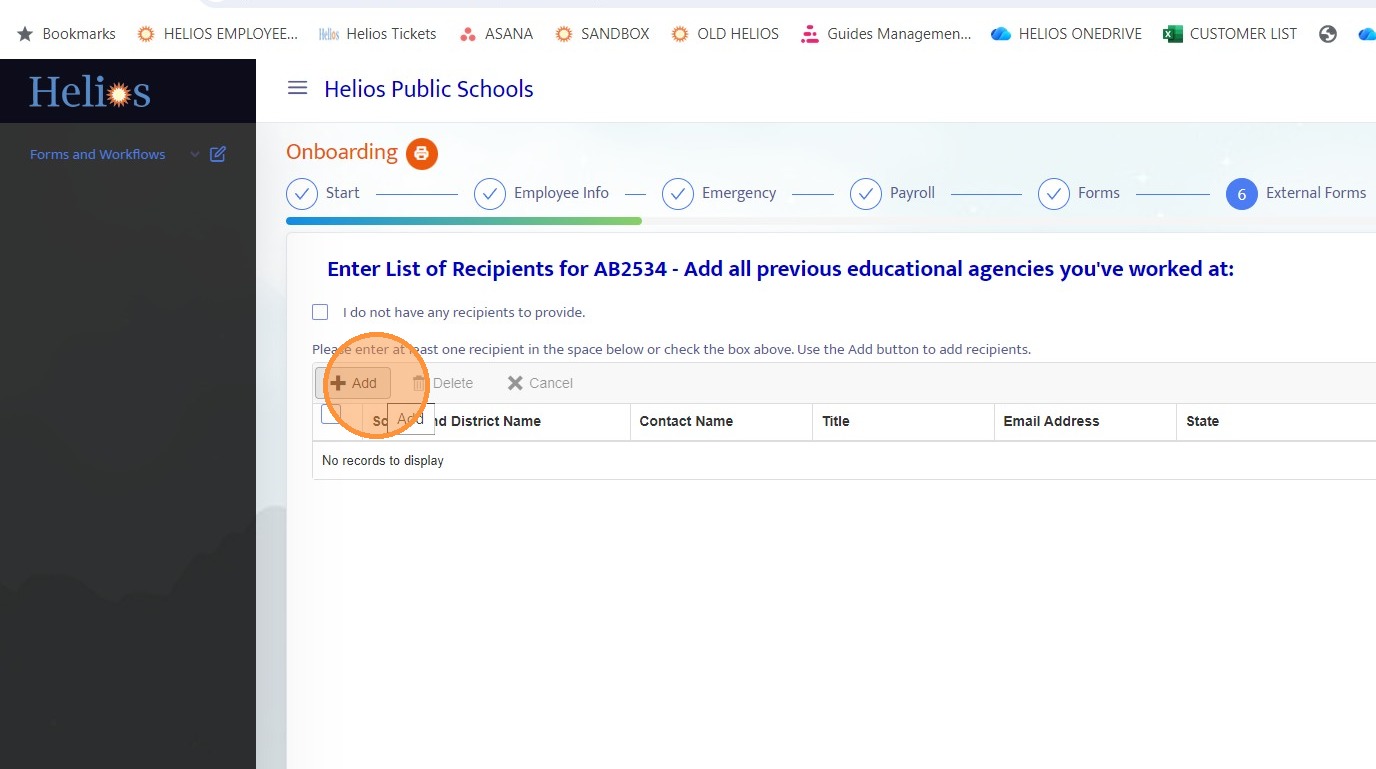
19. View an example of a completed recipient entry with all required information filled in.
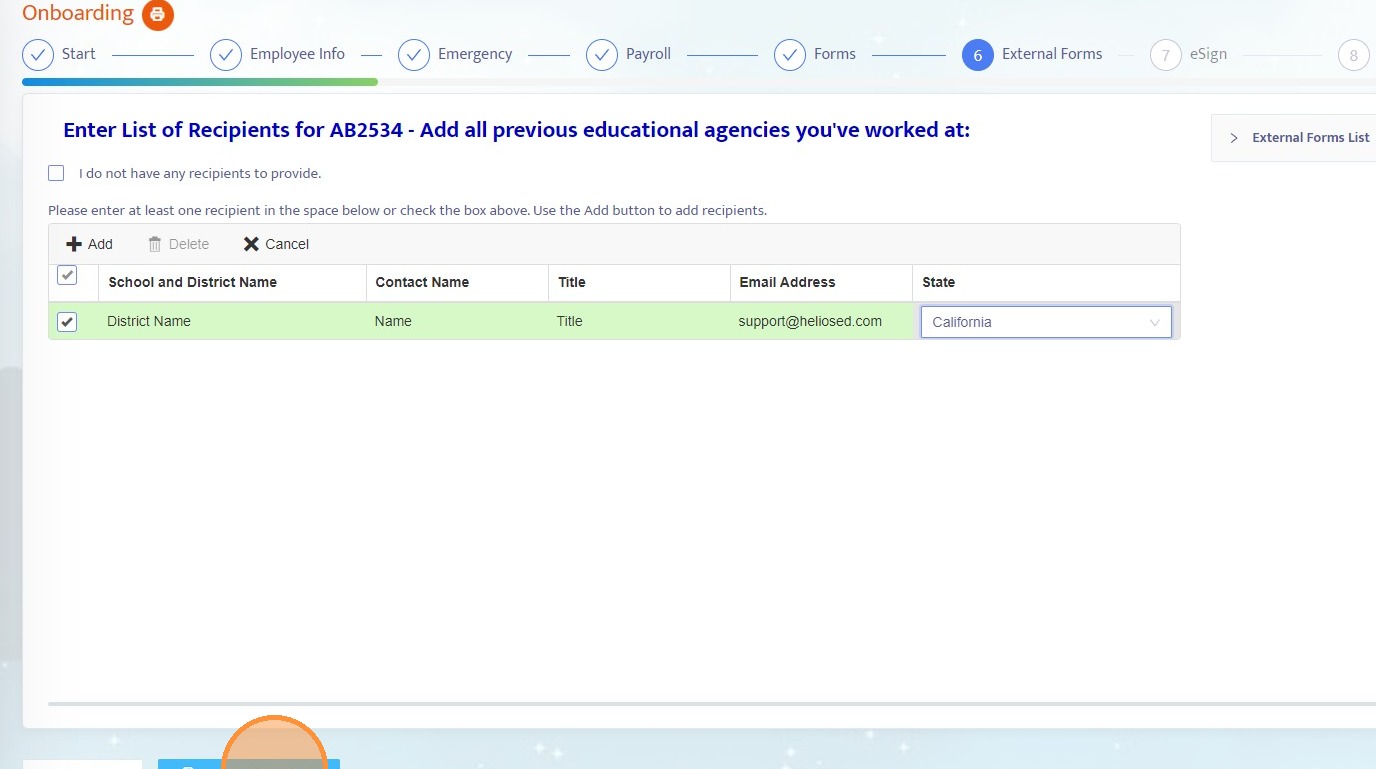
20. Continue progressing through the remainder of the onboarding packet.
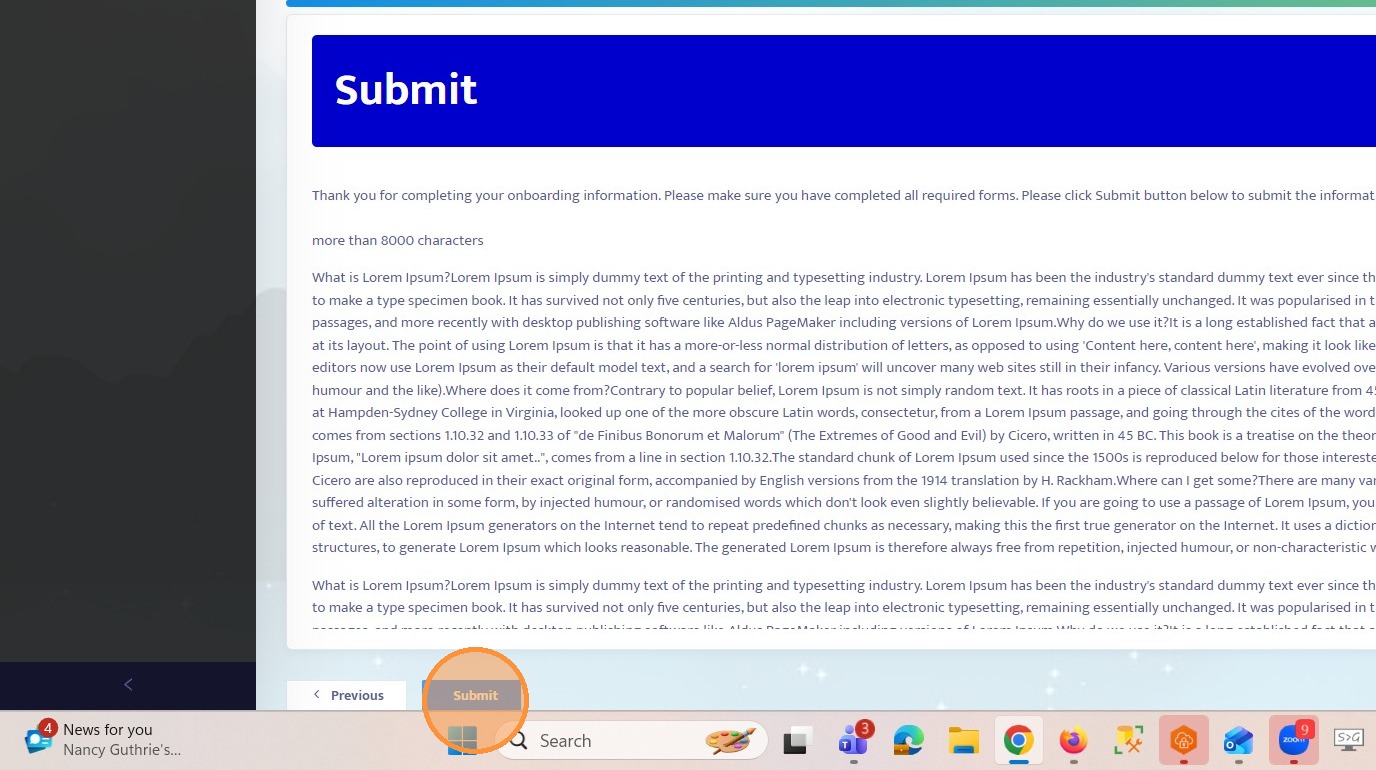
NOTE: External form emails are not sent immediately when recipients are entered. They are triggered only after the onboarding employee submits the onboarding packet. Once the employee clicks Submit, the system sends the external form emails to the listed recipients.
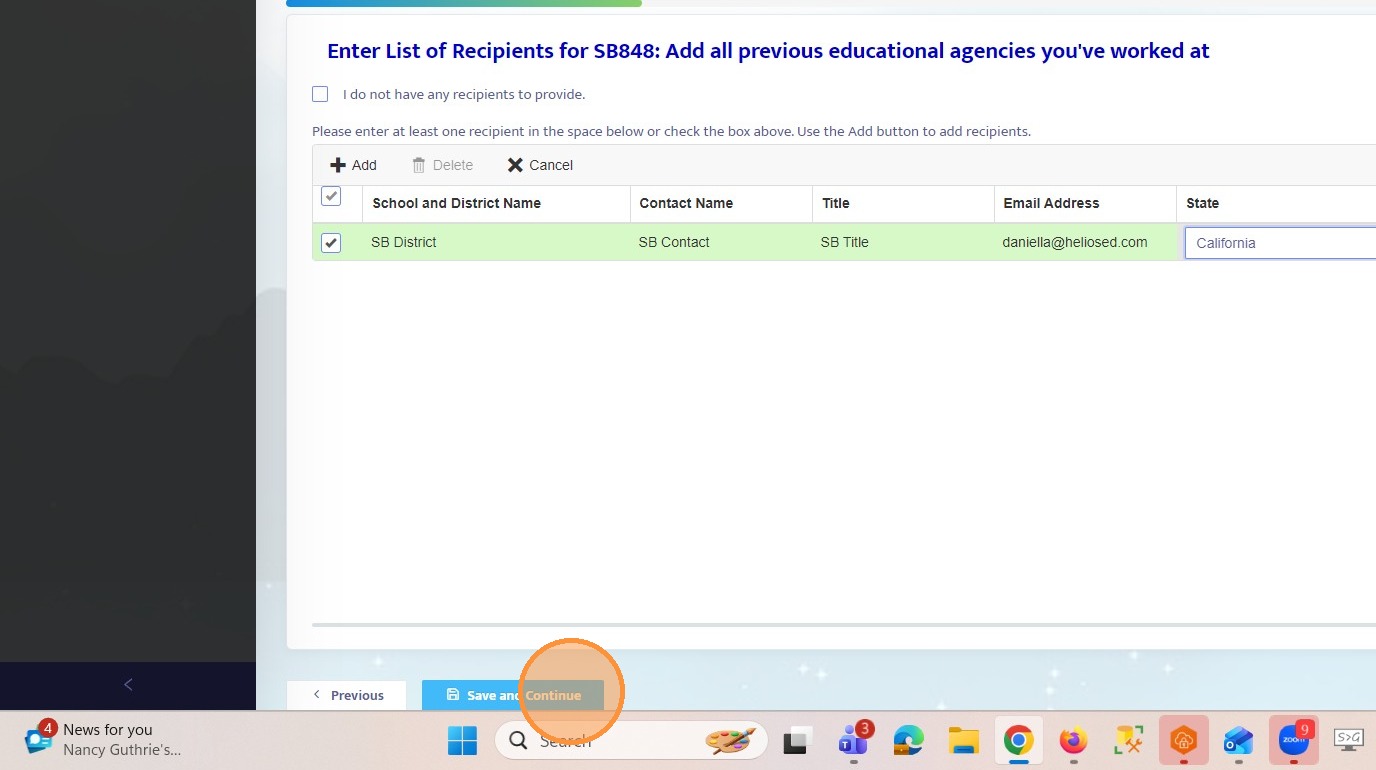
21. Submit the completed onboarding packet.
NOTE: External form emails are not sent immediately when recipients are entered. They are triggered only after the onboarding employee submits the onboarding packet. Once the employee clicks Submit, the system sends the external form emails to the listed recipients.
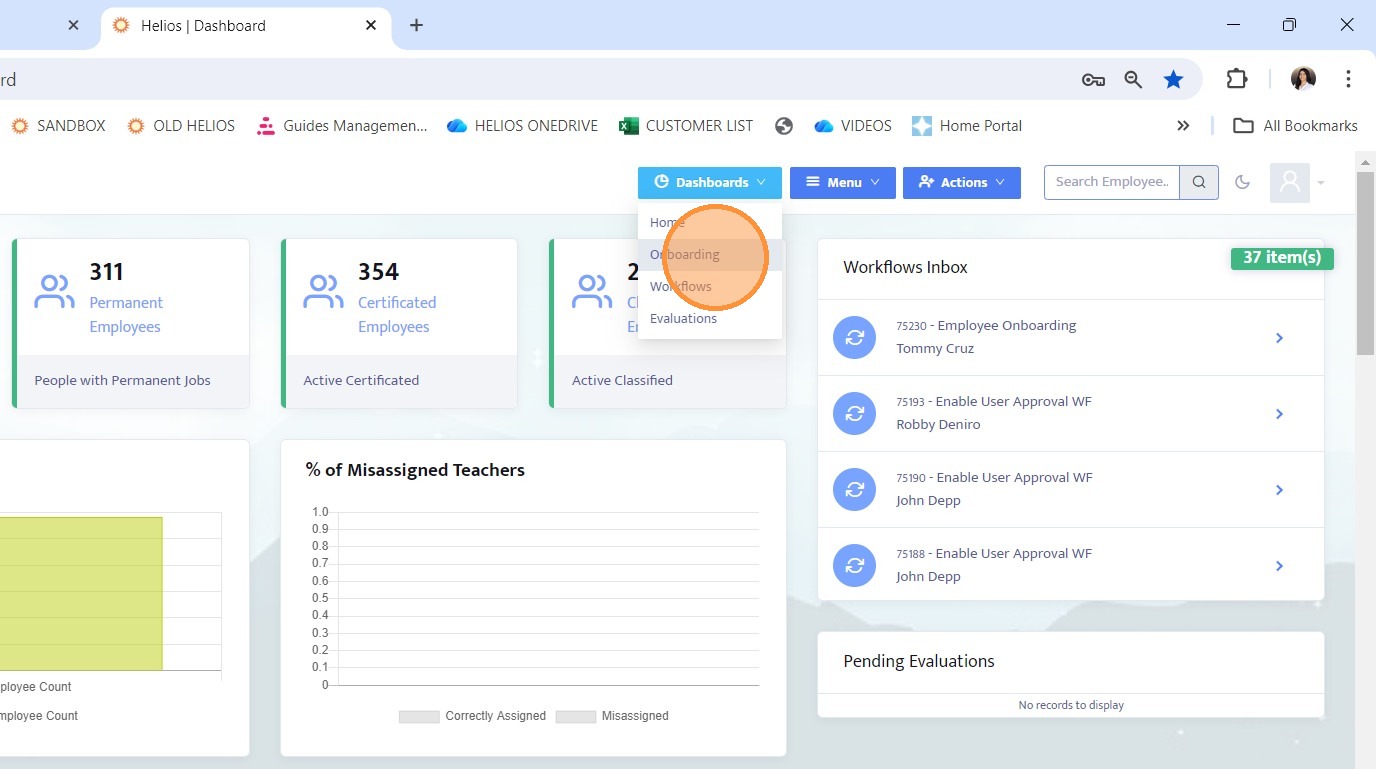
22. Return to the admin view and navigate to the Onboarding Dashboard.
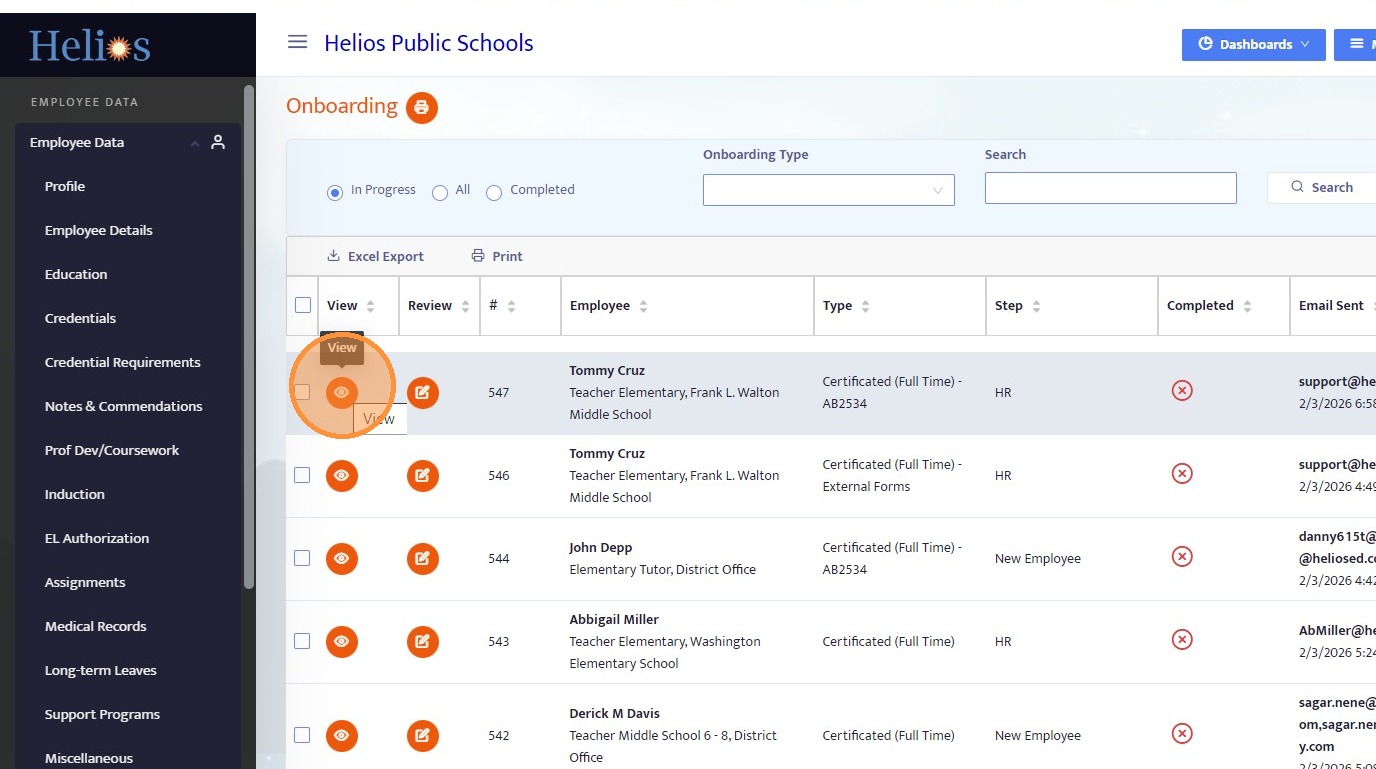
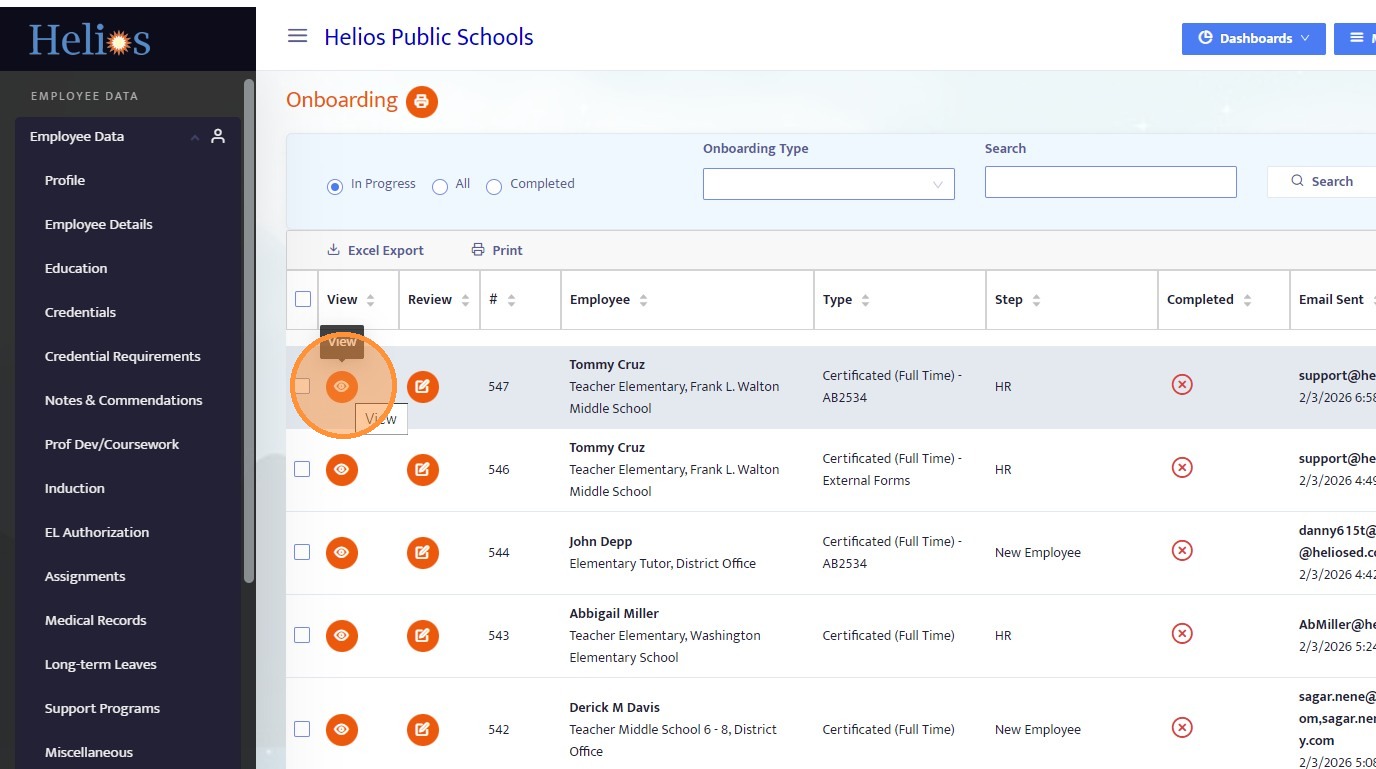
23. Locate the employee’s onboarding record and click View.
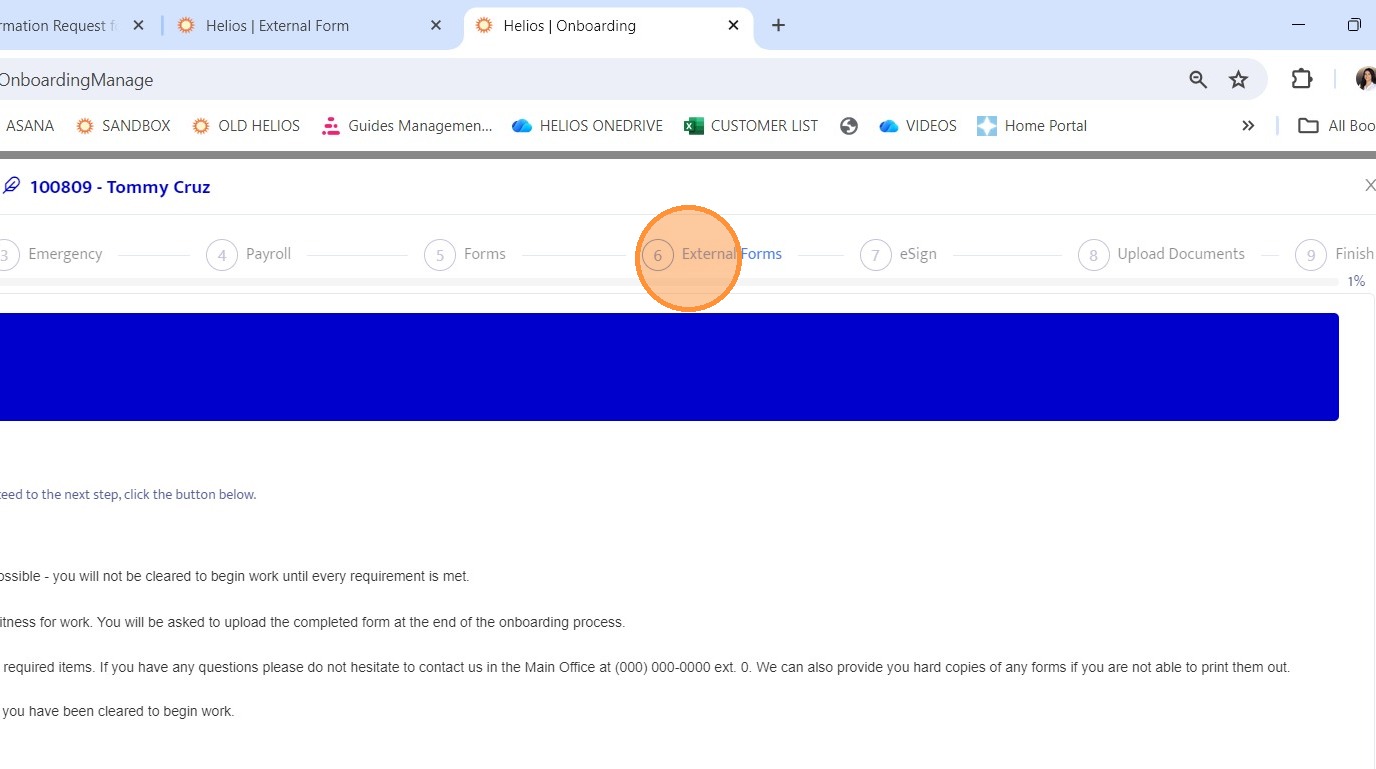
24. Navigate back to the External Forms section within the onboarding record.
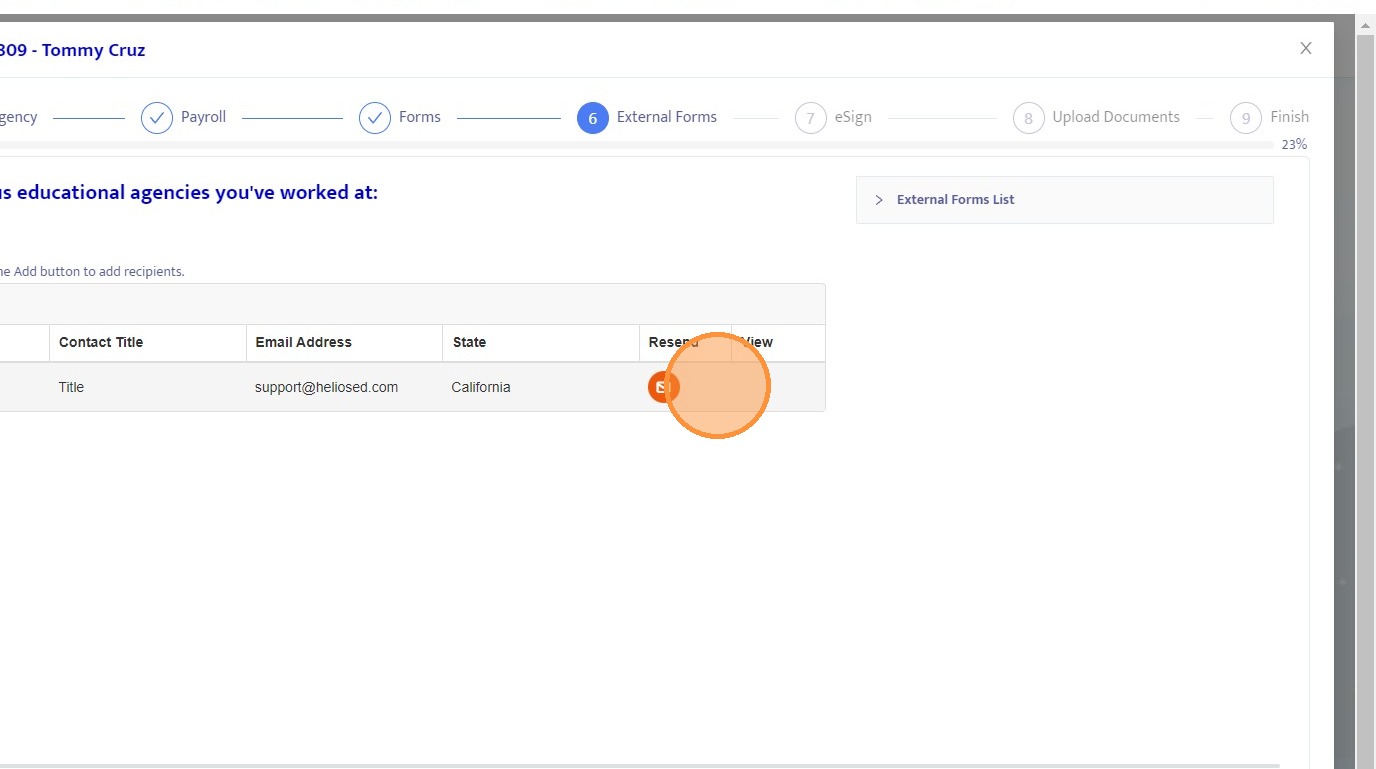
25. From this screen, you can resend the external form if needed, such as when correcting an email address. Once the form is submitted, a View button will appear, allowing you to review the completed form.
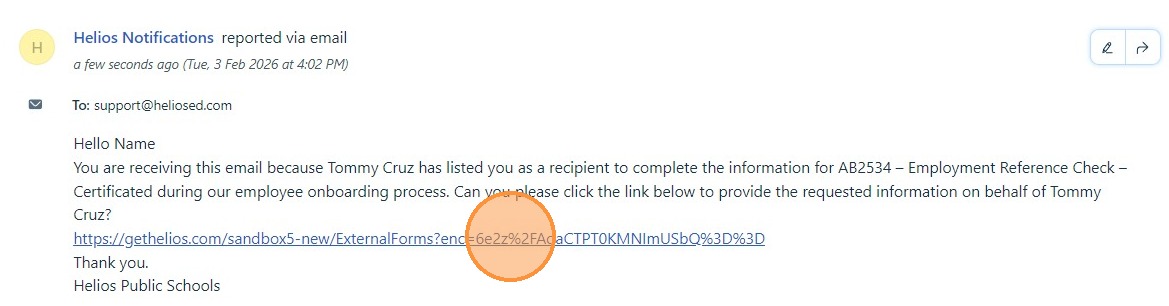
26. View an example of the email sent to external recipients.
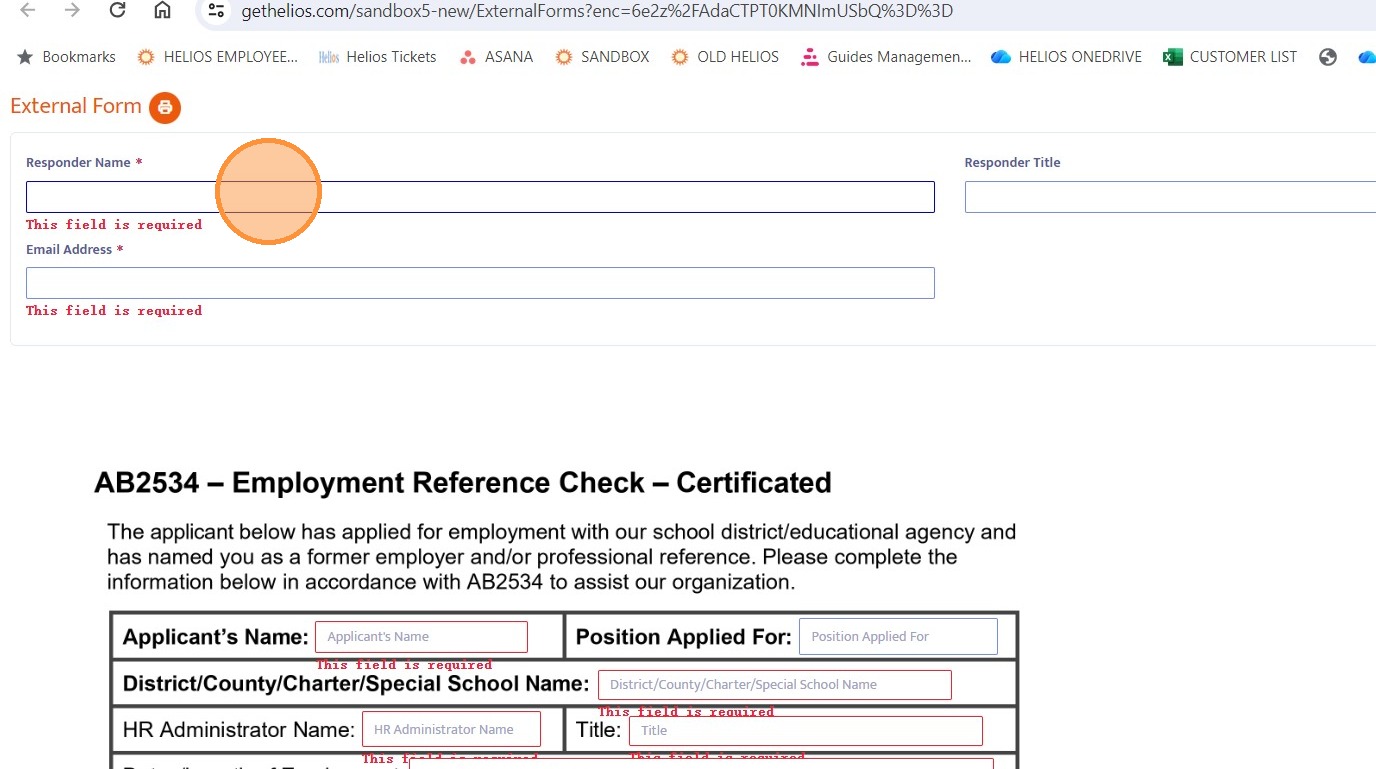
27. See what the form looks like when the external recipient begins completing it.
28. Submit the form as the external recipient.
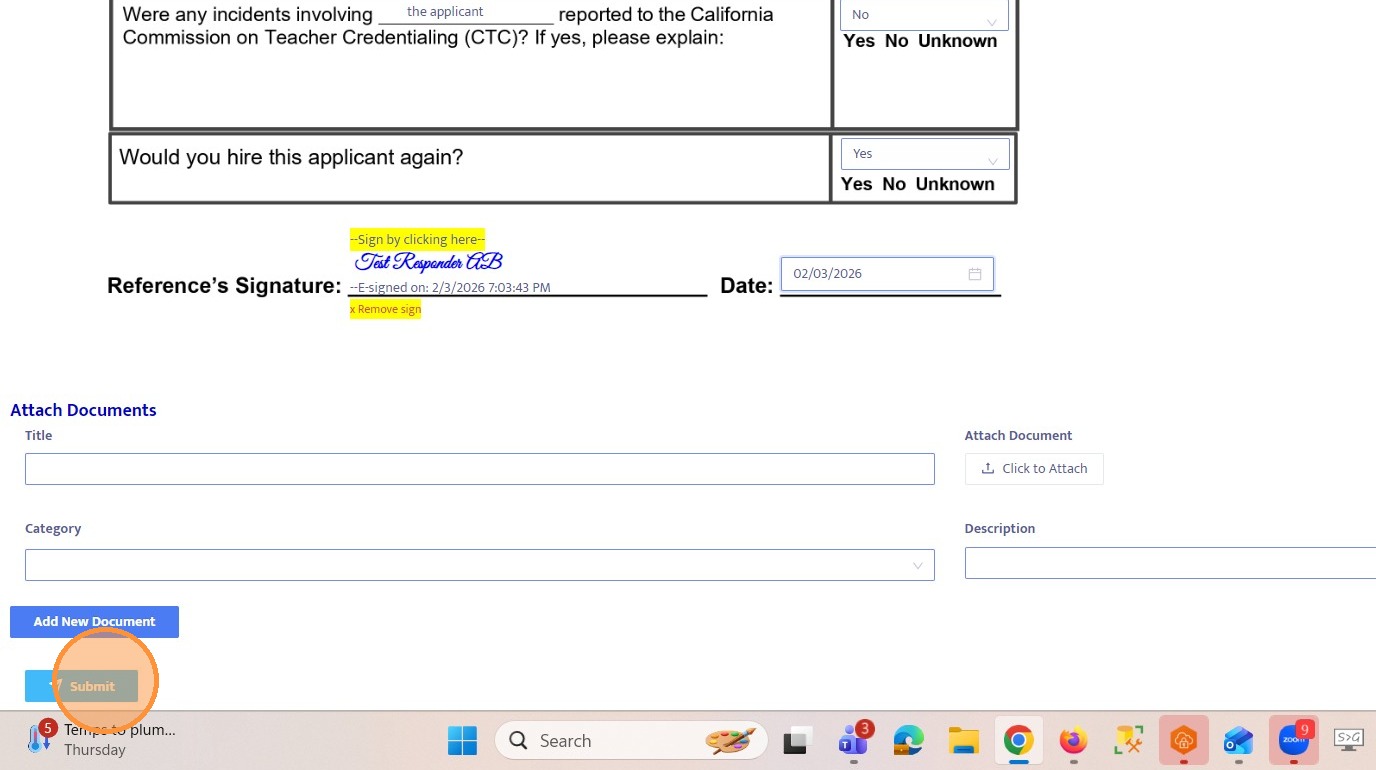
29. Return to the Onboarding Dashboard in the admin view.
30. Open the onboarding record and return to the External Forms section.
31. Notice that the Resend option is no longer available after submission, and a View button now appears instead.
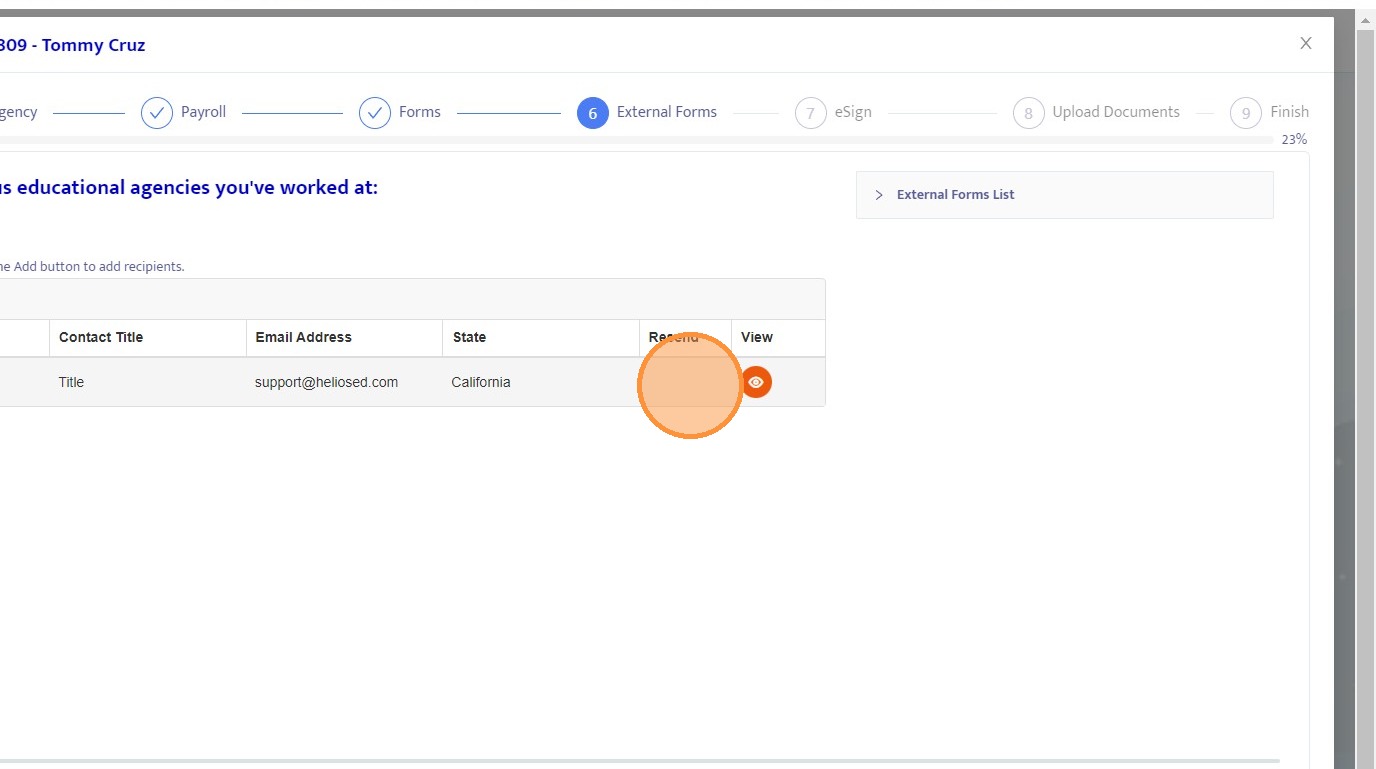
32. Click the View button.
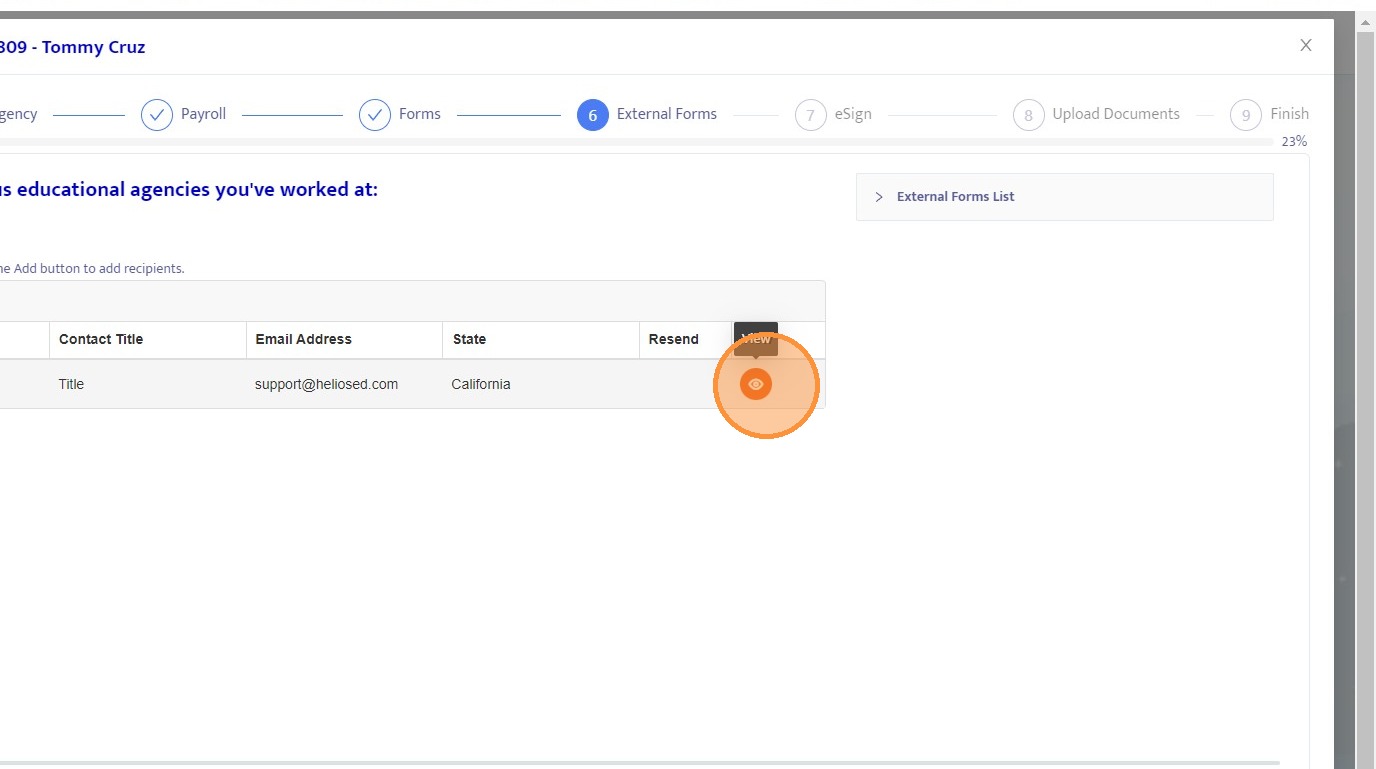
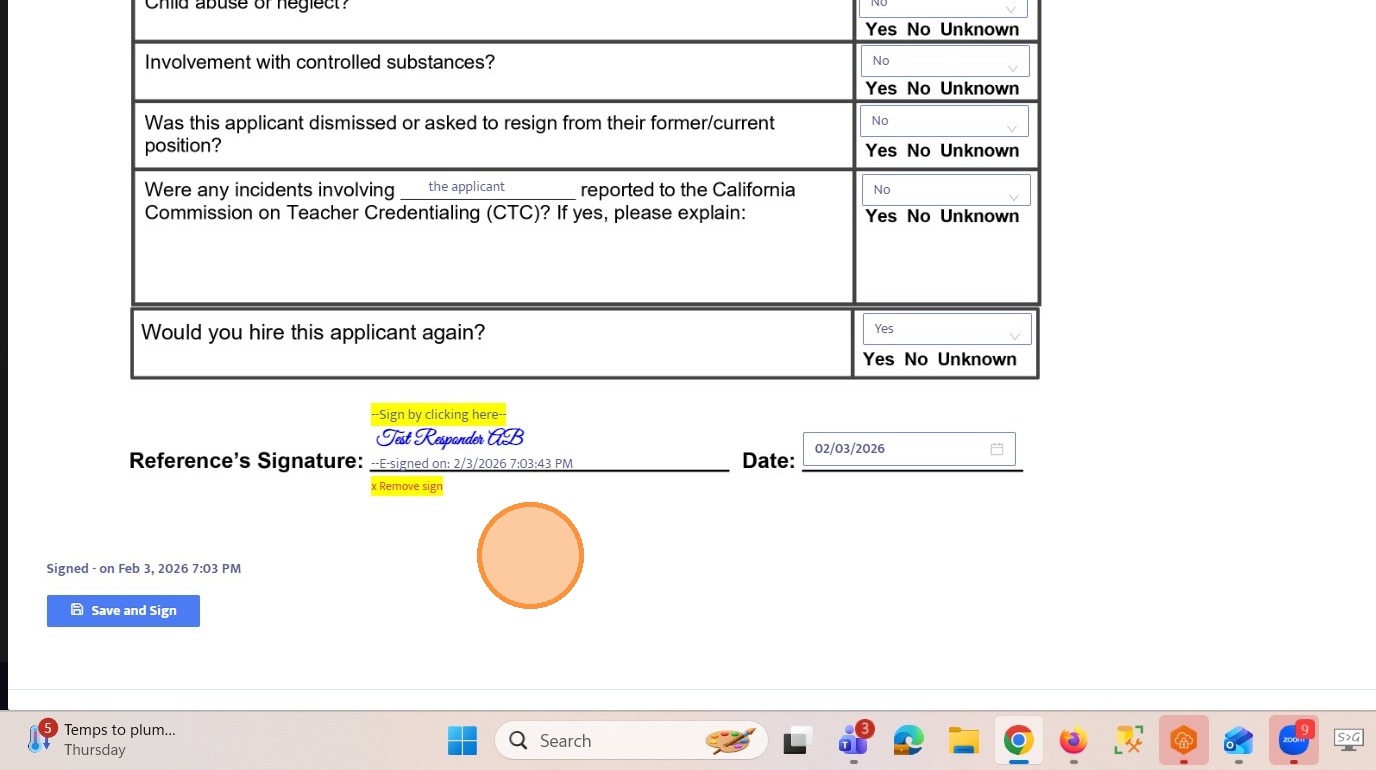
33. Review the responses submitted by the external recipient.
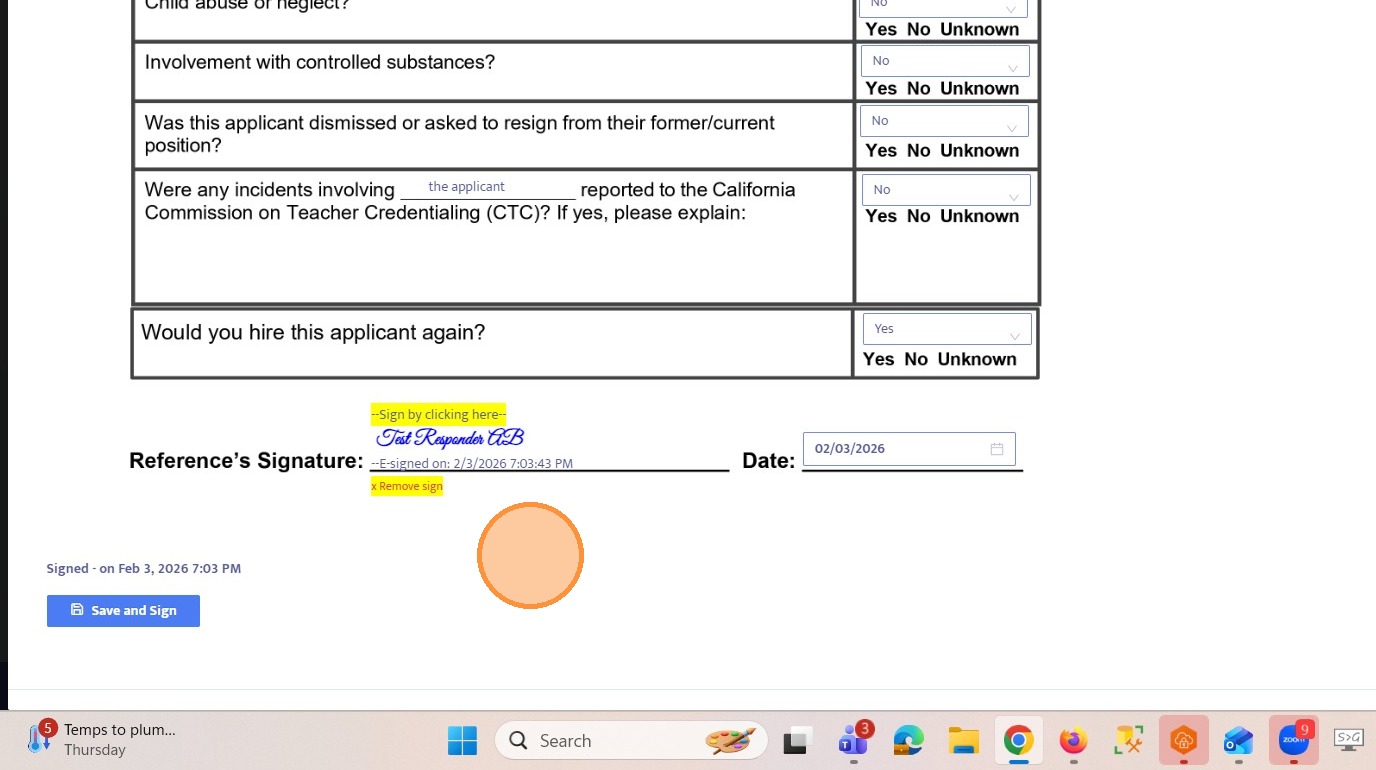
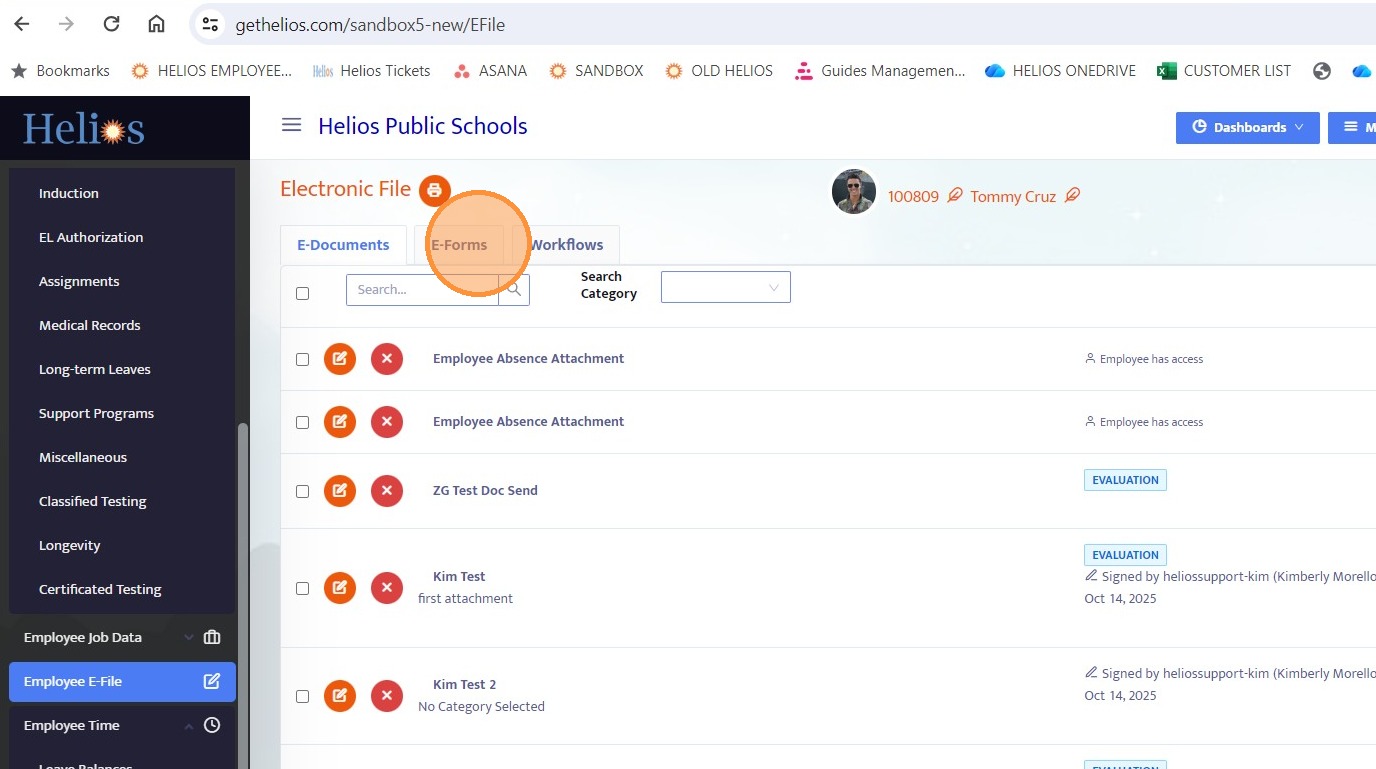
34. Navigate to the employee’s e-file.
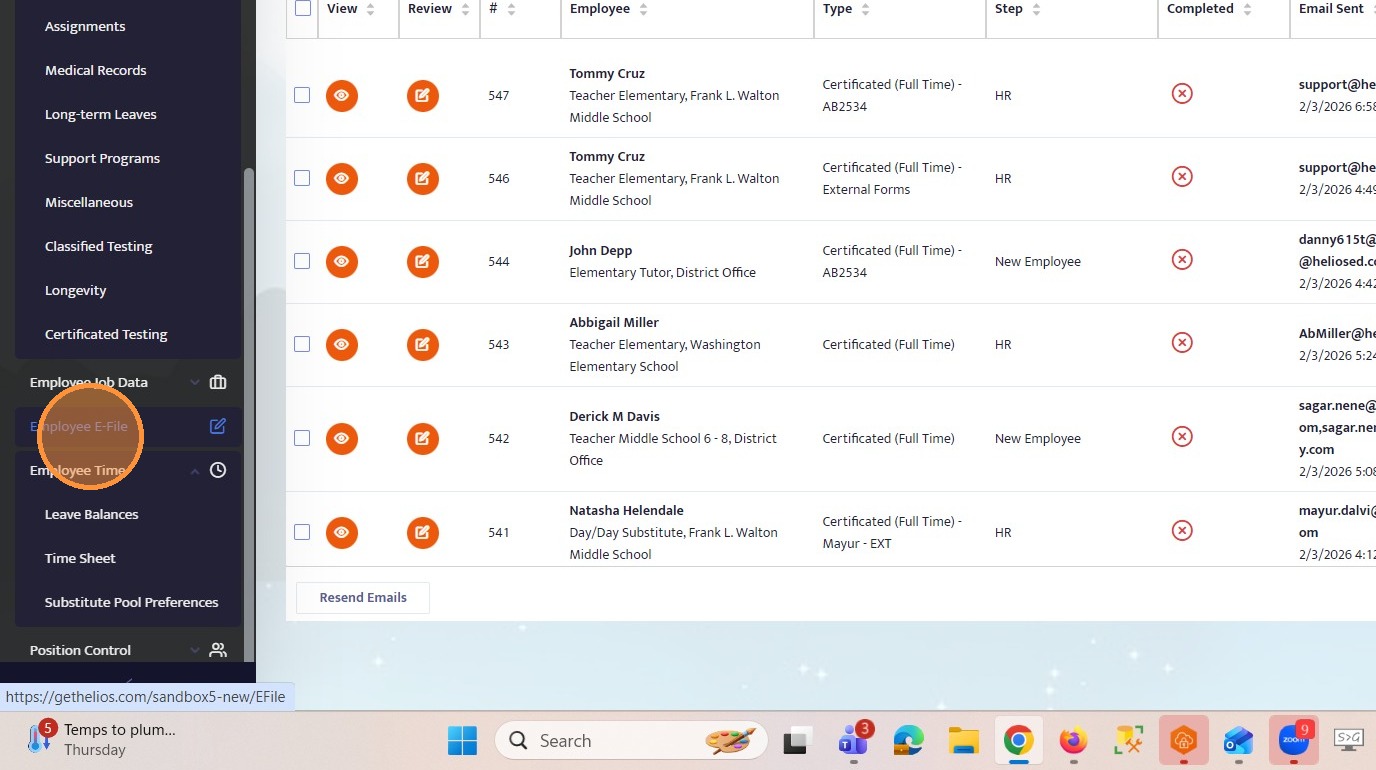
35. Select the appropriate employee profile.
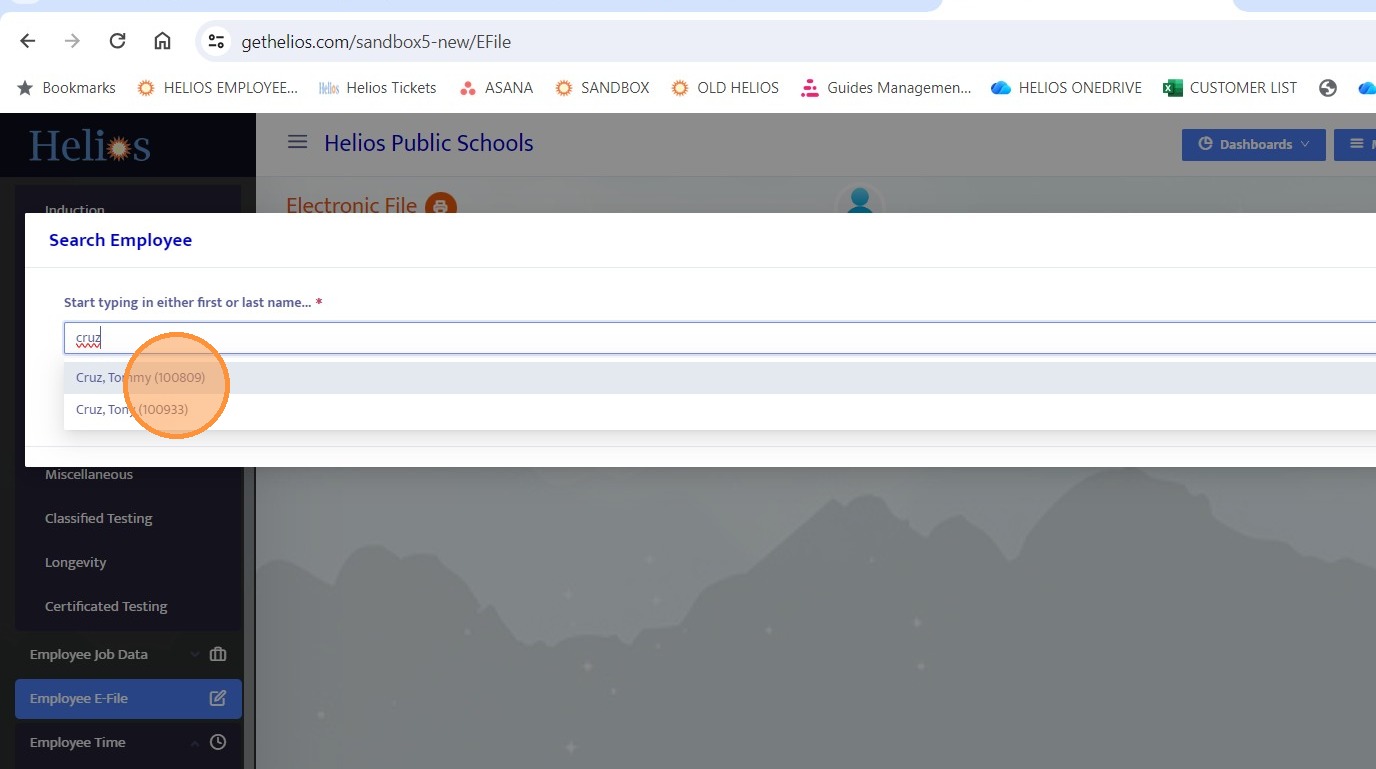
36. Go to the e-Forms section.
37. Scroll to locate the most recent form submission.
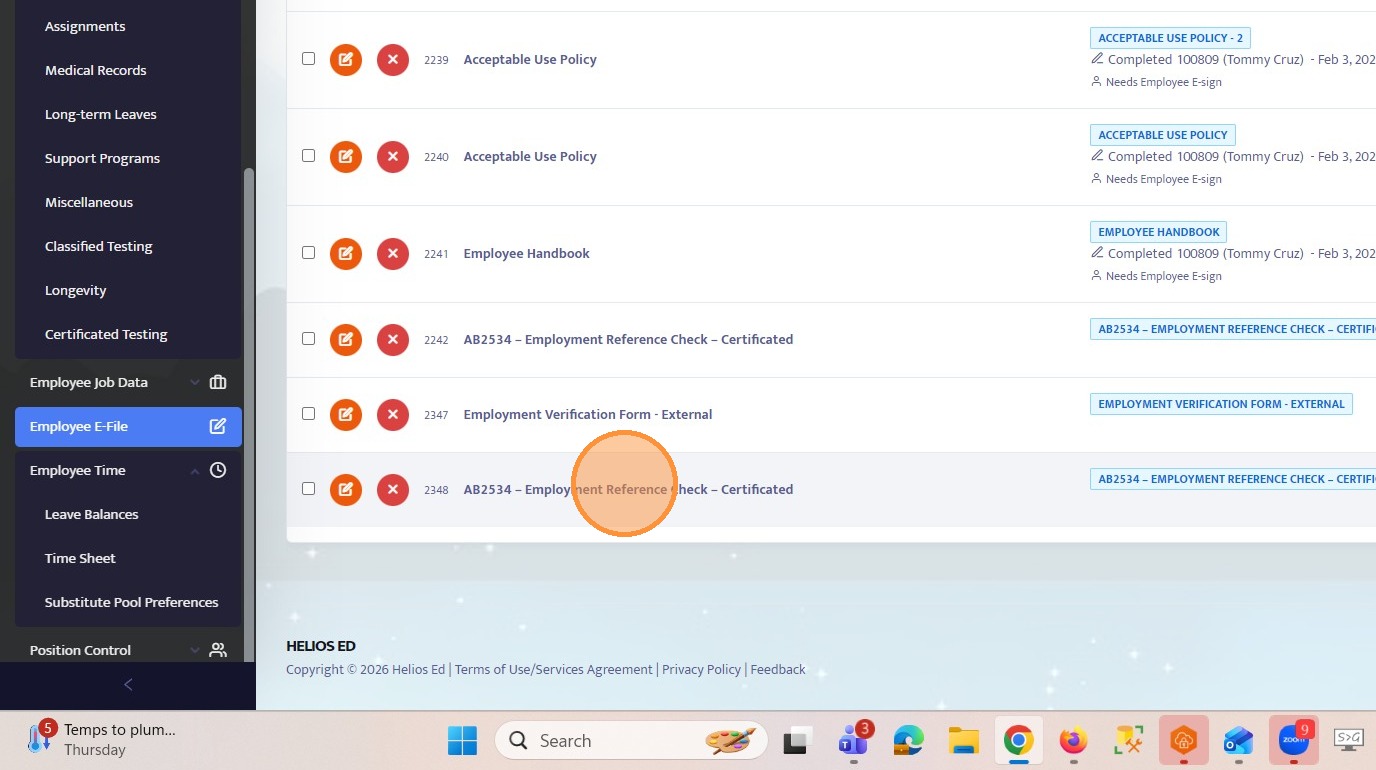
38. Open the form to review the external recipient’s responses. Note that this form is not visible in the employee portal to ensure responses remain private and accessible only to authorized administrators.
39. If an external recipient completes and submits their form while the onboarding workflow is still in progress, a notification will be sent to the user currently assigned to that onboarding step, as well as to the user or users designated under EMP Portal Update Notifications in Settings.
If the onboarding packet and workflow have already been fully completed and approved, the step user will no longer receive notifications. In that case, only the individual or individuals listed under EMP Portal Update Notifications will be notified when the external form is submitted.
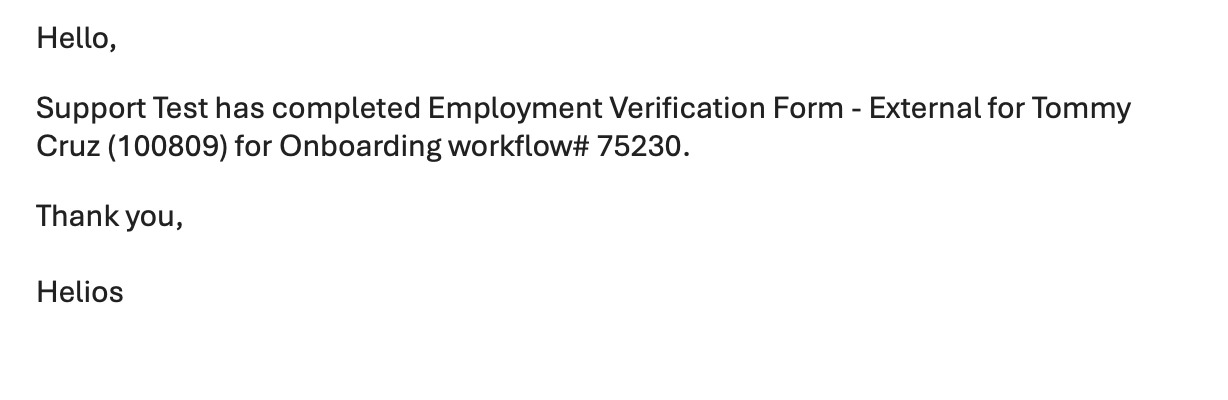
40. Emp Portal Update Notifications Setting